
Roamies
Desktop creatures with an AI sidekick that lives on your screen. Talk to it, it remembers what you said you'd do, reminds you and points at things. Your choice of AI. Mac and Windows.
Automatically checked · GitHub checked 2026-11-15
Overview
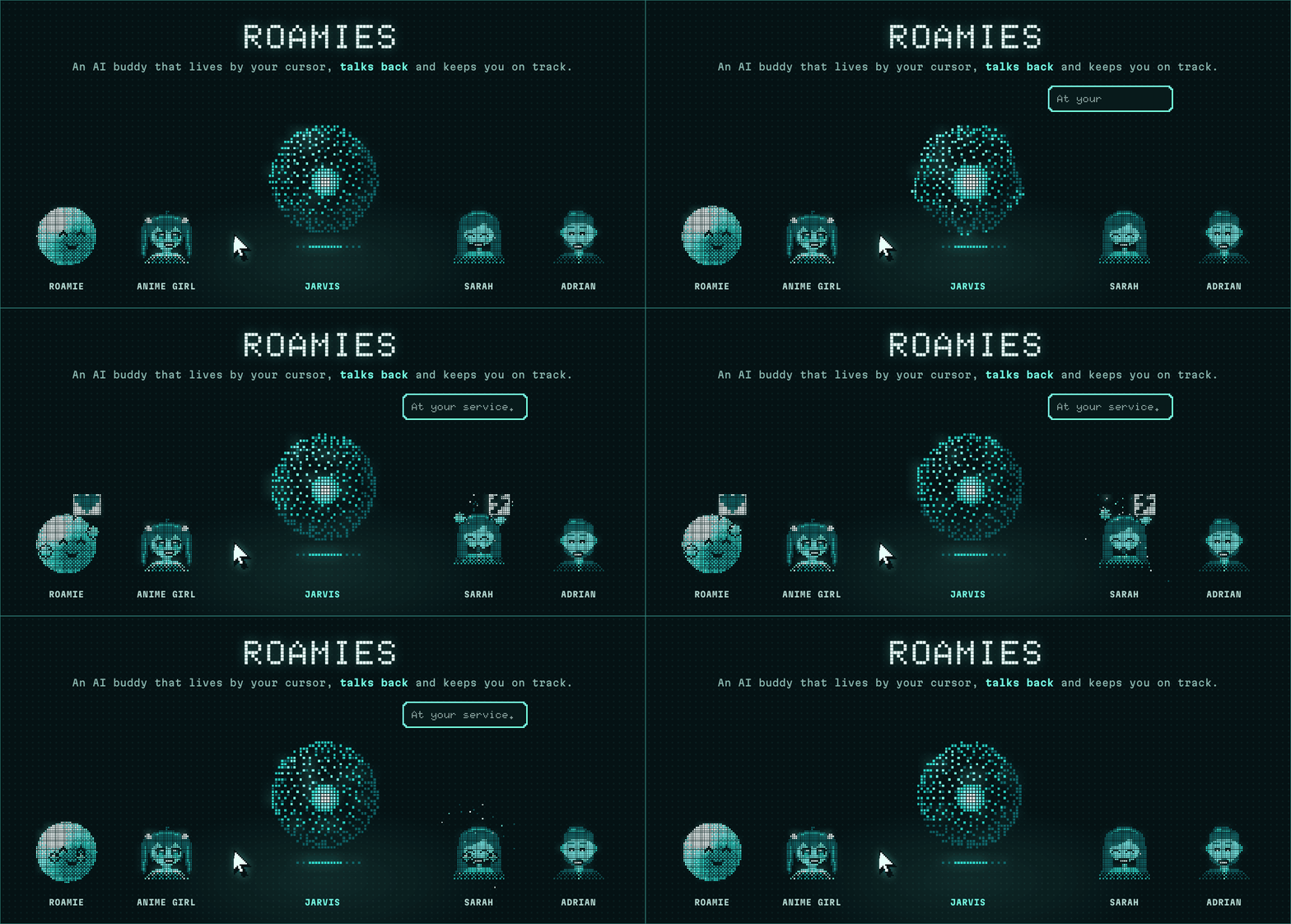
A little buddy that lives on your screen and keeps you on track.






Roamies is a little AI buddy that lives on your desktop. It stays by your cursor, talks back in its own voice, keeps track of what you said you'd do and nudges you when it's due.
[!TIP] Want to build your own apps with AI?
- Free community: setup guides, a 7-day build challenge and 20+ projects: skool.com/raid
- Raid+: make money with AI, a sellable app in 30 days, live every Thursday: skool.com/kenkai
- Want it built for you? work.kenkais.com
⭐ If Roamies keeps you on track, give it a star. It's the main way other people find it.
Why Roamies
- Talk, don't type. Hold ⌃⌥ (Ctrl+Alt on Windows and Linux), say it, let go. On macOS and Windows, circle something with the cursor while you talk and it sees what you mean.
- Or type. Tap ⌥⌘ (Ctrl+Shift on Windows and Linux) and a small text field opens beside your cursor. Type, press Enter.
- It talks back. Spoken replies in its own voice, with real feeling, through Fish Audio, or in a Gemini voice you pick, with your own Google AI Studio key (the one you already use for a Gemini model works).
- It remembers. What you said you'd do, reminders down to the second (or on repeat: "every weekday at 9", "every 2 hours"), and what matters to you.
- It draws on your screen. Rings the exact button to click, walks you through each step, and sketches answers beside what you're reading.
- It does the clicking. Opens apps, sites and files, and on macOS and Windows clicks or types in other apps for you.
- Your subscriptions. Sign in with Claude or ChatGPT, or use an API key (Gemini, Grok, Kimi Code and more).
| Pick your Roamie | What you get |
|---|---|
| JARVIS | A glowing sphere of light that ripples as it speaks |
| Roamie | The original: a tiny glowing pixel creature |
| Anime Girl | A pixel anime girl |
| Sarah | A pixel woman |
| Adrian | A pixel man |
| Rita X | A pixel secretary in cat-eye glasses |
Each one has its own name, voice and animations, in three sizes: Default, Small, or Cursor, a pixel pointer that rides along with your mouse.
JARVIS shows you how
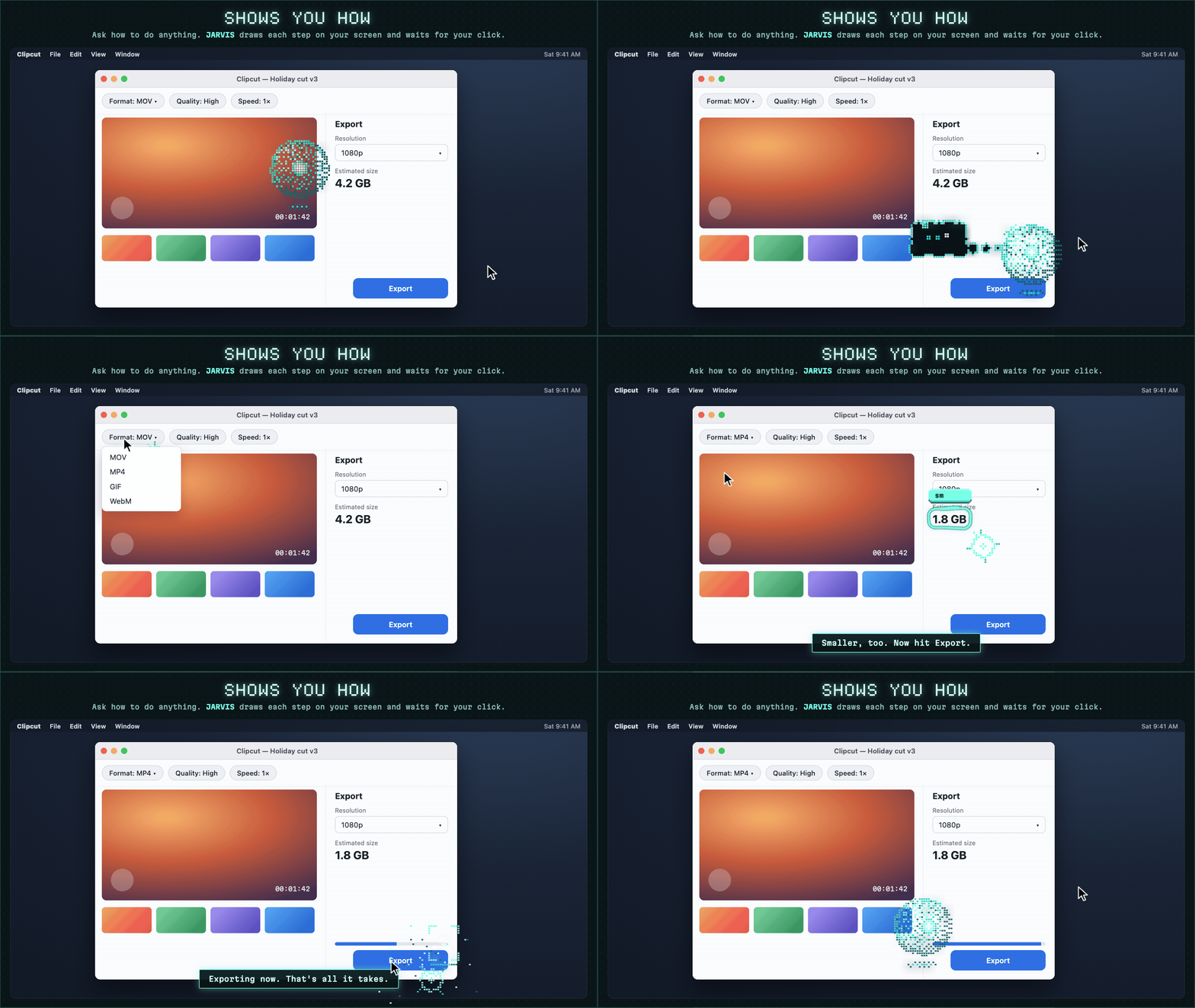
Ask how to do something in any app. JARVIS turns into its cursor, rings the exact button on your real screen, says the step out loud and waits for your click before showing the next one.
JARVIS explains anything
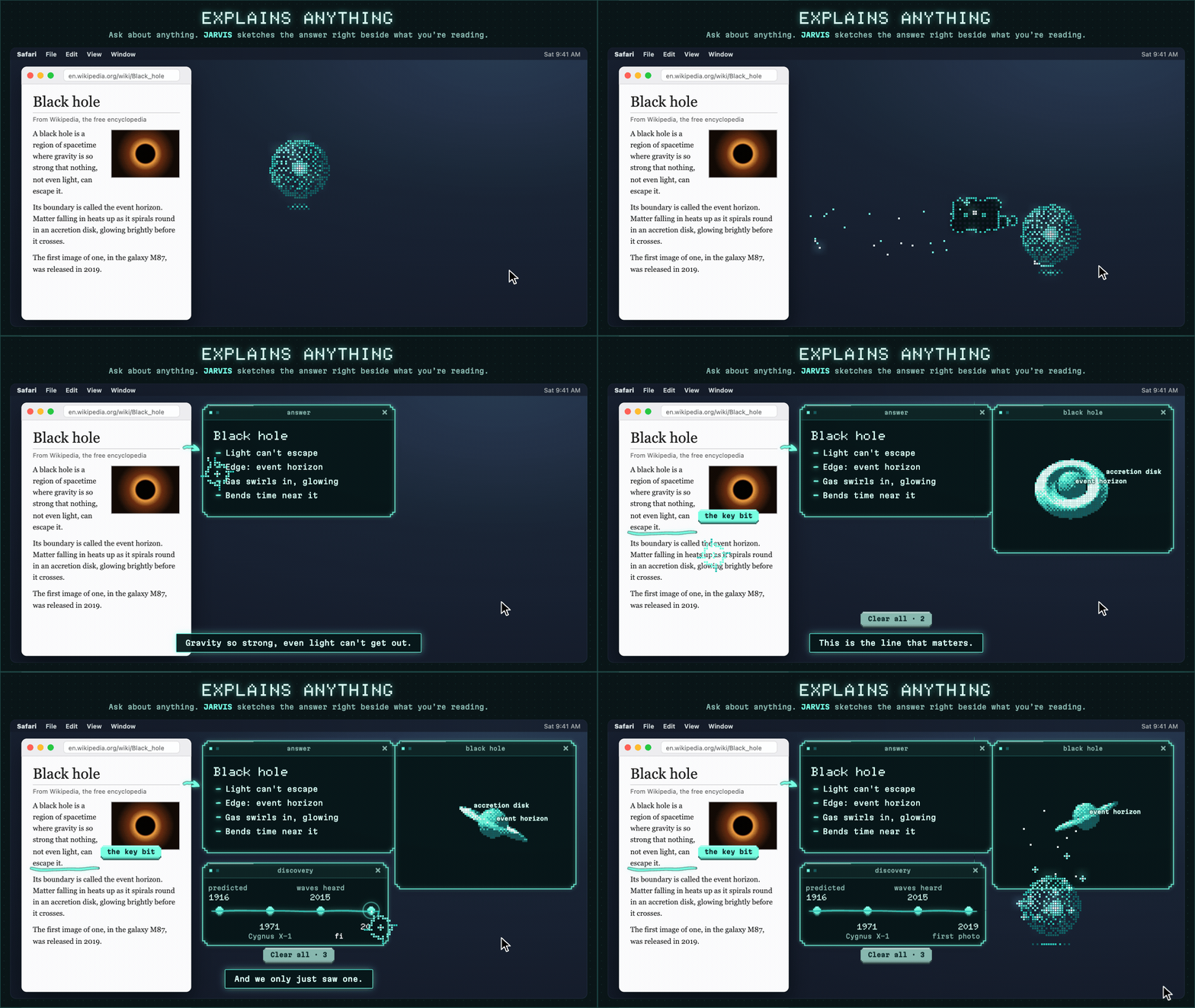
Ask about whatever you're looking at. JARVIS sketches the answer right beside it while it talks: cards, graphs, timelines, photos, molecules and turning 3D models, all in its own glowing ink. Ask it to change any part, or clear it all in one go. It also picks the picture that fits the question by itself: flow diagrams, tables, bar charts, maps, worked maths, geometry figures, photos with their parts named, 3D models whose parts move, and quizzes you answer with a click.
Also included
- The Roamies panel: click the menu bar or tray icon (on Linux, Open Panel in its menu) for what it's doing, what it remembers, and every setting.
- Safe by default: file edits, commands and app control stay off until you turn them on, and risky steps always ask.
- Shows its work: every tool plays its own animation, so you can see what it's doing.
- Where keys live: your Fish Audio or Gemini voice key stays in the macOS Keychain (encrypted with Windows DPAPI on Windows, in your desktop's keyring on Linux). AI sign-ins are stored in
~/.gg/auth.json, shared with GG Coder. - Out of the way: no Dock or taskbar button, a shortcut shows or hides it (see the table), Esc stops a reply.
- Updates itself: updates are signature-checked before they install, then it restarts itself. The Windows installer isn't code-signed yet, so SmartScreen warns the first time. On Linux only the AppImage updates itself.
- Quick setup: permissions, sign-in and a short chat so it gets to know you.
| macOS | Windows | Linux (beta) | |
|---|---|---|---|
| Talk to it | Yes, best on macOS 26+ | Yes, speech runs on your PC | Yes, speech runs on your PC |
| Circle while talking | Yes | Yes | No |
| Spoken replies | Fish Audio or Gemini key | Fish Audio or Gemini key | Fish Audio or Gemini key |
| Memory and reminders | Yes | Yes | Yes |
| Read windows and point | Yes | Yes | Points from screenshots only |
| Cards and diagrams | Yes | Yes | Yes |
| Click and type in apps | Yes | Yes | No |
| Ask about an area | Yes (⌃⌥A) | Yes (Ctrl+Shift+A) | No |
| Show or hide | ⌃⌥S | Ctrl+Shift+S | Ctrl+Alt+S, or a key you bind* |
| Talk shortcut | Hold ⌃⌥ | Hold Ctrl+Alt | Hold Ctrl+Alt, or a key you bind* |
| Type shortcut | Tap ⌥⌘ | Tap Ctrl+Shift | Tap Ctrl+Shift, or a key you bind* |
| Updates itself | Yes | Yes | AppImage only |
* On Wayland (the default on Ubuntu, Fedora and KDE), apps can't grab keys, so you bind Roamies' commands to keys in your desktop's keyboard settings. Linux (beta) shows how.
Before macOS 26, talking uses Apple's older speech recognizer, which needs Siri or Dictation turned on.
On Windows, Roamies reads other apps through UI Automation and finds words on screen with Windows' own text recognition (it needs a Windows language with text recognition, which most have). It can't type or click in apps running as administrator, and it borrows your cursor for real clicks, keys and scrolling, giving it back when it's done. Windows also leaves Roamies out of every screen capture, so it won't show in your screenshots or screen shares.
Spoken replies are billed to your own Fish Audio or Google AI Studio account; the panel shows what each voice model costs. Voice on Windows and Linux uses NVIDIA Parakeet TDT 0.6B v3 (CC BY 4.0), in the ONNX export by istupakov, run with parakeet-rs. The model (about 670 MB) downloads once at setup and isn't bundled.
Get started
-
Install Roamies from the Assets list on the release page. The Source code downloads there are the code, not the app, and won't run on their own.
macOS (Apple silicon or Intel): Download the latest release and open the
.dmgfor your Mac (aarch64for Apple silicon,x64for Intel). Requires macOS 13.5 or later.Windows: Download the latest release and run
Roamies_<version>_x64-setup.exe(the only file you need; the.sig,.AppImage,.deband.rpmfiles aren't for Windows). Requires Windows 10 or later. It isn't code-signed yet, so Windows shows a SmartScreen warning the first time: click More info, then Run anyway.Linux (beta, x86_64): Download the latest release and pick one: the
.deb(Ubuntu, Debian, Mint, Pop!_OS:sudo apt install ./Roamies_*_amd64.deb), the.rpm(Fedora, openSUSE:sudo dnf install ./Roamies-*.x86_64.rpm), or the.AppImage(any distro:chmod +xit and run it; only the AppImage updates itself). Needs glibc 2.38 or later: Ubuntu 24.04, Fedora 39, Debian 13 or newer. See Linux (beta) for what works and how to set up shortcuts.Development: With Rust, Node.js 22+, the Tauri prerequisites and, on macOS, the Xcode Command Line Tools installed:
git clone https://github.com/KenKaiii/Roamies.git
cd Roamies/showcase/tauri
(cd sidecar && npm ci && npm test)
./build.sh dev        # debug build
./build.sh            # release bundle for this OS
On Windows, run these in Git Bash (it comes with Git for Windows), not PowerShell or Command Prompt:
build.shis a Bash script, and Windows PowerShell 5 doesn't accept&&. -
Open the app, follow the setup guide, pick your Roamie, and hold ⌃⌥ (Ctrl+Alt on Windows and Linux) to say hi.
The first time you sign in with Claude, Roamies downloads Claude Code (about 140 MB). On Windows and Linux, the voice model (about 670 MB) downloads once at setup.
Local models
Roamies can run on a model on your own computer or server instead of a cloud provider: Ollama, LM Studio, or any OpenAI-compatible server (llama.cpp, vLLM, oMLX and others). Connect them on the panel's Model page.
What a model needs to work with Roamies. Only models that pass the first two show up in the model list:
- It sees images. Roamies looks at your screen through screenshots.
- It calls tools. Everything Roamies does, from clicking to drawing on screen, is a tool call.
- It points precisely. To show you a button or click it, the model has to say where it is on a screenshot, to within a few pixels. This is called GUI grounding, and it's where small models fall down: they read the screen fine but point next to the thing, or at the wrong one.
- It has 32k tokens of context or more. The instructions and tools alone take about 13k.
Models worth trying. The Qwen3-VL family is the best at pointing that also chats and calls tools well. Third-party ScreenSpot-Pro results (a grounding test on real app screenshots) put them at about:
| Model | ScreenSpot-Pro | Memory at 4-bit | Notes |
|---|---|---|---|
| Qwen3-VL 30B-A3B | ~60 | ~20 GB | Best pick if it fits: as fast as a 3B model |
| Qwen3-VL 32B | ~58 | ~20 GB | Slower than 30B-A3B for about the same pointing |
| Qwen3-VL 8B | ~55 | ~6 GB | The smallest worth using; expect it to miss small icons |
Smaller models (4B and under) can chat about your screen but often point at the wrong place. Qwen3.5 and Qwen3.6 models also work. Models made only for grounding (Holo2, MolmoPoint and the like) point better, but they can't hold a conversation or call tools, so they don't suit Roamies.
Qwen3-VL and Qwen3.5 give positions on a 0 to 1000 grid instead of in pixels. Roamies knows this from the model's name and converts. A fine-tune with a different name may point in the wrong place.
Ollama: install it from ollama.com, run ollama pull qwen3-vl:8b (or qwen3-vl:30b), and
press Connect next to Ollama. Give it enough context: in Ollama's settings set Context length to 32k or more,
or start it with OLLAMA_CONTEXT_LENGTH=32768. Roamies warns you if it's too small.
LM Studio: install it from lmstudio.ai, download a vision model (Qwen3-VL 8B or larger),
turn on its server (Developer → Start Server, or lms server start), load the model with Context Length set to
32k or more, and press Connect next to LM Studio.
Any other server: press Add server next to Another server, then give it a name, its address (for example
http://127.0.0.1:8080/v1; Roamies adds /v1 if you leave it off), and its API key if it needs one. Most servers
don't say whether a model can see images, so turn on Its models can see images when yours can (llama.cpp
says so itself). The server has to answer before it's saved. Start it with tool calling, vision and enough context on:
- llama.cpp:
llama-server -m model.gguf --mmproj mmproj.gguf --jinja -c 32768 - vLLM:
vllm serve Qwen/Qwen3-VL-8B-Instruct --enable-auto-tool-choice --tool-call-parser hermes --max-model-len 32768
With a model on your computer, your messages and screenshots stay on it. A server on another machine gets them
over your network, so use https:// or a network you trust. A server's key is saved with your other sign-ins in
~/.gg/auth.json (shared with GG Coder), not in Roamies' settings file.
Linux (beta)
Roamies on Linux is a beta: it runs on GNOME, KDE Plasma and other desktops, on Wayland or X11, but it's been tested
far less than on macOS and Windows. Bug reports with your distro, desktop and session (echo $XDG_SESSION_TYPE) help.
What works: the Roamie on screen, the panel, typed and spoken questions (speech runs on your computer), spoken
replies, memory and reminders, whole-screen screenshots and pointing at things on them, cards and diagrams, files and
commands, Open at Login, and in-app updates for the AppImage (a .deb or .rpm copy opens the download page instead).
Not yet: reading or working other apps, Ask About an Area, circling while talking, and the Cursor size on Wayland.
Wayland (the default on Ubuntu, Fedora and KDE) doesn't let apps grab keys or see the pointer over other apps, so:
-
Shortcuts are commands you bind to keys yourself. The panel's Behavior page lists them with a Copy button (for an AppImage they start with its path instead of
roamies):Command What it does roamies --talkStart listening; press again (or pause) to send roamies --summonShow or hide the Roamie roamies --askAsk by typing roamies --listShow your list roamies --panelOpen the panel - GNOME: Settings › Keyboard › View and Customize Shortcuts › Custom Shortcuts › +, then the command and your keys.
- KDE Plasma: System Settings › Keyboard › Shortcuts › Add New › Command or Script.
- Sway:
bindsym Ctrl+Alt+space exec roamies --talkin~/.config/sway/config. - Hyprland:
bind = CTRL ALT, SPACE, exec, roamies --talkin~/.config/hypr/hyprland.conf.
-
Walkthroughs play their steps one after another instead of waiting for your clicks.
-
Screenshots go through your desktop's screenshot portal, which may ask you to allow them.
On X11 sessions the shortcuts work as on Windows (hold Ctrl+Alt to talk, Ctrl+Alt+S to show or hide).
Troubleshooting:
- No tray icon on GNOME: GNOME hides tray icons unless the
AppIndicator extension is on (Ubuntu has it on
already). Without it, open Roamies again from your apps (or run
roamies --panel) to get the panel. - The overlay draws black or not at all (often NVIDIA): start Roamies with
WEBKIT_DISABLE_DMABUF_RENDERER=1. - "Couldn't save the key" for Fish Audio: Roamies keeps it in your keyring with
secret-tool. Install it (libsecret-toolson Debian and Ubuntu,libsecreton Fedora and Arch) and make sure a keyring (GNOME Keyring, KWallet or KeePassXC) is running. - It can't hear you: check the input device picked in your sound settings; Roamies uses the default microphone.
- With fractional scaling the Roamie may look a little soft, and pointing a little off.
Privacy
Roamies has no analytics, and nothing is collected by the developer. Your messages, and screenshots when you ask about the screen, go to the AI provider you pick. PRIVACY.md lists what's sent where.
Uninstall
macOS:
- Turn off Open at login (panel > Behavior), then quit Roamies from the menu bar.
- Drag Roamies from Applications to the Trash.
- Delete
~/.gg/sidekickand~/.gg/sidekick.json. Keep~/.gg/auth.jsonif you use GG Coder. - Open Keychain Access, search for "Roamies" and delete the Fish Audio and Gemini voice keys.
Windows:
- Turn off Open at login (panel > Behavior), then uninstall Roamies from Settings > Apps.
- Delete
%USERPROFILE%\.gg\sidekickand%USERPROFILE%\.gg\sidekick.json. Keepauth.jsonif you use GG Coder. - Delete the voice model folder,
%LOCALAPPDATA%\Roamies\models.
Linux:
- Turn off Open at login (panel > Behavior), then quit Roamies from its tray menu (or the panel's About page).
- Remove the package (
sudo apt remove roamiesorsudo dnf remove roamies), or delete the AppImage. - Delete
~/.gg/sidekick(the voice model is in~/.gg/sidekick/models) and~/.gg/sidekick.json. Keep~/.gg/auth.jsonif you use GG Coder. - Delete the Fish Audio key:
secret-tool clear service com.kenkai.roamies account fish-audio.
Build with the framework
Every Roamie's brain is a gg-framework agent running in a Node sidecar. Want to build your own? Install just what you need.
- @kenkaiiii/gg-ai: Connect to AI providers and stream responses.
- @kenkaiiii/gg-agent: Build agents that use your tools and work through tasks.
- @kenkaiiii/gg-core: Model selection, authentication, and local model discovery.
For your own agent, start here:
npm install @kenkaiiii/gg-ai @kenkaiiii/gg-agent
The package links above cover setup and usage. Roamies is licensed under AGPL-3.0: you can build on it, and if you distribute your changes or run them as a network service, you share their source under the same license.
Contributing
Bug reports, ideas and pull requests are welcome. Open an issue to get started, read CONTRIBUTING.md before a pull request, and report security problems as described in SECURITY.md.
Learn with me
New to building with AI? Start in RAID, my free community:
- A free 7-day challenge: build your first app, one short lesson a day
- 20+ step-by-step projects you can build yourself
Want to make money with AI? Raid+: a sellable app in 30 days, live every Thursday.
Want it built for you? work.kenkais.com
Star history
If Roamies is useful to you, ⭐ star the repo so more people find it.