
MulmoChat
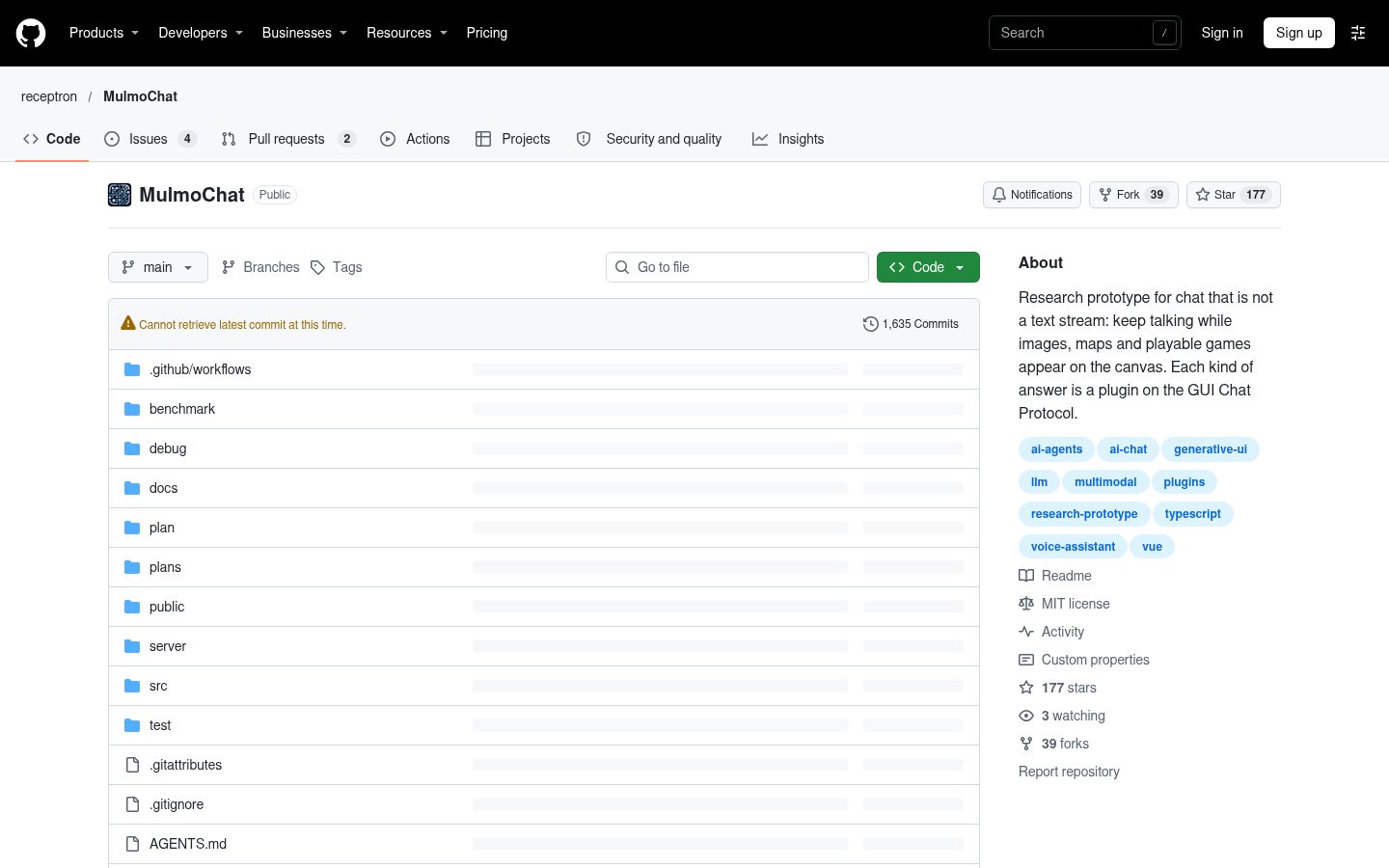
Research prototype for chat that is not a text stream: keep talking while images, maps and playable games appear on the canvas. Each kind of answer is a plugin on the GUI Chat Protocol.
Automatically checked · GitHub checked 2026-11-14
Overview
MulmoChat
MulmoChat is a research prototype exploring a new paradigm for multimodal AI chat experiences.
Traditional chat interfaces are fundamentally text-based—users interact through messages and receive responses as text. MulmoChat reimagines this interaction model: users engage in natural conversation while simultaneously experiencing rich visual and interactive content directly on canvas.
The key insight: AI conversations don't have to be limited to text streams. By designing an architecture where visual experiences and language understanding coexist naturally, we enable a fundamentally different way of interacting with AI—one where images materialize, maps become explorable, games turn playable, all within the conversational flow.
MulmoChat demonstrates the architecture, design patterns, and user experience principles necessary to build truly multimodal chat interfaces where visual and textual communication work together seamlessly.
Documentation
- LLM_OS.md
Who should read: product strategists and designers exploring the AI-native OS mindset.
Start here for the high-level intent paradigm; jump to
WHITEPAPER.mdwhen you need architecture specifics. - WHITEPAPER.md
Who should read: engineers and researchers implementing or evaluating the orchestration stack.
Dive in for system diagrams and workflow detail; reference
LLM_OS.mdfor the broader narrative framing. - TOOLPLUGIN.md Who should read: developers extending MulmoChat with new capabilities. Follow this to implement plugins end-to-end, from TypeScript contracts to Vue views and configuration.
Getting Started
Install dependencies:
yarn install
Create .env file with following API keys:
OPENAI_API_KEY=...
GEMINI_API_KEY=...
GOOGLE_MAP_API_KEY=... (optional, required for map features)
EXA_API_KEY=... (optional, required for AI-powered search)
ANTHROPIC_API_KEY=... (optional, required for HTML generation)
XAI_API_KEY=... (optional, required for Grok voice and Grok text models)
ELEVENLABS_API_KEY=... (optional, required for ElevenLabs voice; the key needs ElevenAgents set to Write)
X_BEARER_TOKEN=... (optional, required for reading and searching X posts)
TYPESAFE_API_KEY=... (optional, required for KenteiScript quizzes: manageKenteiScript grades answers with TypeSafe JEV)
OLLAMA_BASE_URL=... (optional, defaults to http://127.0.0.1:11434)
COMFYUI_BASE_URL=... (optional, defaults to http://127.0.0.1:8000)
COMFYUI_DEFAULT_MODEL=... (optional, defaults to flux1-schnell-fp8.safetensors)
COMFYUI_TIMEOUT_MS=... (optional, defaults to 300000ms / 5 minutes)
Start a development server:
yarn dev
When you open the browser, allow it to access the microphone.
Click the "Start Voice Chat", and start talking to the AI, which has a capability to generate images.
Text Model API
MulmoChat now exposes a provider-agnostic text generation API that can be consumed by the client or external integrations.
GET /api/text/providersreturns the configured providers (OpenAI, Anthropic, Google Gemini, and Ollama) alongside default model suggestions and credential availability.POST /api/text/generateaccepts{ provider, model, messages, maxTokens?, temperature?, topP? }and returns a normalized text response regardless of vendor.
Configure the relevant API keys to enable each provider; Ollama support assumes a local instance listening on OLLAMA_BASE_URL (defaults to http://127.0.0.1:11434).
Quick Verification Scripts
With the dev server running (yarn dev), you can exercise the unified text API against each provider using the standalone scripts under server/tests/:
# OpenAI (requires OPENAI_API_KEY)
npx tsx server/tests/test-text-openai.ts "Write a haiku about MulmoChat"

# Anthropic (requires ANTHROPIC_API_KEY)
npx tsx server/tests/test-text-anthropic.ts "How does tool calling help agents?"

# Google Gemini (requires GEMINI_API_KEY)
npx tsx server/tests/test-text-google.ts "Suggest onboarding tips for voice-first apps"

# Ollama (assumes local Ollama daemon)
npx tsx server/tests/test-text-ollama.ts "Explain how Ollama integrates with MulmoChat"
Each script prints the selected model and the normalized text returned from POST /api/text/generate, failing fast with logged diagnostics if the request or provider call does not succeed.
ComfyUI Integration
MulmoChat integrates with the ComfyUI Desktop application for local image generation using advanced models like FLUX. This provides an alternative to cloud-based image generation with full control over models and workflows.
Setup
- Install ComfyUI Desktop: Download from ComfyUI official site
- Launch ComfyUI Desktop: The app runs a local API server (default port: 8000)
- Download Models: Ensure you have compatible models installed (e.g.,
flux1-schnell-fp8.safetensors,flux1-dev-fp8.safetensors) - Configure Environment Variables (optional):
COMFYUI_BASE_URL=http://127.0.0.1:8000
COMFYUI_DEFAULT_MODEL=flux1-schnell-fp8.safetensors
COMFYUI_TIMEOUT_MS=300000
API Endpoint
POST /api/generate-image/comfy- Generate images using ComfyUI workflows
Request Body:
{
  "prompt": "a beautiful landscape",
  "negativePrompt": "blurry, low quality",
  "model": "flux1-schnell-fp8.safetensors"
}
All parameters are optional except prompt. The API automatically selects optimal defaults based on the model:
width,height: Image dimensions (auto: 1024×1024 for FLUX, 512×512 for SD)steps: Sampling steps (auto: 4 for FLUX Schnell, 20 for SD)cfgScale: Guidance scale (auto: 1.0 for FLUX, 8.0 for SD)sampler: Sampling method (auto: "euler" for FLUX, "dpmpp_2m_sde" for SD)scheduler: Noise schedule (auto: "simple" for FLUX, "karras" for SD)
Response:
{
  "success": true,
  "images": ["base64-encoded-image-data"],
  "promptId": "uuid",
  "model": "flux1-schnell-fp8.safetensors",
  "metadata": { ... }
}
Model-Specific Optimizations
The API automatically detects the model type and applies optimal parameters:
FLUX Models (flux1-schnell-fp8, flux1-dev-fp8):
- Resolution: 1024×1024 (default)
- Steps: 4 (Schnell is optimized for speed)
- CFG Scale: 1.0 (lower guidance works better)
- Sampler: euler
- Scheduler: simple
- Generation time: ~10-30 seconds after model loading
Stable Diffusion Models (v1-5-pruned-emaonly):
- Resolution: 512×512 (default)
- Steps: 20
- CFG Scale: 8.0
- Sampler: dpmpp_2m_sde
- Scheduler: karras
You can override these defaults by passing parameters in the request body.
Notes
- First-time generation may take longer as the model loads into memory
- The default timeout is set to 5 minutes to accommodate model loading
- ComfyUI Desktop must be running for the API endpoint to work
- FLUX Schnell is optimized for speed with 4 steps, providing fast generation with good quality
Local voice with LFM3 Omni 2B
Install llama.cpp v0.8.0 (b11960) or newer, then start the model:
llama serve -hf LiquidAI/LFM3-Omni-2B-GGUF:Q4_K_M --reasoning off --temp 0 --port 8080
On macOS 14/15, affected llama.cpp/GGML builds can fail to initialize Metal
with constexpr function never produces a constant expression in a BF16 shader.
Use this verified workaround to keep Metal acceleration enabled:
GGML_METAL_BF16_DISABLE=1 llama serve \
  -hf LiquidAI/LFM3-Omni-2B-GGUF:Q4_K_M \
  --reasoning off --temp 0 --port 8080
The upstream shader fix removes the need for this workaround once included in the installed GGML build.
The first run downloads the model and its audio/vision projector. In MulmoChat's
Configuration, select Voice (LFM3 Omni, local) and connect. No cloud LLM key
is required for this mode; plugins that use cloud services still need their keys.
Start MulmoChat separately with yarn dev and open the URL printed by Vite.
If its default port is occupied, Vite selects the next available port; or run
yarn dev:server and yarn dev:client --port 5174 in separate terminals.
The browser connects directly to ws://127.0.0.1:8080/v1/realtime. To use another
endpoint, set VITE_LFM_REALTIME_URL in .env and restart Vite. The address is
relative to the browser's machine. An HTTPS deployment needs a reachable wss://
endpoint, and microphone access requires HTTPS or localhost. This integration
expects a llama.cpp endpoint without API-key authentication.
Voice turns end after about 700 ms of silence, with a 30-second maximum per turn. The browser detects speech locally; microphone input pauses while the assistant generates or plays its answer. Typed messages and plugin tool calls also work. The current llama.cpp realtime API accepts text and audio only, so this mode does not send images or video to the model. It uses the server's default speech voice.