
meeting-transcriber
Automatic meeting detection — Recognizes Teams, Zoom, and Webex meetings via window title polling, opt-in browser meeting detection (Google Meet, Whereby, web Zoom/Teams in any Chromium browser) gated behind a recording-consent prompt, and opt-in mic-input detection for call apps without a reliable meeting signal…
Automatically checked · GitHub checked 2026-11-13
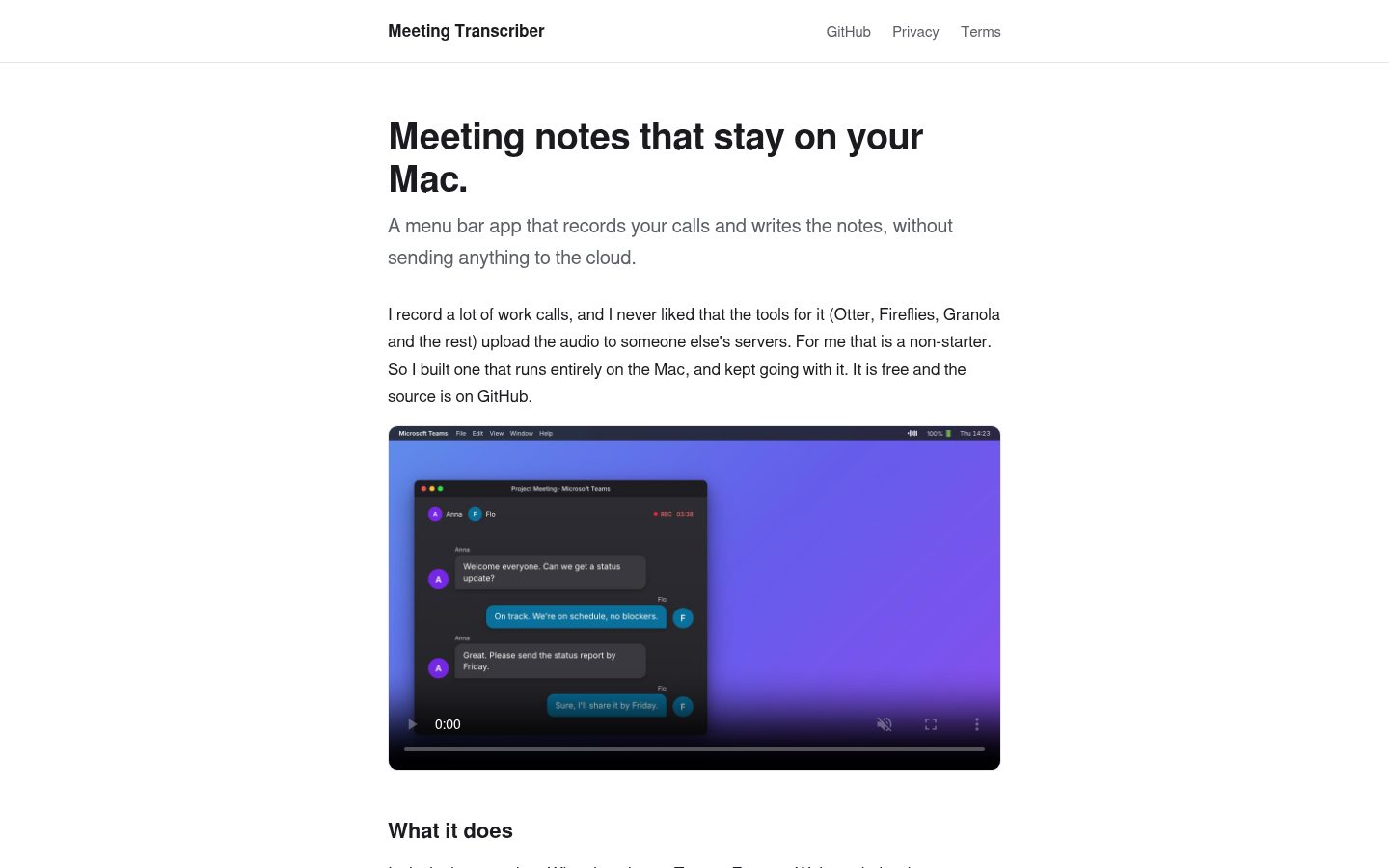
Overview
Meeting Transcriber
The local-first meeting transcriber for macOS. Records Teams, Zoom, and Webex calls, transcribes them on-device with Whisper / Parakeet, separates speakers, and turns the result into Markdown meeting notes using your own Claude CLI or any local LLM. No cloud. No subscription. No audio ever leaves your Mac.



Why this exists
Cloud meeting recorders (Otter, Fireflies, Granola, tl;dv) work great, until you remember that every word from every meeting goes to a third-party server. For a lot of teams (legal, healthcare, M&A, anything under NDA, or just folks who'd rather not) that's a non-starter.
Meeting Transcriber runs the entire pipeline (recording, transcription, speaker diarization, summarization) on your Mac. No account, no upload, no monthly bill.
| Cloud transcribers | Meeting Transcriber | |
|---|---|---|
| Audio leaves your machine | Yes | No |
| Recurring cost | $10–30 / month | Free |
| Works offline | No | Yes |
| Choice of summarization LLM | Vendor-locked | Claude · Ollama · LM Studio · any OpenAI API |
| Per-source speaker separation | Mixed track | Dual-track diarization |
| Source available | No | MIT licensed |
Install
brew tap pasrom/meeting-transcriber
brew install --cask meeting-transcriber
Homebrew 6.0+ may flag the third-party tap as untrusted. If so, run
brew trust --tap pasrom/meeting-transcriberbefore installing.
The app lives in your menu bar — open it, grant microphone + screen-recording permission, and the first detected Teams/Zoom/Webex call records automatically.
How it works
flowchart TD
    A["Meeting Detected<br/>Teams · Zoom · Webex"]
    A2["File Import<br/>WAV · MP3 · M4A · MP4 · FLAC · AMR · 3GP · OPUS · OGG<br/>MKV · WebM (ffmpeg)"]
    B["Dual Recording<br/>App audio + Mic · 16 kHz per track"]
    C["16 kHz Mono Convert<br/>AVAudioFile → AVAsset → ffmpeg"]
    D{"Transcription Engine<br/>CoreML / ANE"}
    D1["WhisperKit<br/>99 languages"]
    D2["Parakeet TDT v3<br/>25 EU languages"]
    E["Speaker Diarization<br/>FluidAudio · dual-track + recognition"]
    F["Meeting Notes Generation<br/>Claude CLI · OpenAI-compatible · none"]
    G["Markdown Meeting Notes<br/>Summary · Decisions · Tasks · Transcript"]

    A --> B
    A2 --> C
    B --> D
    C --> D
    D --> D1
    D --> D2
    D1 --> E
    D2 --> E
    E --> F
    F --> G

    classDef input fill:#5B8DEF,stroke:#3F6FD5,color:#fff
    classDef engine fill:#8B5CF6,stroke:#7C3AED,color:#fff
    classDef output fill:#22C55E,stroke:#16A34A,color:#fff
    class A,A2 input
    class D engine
    class G output
Features
- Automatic meeting detection — Recognizes Teams, Zoom, and Webex meetings via the power assertions they hold during a call (no window titles, so no Screen Recording needed), opt-in browser meeting detection (Google Meet, Whereby, web Zoom/Teams in any Chromium browser, or in Safari with the Homebrew build) gated behind a recording-consent prompt, and opt-in mic-input detection for call apps without a reliable meeting signal (WeChat, Tencent Meeting, FaceTime, WhatsApp, Slack Huddles) — per app, off by default, and unlike the browser path it starts recording without a prompt
- Dual audio recording — App audio (CATapDescription) + microphone simultaneously
- On-device transcription — Two engines, selectable in Settings:
- WhisperKit — 99+ languages, ~1 GB model; besides the stock models, a custom WhisperKit model can be loaded from another Hugging Face repository or a local folder (see Custom WhisperKit models)
- Parakeet TDT v3 (NVIDIA) — 25 EU languages, ~50 MB model, ~10× faster
- Custom vocabulary & terminology — One shared vocabulary file boosts recognition of names/jargon on Parakeet (CTC boosting) and, optionally, on WhisperKit (experimental decoder-prompt hint); an independent, opt-in terminology-normalization pass rewrites recognized spelling variants to a canonical form after transcription, regardless of engine
- On-device speaker diarization — FluidAudio via CoreML/ANE — no HuggingFace token needed; three modes: standard (
OfflineDiarizer), overlap-aware (Sortformer, up to 4 speakers) and NVIDIA's overlap-aware Nemotron 3 (up to 8 speakers) - Dual-track diarization — App and mic tracks diarized separately for clean speaker separation without echo interference
- Echo bleed handling — On loudspeaker recordings, remote voices picked up by the microphone are detected automatically and reported. Two optional remedies, both off by default: acoustic echo cancellation removes the bleed from the microphone audio itself, and a transcript dedup leaves the duplicated lines out. The dedup is off because it can mistake a quiet remark made over the far end for echo and drop it
- Speaker recognition — Voice embeddings stored across meetings, matched via cosine similarity
- VAD preprocessing — Optional silence trimming via FluidAudio Silero v6 before transcription, with automatic timestamp remapping
- AI meeting notes generation — Structured Markdown via Claude Code CLI, OpenAI-compatible APIs (Ollama, LM Studio, etc.), or disabled (save transcript only)
- Configurable meeting notes prompt — Custom prompt file support (
~/Library/Application Support/MeetingTranscriber/protocol_prompt.md) with{LANGUAGE},{MEETING_DATE}(YYYY-MM-DD), and{MEETING_TIME}(HH:mm) variables; recordings include authoritative metadata, while imports and recovery jobs resolve time placeholders toUnknown - Meeting notes from a transcript — Generate Meeting Notes from Transcript… in the menu makes notes for one or more saved
.txttranscripts, without transcribing again (not in the App Store build); transcripts that already have notes are skipped - Manual recording — Record any app via app picker, not just detected meetings
- Multi-format input — Supports WAV, MP3, M4A, MP4, FLAC, plus the phone and messenger voice formats AMR, 3GP/3G2 and OPUS/OGG; MKV and WebM additionally need ffmpeg
- Update checker — Notifies when a new version is available
- Background processing — PipelineQueue runs transcription and meeting notes generation independently from recording
- Record-only mode — Skip the entire post-recording pipeline and drop dual-source recordings + a metadata sidecar into the output folder, for external/fleet processing (e.g. a separate GPU host)
- Local automation API (Homebrew build): drive the pipeline headlessly over localhost HTTP. POST an audio file, get a diarized transcript back. See
docs/automation-api.md - Stream Deck and hotkey control (Homebrew build): start/stop watching from a Stream Deck key, Shortcut, Raycast or any launcher. See
docs/stream-deck.md - Distribution — Install via Homebrew Cask or build from source
Prerequisites
- macOS 14.2+ (required for CATapDescription audio capture)
- One of:
- Claude Code CLI — installed and logged in (
claude --version) - An OpenAI-compatible API endpoint (e.g. Ollama, LM Studio, llama.cpp) — configure in Settings
- Claude Code CLI — installed and logged in (
No HuggingFace token needed — FluidAudio and WhisperKit download their models automatically on first run.
Optional: ffmpeg for extra formats
Install ffmpeg to enable MKV and WebM support:
brew install ffmpeg
The app detects ffmpeg automatically. Status is shown in Settings → About.
Using Ollama as provider
- Install Ollama:
brew install ollama - Pull a model:
ollama pull llama3.1(or any model that fits your hardware) - Start the server:
ollama serve(runs onhttp://localhost:11434by default) - In the app's Settings, select OpenAI-Compatible API as provider and set:
- Endpoint:
http://localhost:11434/v1/chat/completions - Model:
llama3.1(must match the pulled model name)
- Endpoint:
Installation
Via Homebrew Cask (recommended)
brew tap pasrom/meeting-transcriber
brew install --cask meeting-transcriber
Tap trust: Homebrew 6.0 added tap trust for third-party taps. During the 6.0.x transition non-official taps are still allowed by default (you may just see a warning); enforcement is opt-in via
HOMEBREW_REQUIRE_TAP_TRUSTand becomes mandatory in a later release. If your Homebrew enforces it, runbrew trust --tap pasrom/meeting-transcriberbeforebrew install --cask.
Pre-release (RC) via Homebrew
brew tap pasrom/meeting-transcriber
brew install --cask meeting-transcriber@beta
Note: The stable and beta casks conflict — uninstall one before installing the other.
Build from source
git clone https://github.com/pasrom/meeting-transcriber
cd meeting-transcriber
./scripts/run_app.sh
Permissions
| Permission | Required for | Notes |
|---|---|---|
| Screen Recording | Optional — sharpens the meeting title and acts as a fallback for the audio tap. Detection itself works without it | System Settings → Privacy & Security |
| Microphone | Mic recording | Prompted on first use |
| Accessibility | Optional — reads Teams participant names. Not used by the App Store build | System Settings → Privacy & Security |
| Audio Recording | App audio capture (the meeting app's own audio). Screen Recording is accepted as a fallback; with neither, the app track is silent | System Settings → Privacy & Security |
Menu Bar Icon
The app uses an animated waveform icon in the menu bar that reflects the current pipeline stage:





Idle → Recording (bars bounce) → Transcribing (bars morph to text) → Diarizing (bars split into groups) → Meeting Notes (lines appear sequentially)
Permission problem badge

A red exclamation mark in the bottom-right corner is overlaid on top of the current icon (idle, recording, transcribing, …) whenever one of the required permissions is missing or broken. It means at least one of the following is not in a working state:
- Microphone — denied, or granted but the capture engine can't open the device
- Screen Recording — denied, or granted but
CGWindowListCopyWindowInforeturns no window titles (TCC state out of sync) - Accessibility — denied, or granted but the AX API refuses to read Teams participant info (not checked in the App Store build, which does not use it)
The health check distinguishes denied from broken. "Broken" usually means the permission is toggled on in System Settings but macOS hasn't actually wired it through — the fix is to toggle the permission off and on again for Meeting Transcriber under System Settings → Privacy & Security. Open the menu bar dropdown to see which specific permission is affected; a notification is also posted when the state changes.
Record-only mode badge

A small red dot in the bottom-right corner is overlaid on top of the current icon (idle, recording, transcribing, …) whenever Record-only mode is enabled (Settings → General → "Record-only mode"). In this mode the app keeps detecting meetings and producing dual-source recordings, but skips the entire post-recording pipeline (VAD, transcription, diarization, meeting notes generation). Recordings + a per-meeting <timestamp>_meta.json sidecar are dropped into your configured Output Folder for an external pipeline (e.g. a Linux GPU host via Syncthing) to pick up. The dot stays visible across all states so the mode is always clearly indicated; if a permission problem coexists, the red exclamation badge takes precedence.
Per-channel asymmetric-silence indicator


When one capture channel goes silent while the other is still carrying audio for longer than the configured debounce window, the waveform bars are tinted red to surface the half-broken capture at a glance:
- Bottom half red — app-audio channel is dead (you're speaking but nothing from the meeting app is being captured — bad tap, broken routing, system output muted)
- Top half red — mic channel is dead (the meeting is audible but your voice isn't being captured — wrong input device, mic muted at system level)
- Both halves red — both channels are silent while in recording state
The tint follows the levels, and Settings → Audio → Per-Channel Indicator is what turns it on or off (default: on). Dual dBFS thresholds with hysteresis keep transient dips between syllables from resetting the debounce timer.
Notifications do not follow the tint. A single channel is reported only once it stops delivering, either no buffers at all or buffers carrying nothing but digital zeroes, measured from what the capture layer records per buffer rather than from a level: a microphone whose owner is listening rather than talking is quiet, not broken, and is not reported. The separate "Recording Appears Silent" warning, for the case where both channels are quiet, is still decided from levels and can therefore still fire on a call in which nobody is speaking. How long the condition must last first is the Warn after slider (30–300 s, default 90 s), which applies whether or not the tint is switched on.
If a permission problem coexists, the red exclamation badge takes precedence over the channel-silent tint.
Usage
Launch the app — it sits in your menu bar. When a supported meeting is detected, recording starts automatically. When the meeting ends, the pipeline runs in the background: transcription → diarization → meeting notes generation.
You can also batch-process existing audio and video files via the menu (⌘P) — supported formats: WAV, MP3, M4A, MP4, FLAC, AMR, 3GP/3G2 and OPUS/OGG (and MKV, WebM when ffmpeg is installed). Smartphone call recordings (AMR, 3GP) and voice messages (OPUS) need no extra tools.
Configuration
Open Settings via the menu bar item or ⌘,.
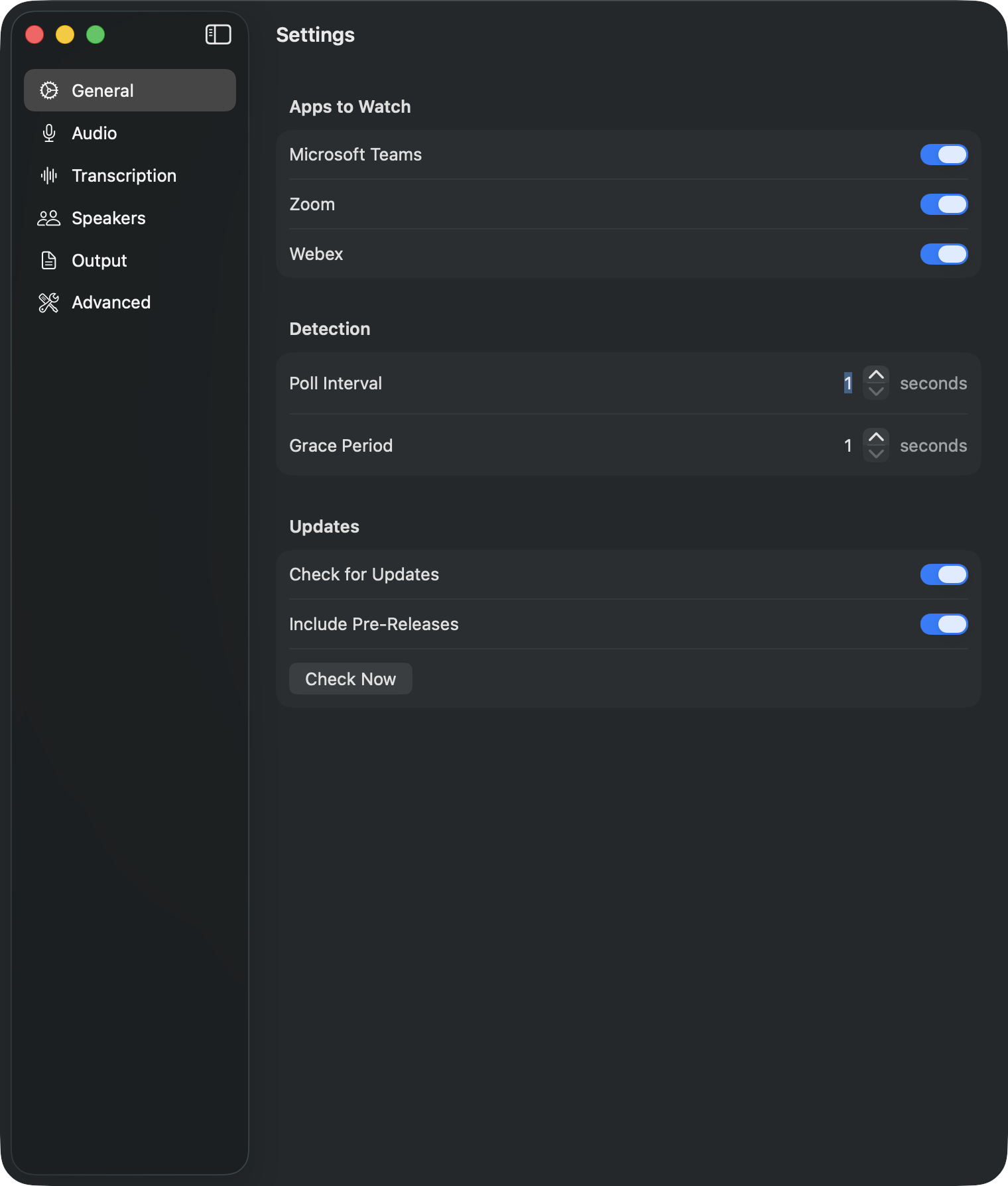
| Tab | What's in it |
|---|---|
| General | Startup (launch at login, start watching on open), record-only mode, apps to watch (Teams/Zoom/Webex/Browser/WeChat/Tencent Meeting/FaceTime/WhatsApp/Slack), detection timing |
| Audio | Microphone device, voice activity detection (VAD), per-channel silence indicator, echo cancellation (off by default) |
| Transcription | ASR engine (WhisperKit / Parakeet) and per-engine options (model incl. a custom WhisperKit model, language, custom vocabulary), terminology normalization rules, live caption overlay (PoC) |
| Speakers | Diarization, whether the naming window opens by itself, how long unnamed meetings wait before they get the automatic names, mic speaker name, known voices, recognition stats |
| Output | LLM provider (Claude CLI / OpenAI-compatible / none), saved OpenAI-compatible connections (each with its own endpoint, model and API key), transcript-retention options, notes language, a notification when meeting notes fail (on by default; the menu then offers Retry Meeting Notes), output folder, custom prompt |
| Advanced | Permissions status, diagnostics, Local Automation API |
| About | Version and build info, ffmpeg status, update checks |
Start at login
Settings → General → Startup has two independent switches:
- Launch at login registers the app as a macOS login item. The switch shows what macOS reports, read again whenever the app comes to the front. While macOS reports the item as waiting for your approval, which can also be what it reports after you switch the app off under System Settings → General → Login Items, the switch stays on and points you to Login Items. Turning it off here removes the item.
- Start watching when the app opens begins meeting detection a few seconds after launch, the same as pressing Start in the menu. It is only read when the app launches, so switching it in a running app changes nothing until the next launch.
With both on, the app starts when you log in and watches for meetings without a click. It only starts silently once its permissions are granted: on a fresh install, macOS asks for microphone and Screen Recording access when watching starts, a few seconds after that first launch.
Custom WhisperKit models
Settings → Transcription → Model → Custom model… loads a fine-tuned WhisperKit model instead of a stock one, for example a Swiss German fine-tune. Enter a Hugging Face repository laid out like argmaxinc/whisperkit-coreml (one folder per variant) plus the exact variant folder name, e.g. spert/flix-swissgerman-whisperkit and flix-swissgerman-large-v3_8bit; it downloads on first use and loads offline afterwards. A variant that is only the tail of the real folder name is refused with the real name, because it would load once and then never offline. Alternatively choose a model folder on disk with Choose… (in the App Store build only a chosen folder is accessible; a typed path works outside the sandbox). It must contain AudioEncoder.mlmodelc, TextDecoder.mlmodelc, MelSpectrogram.mlmodelc, tokenizer.json and tokenizer_config.json. The folder itself is never downloaded; for the tokenizer, WhisperKit prefers a stock tokenizer it has already cached and reads the folder's own tokenizer otherwise, so a folder that carries one loads without a network. Each field takes effect on Return, when you leave it or when you close the Settings window, so while you change the repository and then the variant, the new repository is briefly paired with the old variant; until a custom model is filled in, the previously selected stock model is used, and a load that fails says why under the model status.
Output
Files are saved to ~/Downloads/MeetingTranscriber/, or to the folder chosen under Settings → Output → Output Folder:
| File | Content |
|---|---|
20260225_1400_meeting.txt | Raw transcript (when enabled) |
20260225_1400_meeting.md | Structured meeting notes (when an LLM provider is configured) |
In Settings → Output, both transcript options default to enabled for backward compatibility:
- Include full transcript in meeting notes appends the verbatim transcript to generated Markdown.
- Save raw transcript separately retains the standalone
.txtfile.
Disable both to retain only the generated meeting notes. The recording follows its own retention policy and is not deleted by either setting. To avoid data loss, a raw transcript is retained if meeting notes generation is disabled, fails, or the job ends with an error.
Meeting notes structure: Summary, Participants, Topics Discussed, Decisions, Tasks (with responsible person, deadline, priority), Open Questions, and optionally the Full Transcript.
Troubleshooting
| Problem | Solution |
|---|---|
claude not found | Install Claude Code CLI, run claude --version — or switch to OpenAI-compatible provider in Settings |
| No meeting detected | Check the app is enabled under Settings → General → Apps to Watch. Screen Recording is not required for detection; it only sharpens the meeting title |
| No app audio | Requires macOS 14.2+ for CATapDescription audio capture |
| Empty transcription | Check that the file contains an audio track — the app converts to 16 kHz mono automatically |
| Models not loading | Models download on first run (WhisperKit ~1 GB, Parakeet ~50 MB); check internet connectivity |
| OpenAI-compatible API connection failed | Verify the endpoint URL and that the local model server is running |
Diagnosing silent app-audio recordings
If a recording's _app.wav is silent or unexpectedly quiet, enable verbose audio logging to capture forensic detail during the next attempt:
- Open Settings → Advanced → Diagnostics and turn on Verbose Diagnostic Logging.
- Reproduce the failing recording.
- Open Console.app, filter by subsystem
com.meetingtranscriber.audiotap, and look for[debug]lines:[debug] Tap target: pid=… exe=… bundle=… audioObjectID=…— which process the tap targeted[debug] Default output device: name=… uid=… transport=… rate=…— output device at start[debug] App audio RMS (5s): …dBFS, samples=…, totalBytes=…— every 5 seconds; tells you live whether the tap is delivering real audio (-40 dBFS or higher) or near-silence (≤ -90 dBFS)[debug] Output device change → name=… uid=…— emitted when the system output device changes mid-recording[debug] Mic input device: name=… uid=… hwRate=… hwChannels=…— mic hardware device at capture start[debug] Mic RMS (5s): …dBFS, samples=…— every 5 seconds during mic capture
- Turn the toggle off again when done — the per-5 s RMS log is moderately chatty.
The toggle persists in UserDefaults and takes effect on the next recording without an app restart.
Testing & CI


Pull requests run unit tests, lint, and analyzer in ci.yml. Two complementary E2E layers run on a self-hosted Apple Silicon Mac mini against the real production models (no mocks): e2e.yml feeds fixture audio through each ASR engine + the WatchLoop pipeline, and e2e-app.yml builds and signs the actual .app, drives a simulated meeting via tools/meeting-simulator, and asserts on the resulting transcript over the embedded debug RPC server.
Contributors
Meeting Transcriber is built with help from many people: code, bug reports, testing, ideas and documentation. Some of the most active so far:


And 38 more, credited in full there.
CONTRIBUTING.md explains how to join them.