
kanvibe
Keyboard-first desktop Kanban workspace for AI coding agents with embedded terminals, git worktrees, and hook-driven task tracking.
Automatically checked · GitHub checked 2026-11-12
Overview

KanVibe
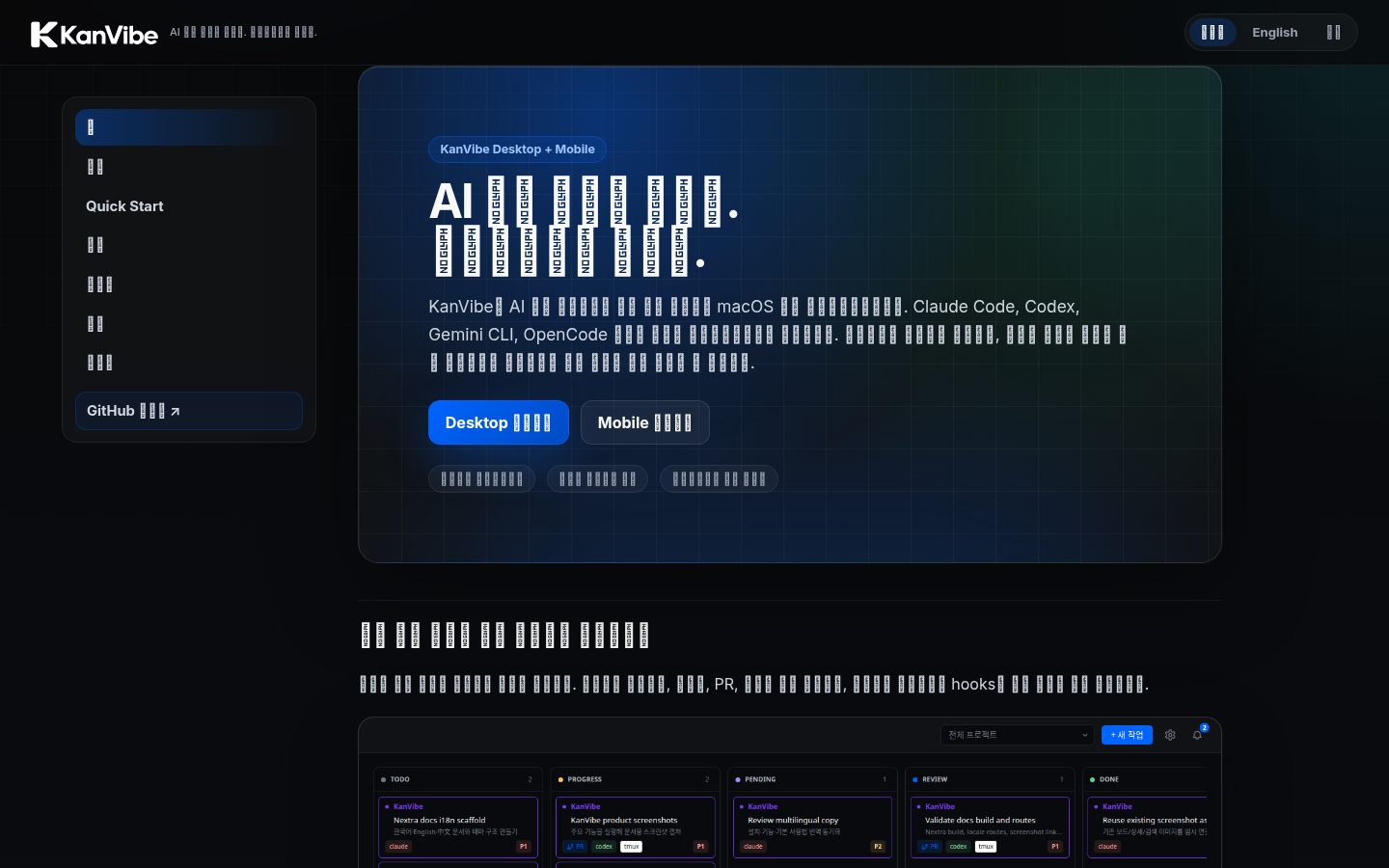
Your AI coding work, on one board. Keep it moving from your phone.
KanVibe is a keyboard-first macOS Kanban workspace for AI coding agents. Run Claude Code, Codex, Gemini CLI, and OpenCode in task workspaces that keep each branch, git worktree, and terminal together. See progress on one Kanban board, then open the same running terminal from your phone or tablet to read output and send the next command.
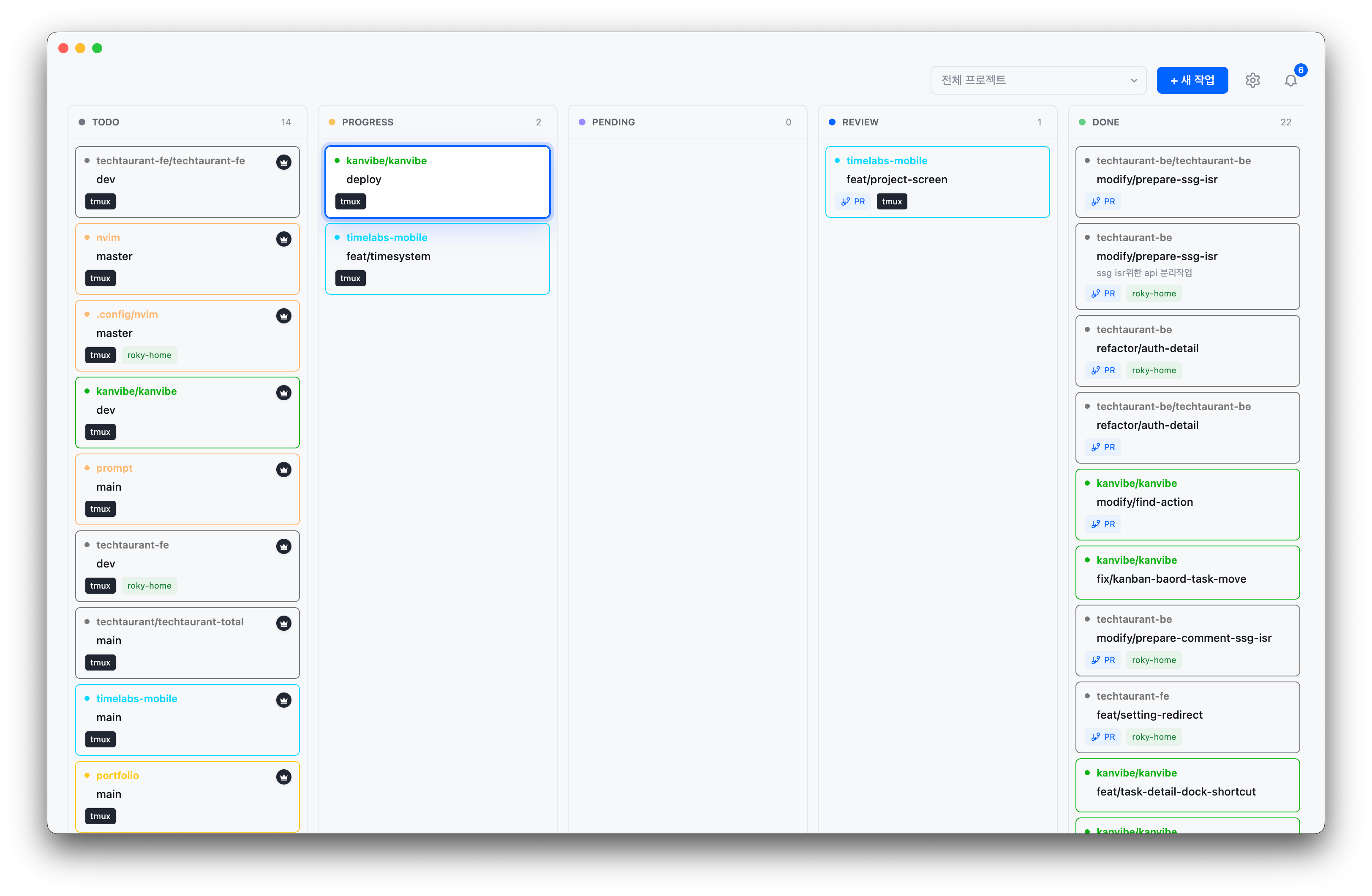
Desktop: see every task and its status |
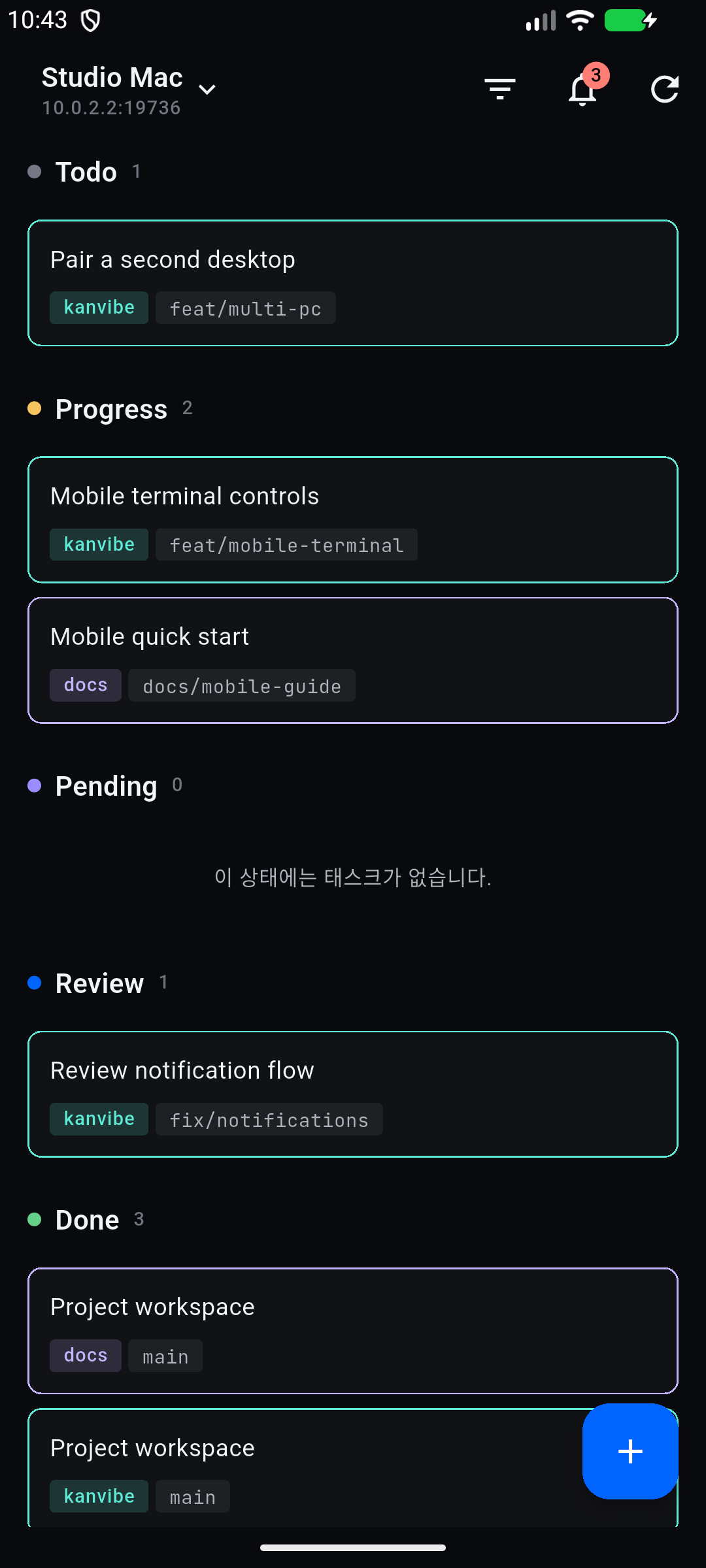
Mobile: keep the board with you |
Watch the Desktop demo on YouTube
Get Started
Install the macOS desktop app from the KanVibe Homebrew tap:
brew install --cask rookedsysc/kanvibe/kanvibe
open -a KanVibe
Mobile (iOS / Android): build the Flutter app from source, then pair it under Desktop Settings → Mobile Connection using the PC address, port, and one-time code. Keep KanVibe running on the PC. The phone must reach that address over your local network or a network such as Tailscale. Mobile is an early preview with Korean interface labels for now. Connection, usage, and notification guide.
Mobile terminal compatibility: herdr, tmux, zellij, and terminal sessions are all supported. Herdr sessions keep their original grid and are read by scrolling.
Development and QA databases
Each runtime uses a separate SQLite database:
| Run | Data directory | Lifetime |
|---|---|---|
| Installed KanVibe | Existing Electron userData directory | Persistent; production data stays in place |
pnpm dev / pnpm desktop:dev | <appData>/kanvibe-dev | Persistent across restarts and worktrees |
pnpm start | <appData>/kanvibe-qa | Persistent across restarts, builds, and worktrees |
Installed KanVibe with --qa | <appData>/kanvibe-qa | Same persistent manual QA database |
| Automated Electron QA | Run's explicit fixture directory, or a fresh temporary directory | Isolated per run |
| Vitest / Playwright | Separate temporary test directories | Isolated from application data |
<appData> is ~/Library/Application Support on macOS. The database filename is kanvibe.db in each directory. Development and manual QA start with their own database on first launch; existing production data is neither moved nor copied. Subsequent launches reuse those databases and apply the existing schema migrations. A new bundled seed does not replace an existing database, so manual QA can test upgrades against previously created data. Rebuild with pnpm build before pnpm start when testing a new source version.
To test an installed macOS build with the persistent QA database, run open -na KanVibe --args --qa. Close an existing manual QA instance first so both do not use the same QA database concurrently.
An explicit KANVIBE_APP_DATA_DIR overrides the desktop data directory; use a distinct directory for each environment. Desktop DB selection follows that directory, ignoring an inherited KANVIBE_DB_PATH. Non-desktop database tools retain the KANVIBE_DB_PATH override. Automated QA callers should pass appDataDir explicitly when they want to reopen a particular fixture; the launcher does not reuse application paths inherited from the parent shell.
From your desk to your phone
- See what needs attention. Agent hooks update the board as work moves through progress, waiting, and review.
- Work in context. Open a task’s terminal alongside its branch, worktree, chat history, and PR actions. Use shortcuts to move between tasks without hunting through terminal tabs.
- Keep work moving from Mobile. Check the board, open the running terminal, enter a follow-up, or switch to another paired PC.
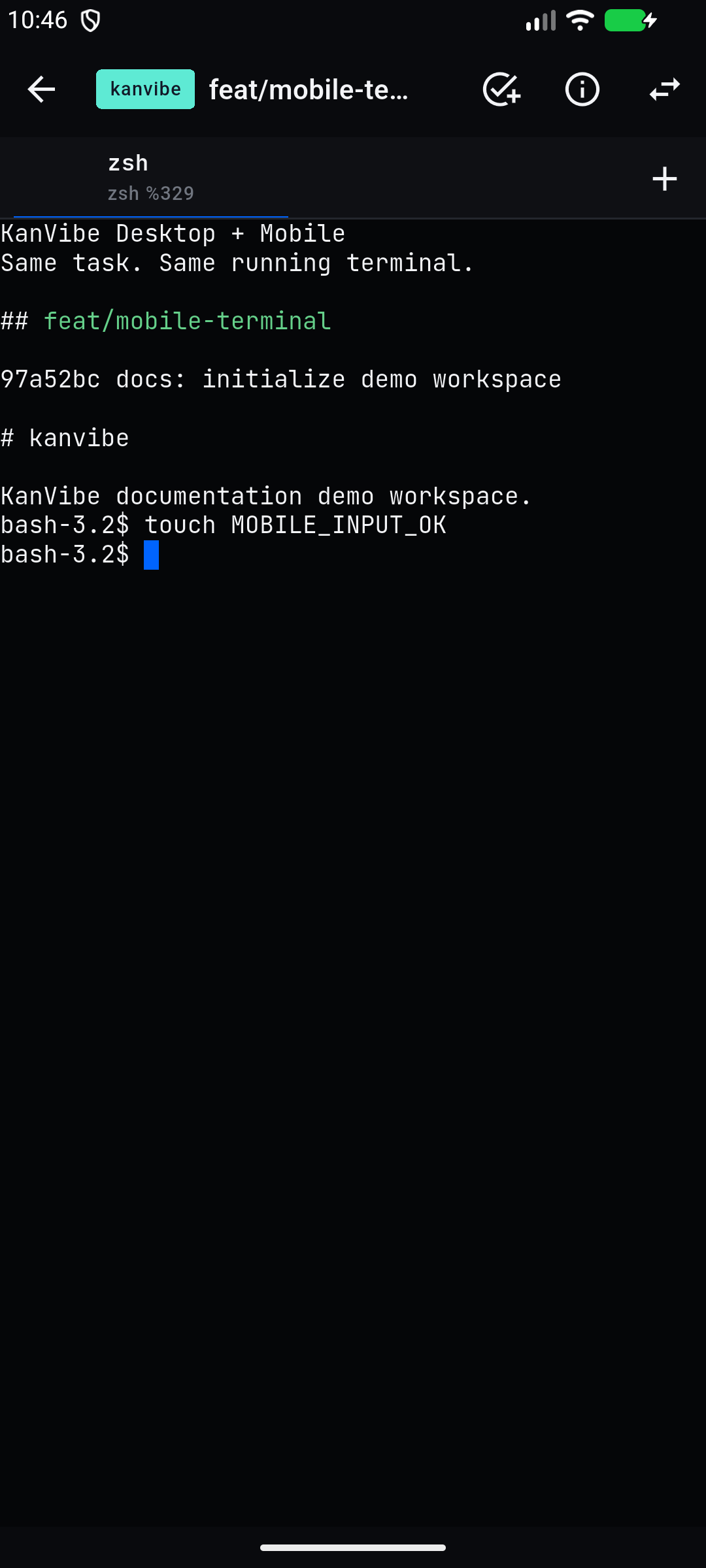
Read output and type into the same task terminal
Keyboard workflows and screenshots
Key Workflows
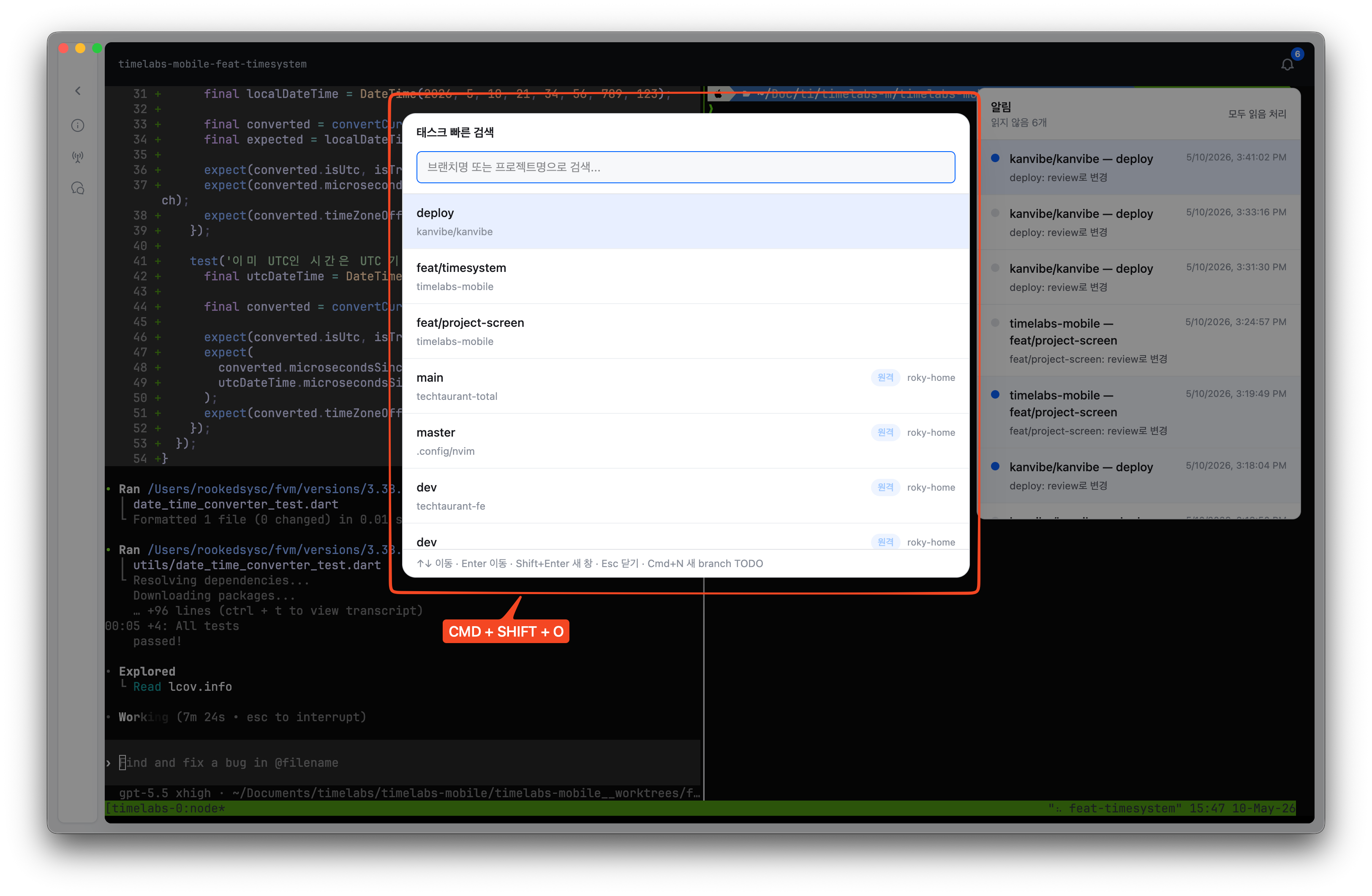
1. Quick Task Search
Open task search from anywhere and filter by project or branch name. In Worktree view, selecting a result keeps the split view open, selects and scrolls to the task on the left, and shows its terminal on the right. In Kanban view, selecting a result opens task detail as before.
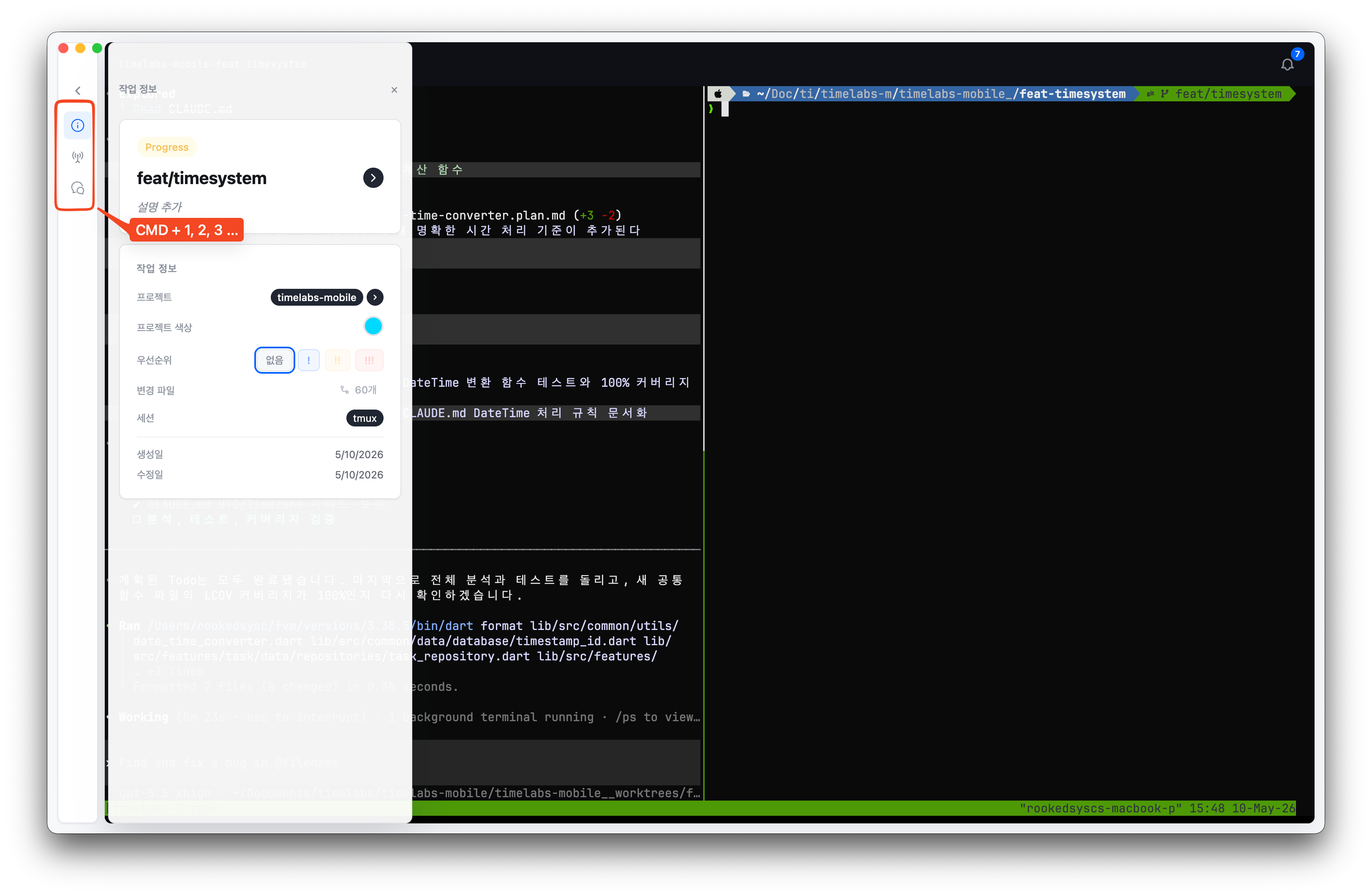
2. Task Detail Shortcuts
Use numbered dock shortcuts on a task detail page to open task metadata, hook status, AI chat, and PR actions before the keystroke reaches the embedded terminal.
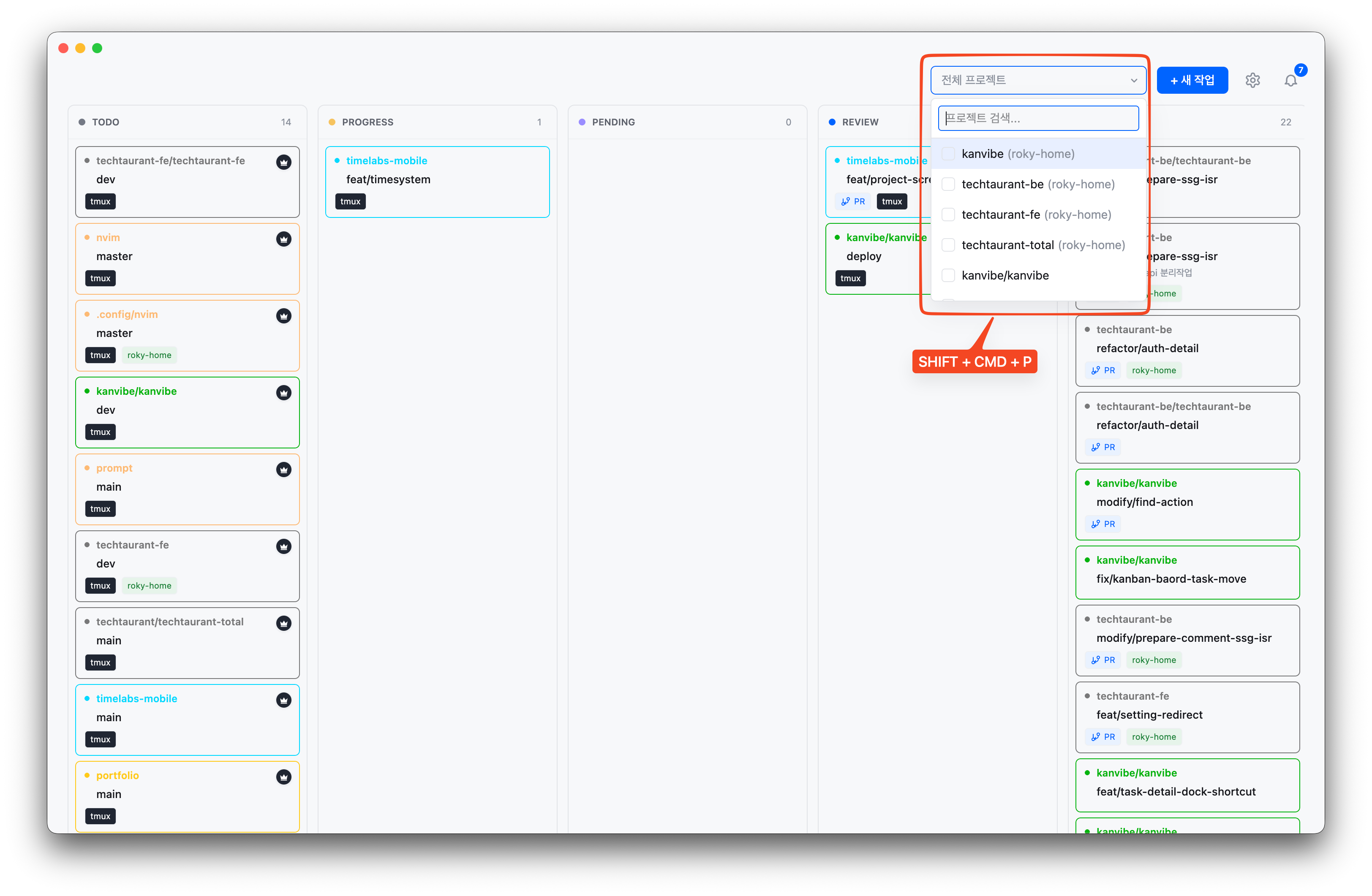
3. Project Filter
Narrow the board to the active projects you care about, with keyboard navigation for switching between repositories quickly.
4. Notifications
Open the notification panel to review AI agent status changes, background sync results, and task events, then jump to the related task.
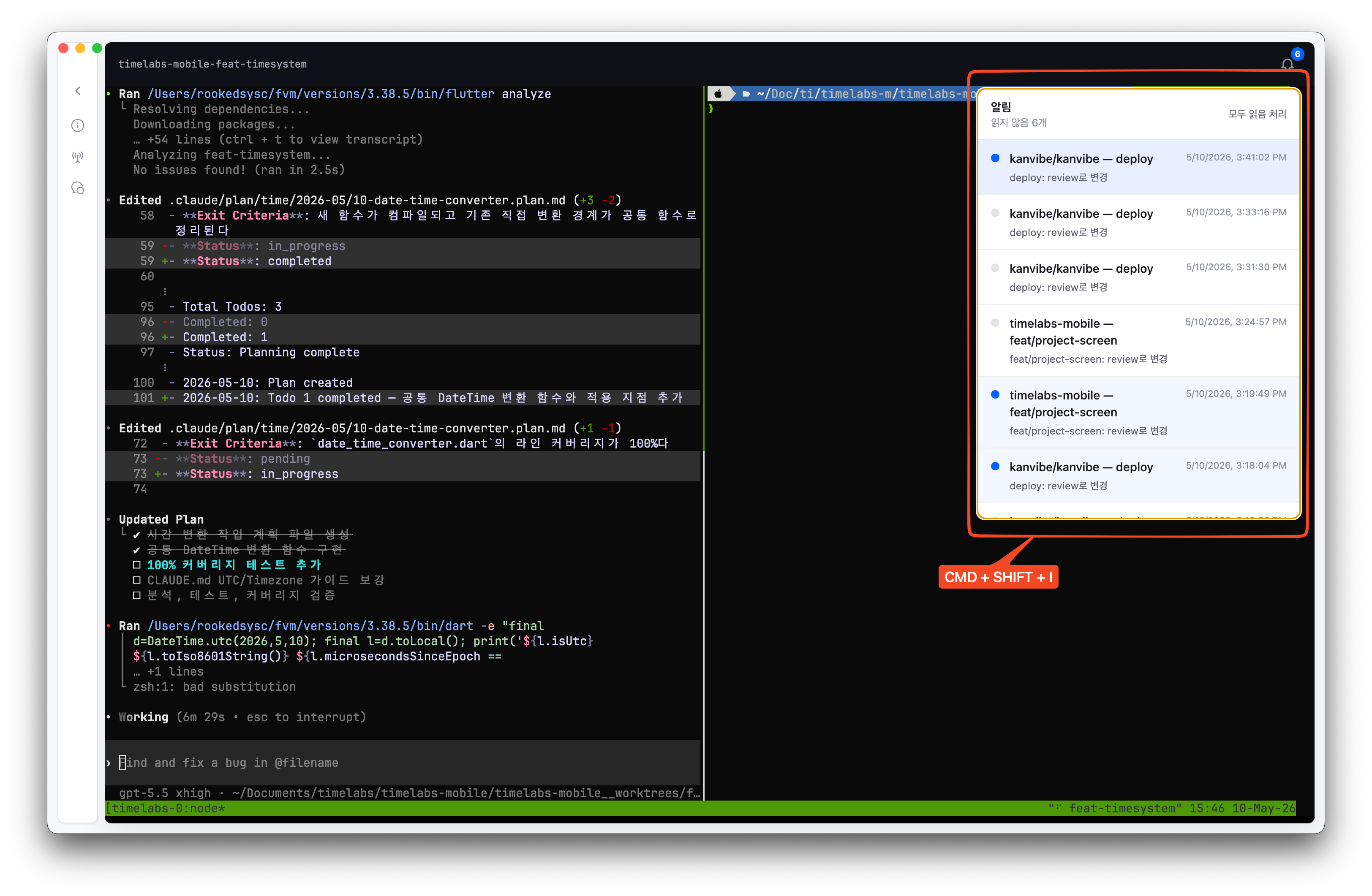
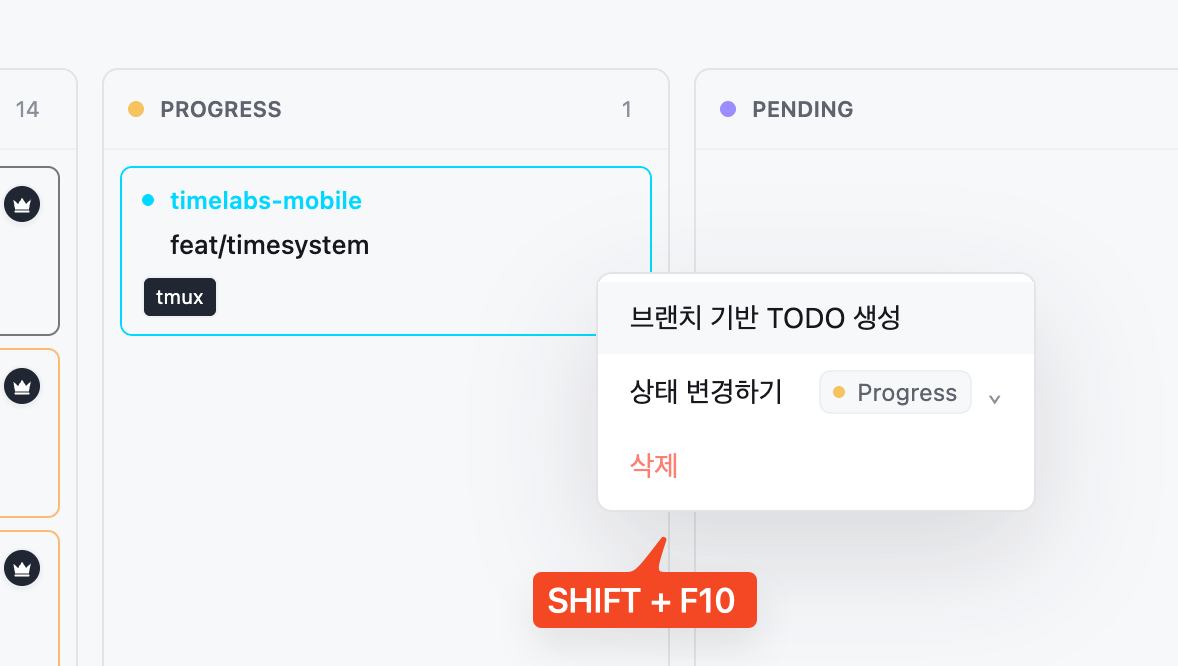
5. Quick Task Actions
Create follow-up branch TODOs directly from the highlighted search result, preserving project and branch context for the next piece of work.
6. Vim-Style Board Controls
Turn on Vim-style board controls in Settings → Keyboard, then move across task cards with h/j/k/l, find visible task text with /, open the new-task modal with n, move statuses with :move progress, and delete a focused task with dd.
Open the Vim controls demo video
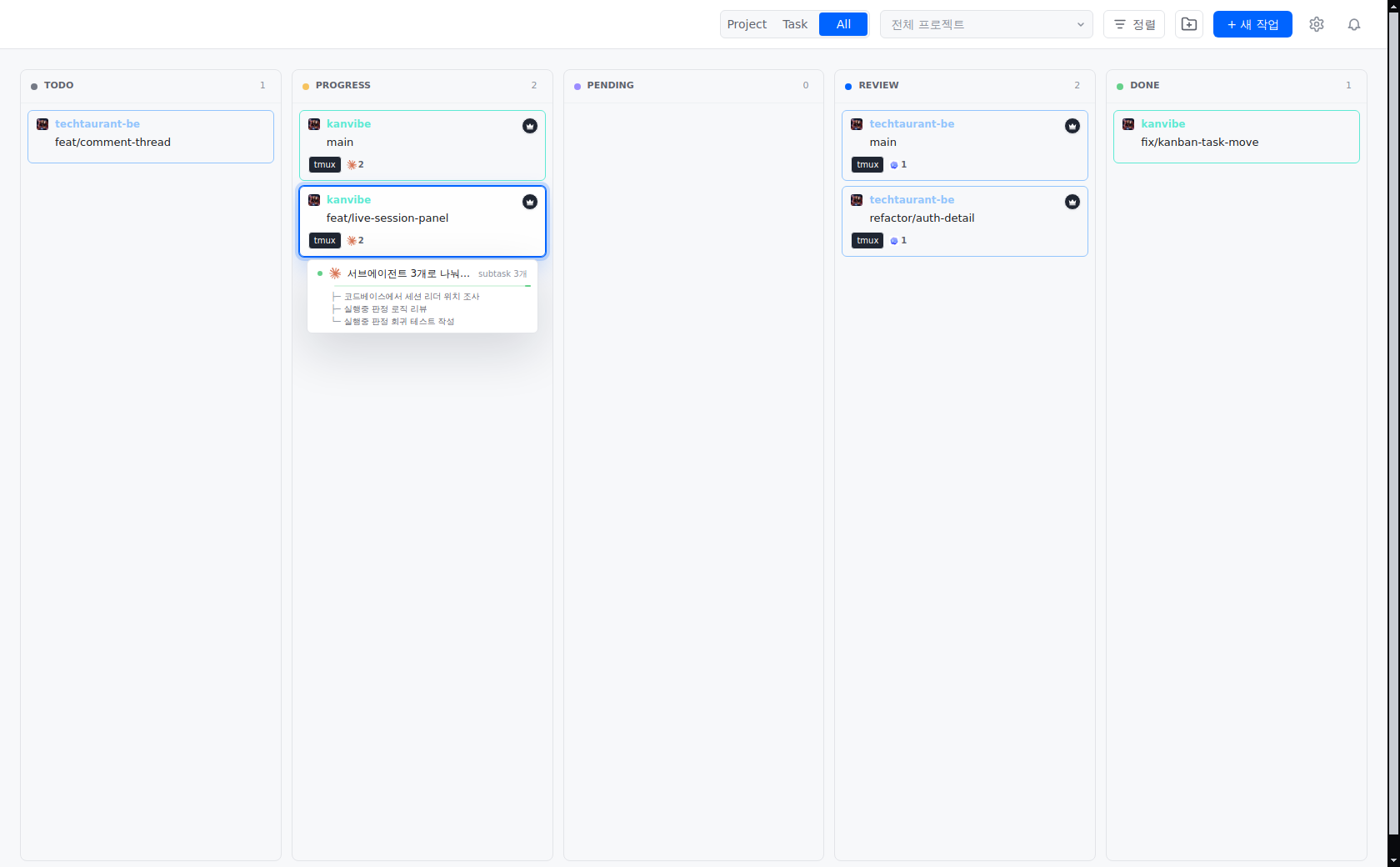
7. Live AI Session Tracking
See which AI agents are running on which task, and how many, straight from the board, then jump into the terminal that owns one. Focus or hover a card and hold for a moment to open the session panel; it lists each running session with what it is doing and the subtasks branching off it right now. Clicking a session switches to the tmux window or Herdr tab that session is attached to and moves input focus to the terminal.
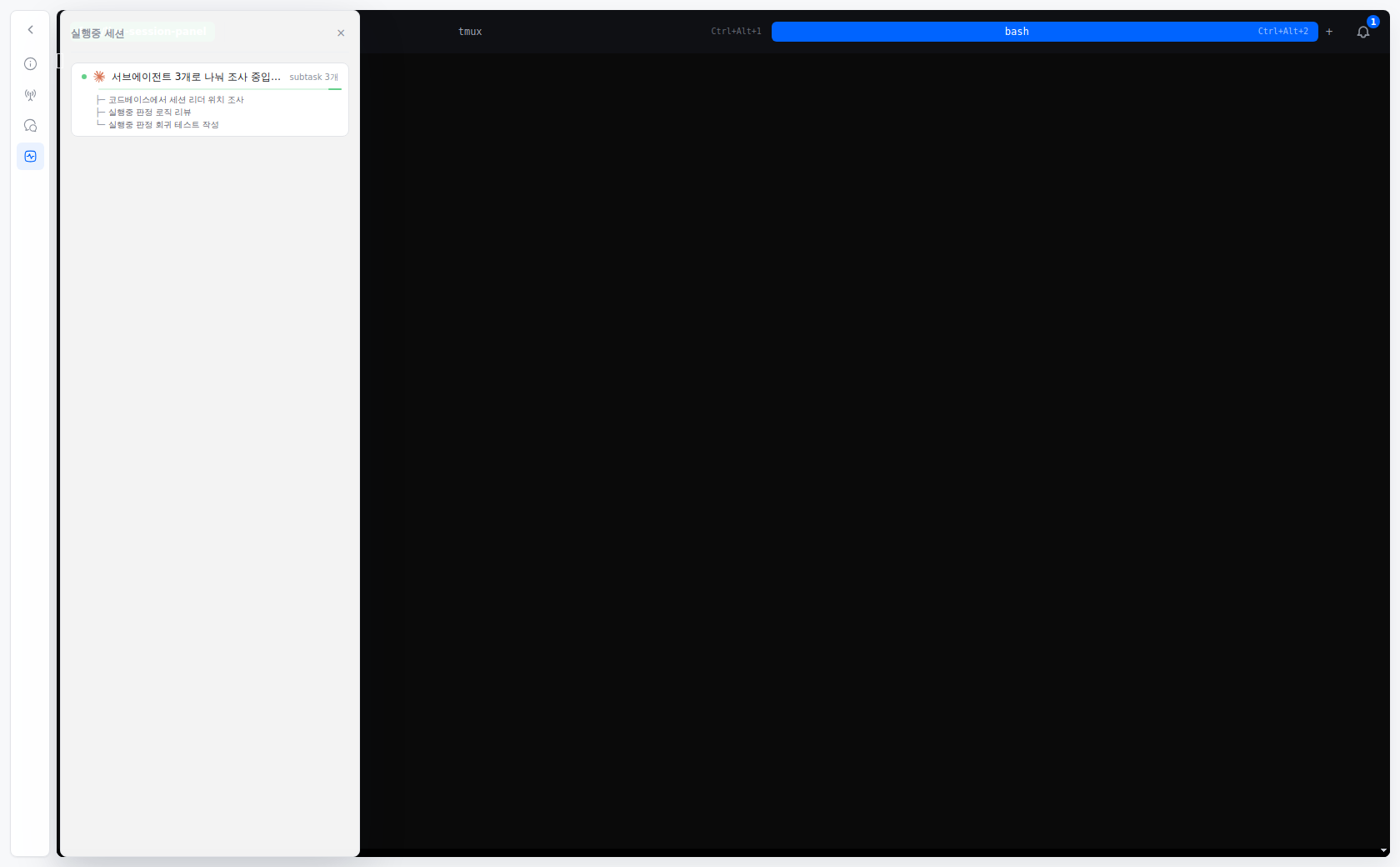
The same panel opens from the task detail dock, so you can keep watching subtasks while you work in the terminal.
Prerequisites
| Dependency | Version | Required | Install |
|---|---|---|---|
| git | latest | Yes | brew install git |
| tmux | latest | For Mobile terminals (or Herdr, zellij) | brew install tmux |
| gh | latest | Yes | brew install gh (requires gh auth login) |
| zellij | latest | For Mobile terminals (or Herdr, tmux) | brew install zellij |
| Herdr | 0.9.5 verified | Default backend | In-app install prompt |
Update or Remove
brew update
brew upgrade --cask kanvibe
brew uninstall --cask kanvibe
brew untap rookedsysc/kanvibe
Usage Flow
1. Register a Project
Click the magnifying-glass directory scan button on the main board toolbar — it sits between the project filter and + New Task — to open the project registry dialog. In the dialog, choose a local or remote git repository path and click Scan & Register; KanVibe then registers the repository, detects existing worktree branches, and installs supported agent hooks.
To stop managing a project, delete it from the registered-project list in the registry dialog. This removes only the SQLite project record and associated KanVibe task records; git branches, worktrees, and files on disk are kept.
2. Create Tasks
Add a TODO task from the Kanban board. When creating a task with a branch name, KanVibe automatically:
- Creates a git worktree for the branch
- Spawns a Herdr tab, tmux window, or zellij tab for the session
- Links the terminal session to the task
3. Work with the Kanban Board
Tasks are managed through 5 statuses: TODO → PROGRESS → PENDING → REVIEW → DONE
Change statuses via drag & drop, or let AI Agent Hooks transition them automatically. Moving a task to DONE preserves its branch, worktree, and terminal session. Deleting the task triggers resource cleanup; the project root branch is protected.
4. Select Pane Layouts
Each task's terminal page supports multiple pane layouts:
| Layout | Description |
|---|---|
| Single | One full-screen pane |
| Horizontal 2 | Two panes side by side |
| Vertical 2 | Two panes stacked |
| Left + Right TB | Left pane + right top/bottom split |
| Left TB + Right | Left top/bottom split + right pane |
| Quad | Four equal panes |
Each pane can run a custom command (e.g., vim, htop, lazygit, test runner, etc.). Configure layouts globally or per-project from the settings dialog.
Features
Real-Time Kanban Board
- 5-status task management (TODO / PROGRESS / PENDING / REVIEW / DONE)
- Drag & drop task ordering with project colors, priority markers, PR badges, and session labels
- Multi-project filtering with keyboard search for visible project and task text
- Done column pagination for long-running projects
- Real-time WebSocket updates across browser and desktop windows
Worktree View
- Keep the task list on the left and the selected task's terminal on the right
- Read the same project icon, title, description, and badges as Kanban cards, without the outer card border; selection and keyboard focus have separate indicators
- Select a quick-search result in place, including DONE tasks and tasks hidden by the current filters
- Press and release
Cmd+Optionon macOS orCtrl+Alton Linux, without another key, to focus the selected task in the list. Use↑ / ↓to switch tasks in displayed order andEnterto focus the selected task's terminal
Branch-Based Task Workspace
- Create branch TODOs that automatically prepare a git worktree and terminal session
- Use the board toolbar magnifying-glass scan dialog to register repositories and detect existing worktree branches as TODO tasks
- Open each task into a dedicated terminal workspace with task metadata, hook controls, chat, and PR actions in the side dock
- Keep resources when a task moves to DONE; delete the task to clean up its branch, worktree, and terminal session, with the project root branch protected
- Delete a project from the scan dialog without touching existing git branches, worktrees, or files on disk
Terminal Sessions (tmux / zellij / Herdr)
-
tmux, zellij, and Herdr are supported as terminal multiplexers
-
Browser-based terminal streaming through xterm.js and WebSocket
-
SSH remote terminal support that reads
~/.ssh/config -
Non-interactive remote SSH commands reuse an app-local ControlMaster socket pool under
~/.kanvibe, with per-host concurrency capped at 4x available CPU cores -
Remote terminal attach executes tmux/zellij/Herdr directly over SSH; trusted X11 forwarding (
ssh -Y) is requested only when localDISPLAY, remoteX11Forwarding, andxauthare available -
Nerd Font rendering support
-
Herdr is the default when no valid session preference is saved. Existing tmux, zellij, and terminal preferences are preserved; choose
terminalto work without a multiplexer. New Herdr tasks share a persistentkanvibeserver on each host, with one workspace per task listed under Spaces. Each task keeps its configured pane layout and startup commands; reopening it reuses its running shells. Existing independent named sessions remain connected until explicitly replaced. -
Select
herdrwhen creating, branching, or connecting a task. If it is missing, KanVibe offers to run the official installer on the selected local or SSH host; cancelling leaves the task unchanged. The installer uses~/.local/binwithout changing shell startup files. -
Herdr tabs support creating, selecting, renaming, closing, and reordering by stable IDs. Reordering stays within each task workspace. Selecting a Space or tab in one task window preserves other task windows. The last tab stays alive when KanVibe closes; deleting a shared task closes only its workspace and keeps other tasks running. Workspace IDs are stored beside the Herdr session so renaming a Space preserves its task connection.
-
Herdr 0.9.5 is the verified version. Its first-run setup and personal configuration remain managed by Herdr. Tab reordering uses its local socket API; SSH hosts do not need Python or netcat for this operation.
Open the same Herdr Spaces in an external terminal
After opening a Herdr task in KanVibe, run this in a new Ghostty or other terminal on the same host:
herdr session attach kanvibe
This connects to KanVibe's shared Herdr session. Select the task's workspace under Spaces to continue working in its running shells. Spaces lists workspaces in the connected session only: a separate session named kanvibe-dev does not show the workspaces inside kanvibe, even if one of those workspaces is also named kanvibe-dev.
For an SSH task, connect to that task's SSH host first, then run the command there. Older tasks that still use independent named sessions need their original session name instead of kanvibe; run herdr session list on that host to find it.
Live AI Session Tracking
- Board cards show a per-agent icon and count next to the tmux badge, so you can tell at a glance which agents are running on which task and how many
- Focus or hover a card to open a session panel that shows what each running session is doing, taken from its most recent AI response, along with the subtasks it is driving as branches hanging off the session; sweeping past cards does not open it
- Running sessions carry a moving progress bar that conveys progress through motion rather than a ratio, and holds still when the environment asks for reduced motion
- Task detail exposes the same panel through the live sessions dock item (
Mod+4without a PR,Mod+5with one) - Clicking a session switches to its tmux window or Herdr tab and moves input focus to the terminal
- Running state combines two signals: an agent attached to a tmux or Herdr pane counts as running even while it waits for input, and a session whose transcript was just updated counts as running even when no pane is visible
- Subtask counts are available for Claude Code and Codex, depend on version for OpenCode, and are not available for Gemini CLI
- Sessions outside tmux (zellij, plain terminal) are judged by transcript activity alone, so one waiting for input may appear idle
Keyboard-First Controls
- Open quick task search by branch or project name from anywhere
- Filter projects, inspect notifications, and trigger task actions without leaving the board
- Use numbered detail shortcuts to switch task info, status/hooks, AI chat, PR, and other dock panels before keystrokes reach the terminal
- Create a branch TODO directly from quick search with the configured shortcut
AI Usage and Accounts
- Read remaining Claude, Codex, and Gemini subscription usage from the task detail dock or
Cmd/Ctrl+0 - Uses the sign-in each CLI already stored locally, so no extra API key is required
- Normalizes each provider's different window shapes (5-hour, 7-day, per-model) into one bar with reset times and plan tier
- Queries every registered account per provider and labels them when more than one is signed in
- Shows the last saved result immediately and refreshes above it, so the panel never opens blank after a restart
- Manage accounts under Settings → AI accounts: add an account per provider, sign in, sign in again, or remove one
- Adding an account creates its home and launches that CLI's own sign-in command in an in-app terminal, pointed at it
- An expired sign-in is refreshed by asking that CLI to do it; KanVibe never rewrites the credentials a CLI stores
- Account homes follow the sibling-directory convention (
~/.claude-workand so on), so the same account works from a terminal by switching one environment variable - Signed-out accounts stay listed so there is still somewhere to sign in again, and removing one deletes only the account home KanVibe created
Mobile Companion (Flutter)
- View tasks by status on phones; tablets at 768dp and wider show Kanban columns. Filter projects and switch between saved PCs.
- Open the task’s existing tmux, Zellij, or plain terminal session. Each tab shows one pane on both phones and tablets; add a shell tab without returning to the PC.
- Read terminal output and type with the on-screen keyboard, including in SSH remote tasks. Create tasks, change status, inspect task details, and open the linked PR.
- tmux and plain terminals adapt their rows and columns to the mobile viewport. The PC’s shared terminal size changes while you view it and restores after you leave; Herdr and Zellij use scrolling instead.
- Pair using a 6-digit, single-use code that expires after five minutes. Save multiple PCs and remove each pairing separately.
- Read the selected PC’s notification inbox, mark items read, and jump to the related task. Foreground hook updates work over WebSocket; background push requires Firebase/APNs configuration and a desktop push relay.
- Mobile currently builds from source. The desktop must stay running and reachable over LAN or a network such as Tailscale. See the Mobile guide and build instructions.
Keyboard Shortcuts
| Shortcut | Scope | Action |
|---|---|---|
Cmd/Ctrl+F or / with Vim-style controls enabled | Board | Open page find for visible project/task text; press Enter for next and Shift+Enter for previous |
h / j / k / l or ← / ↓ / ↑ / → | Board task cards | Move focus left/down/up/right across visible task cards; if no task is focused, enter the first visible task |
n | Board | Open the new task modal immediately |
:move todo|progress|pending|review|done | Focused board task card | Move the focused task to the target status without drag-and-drop; press Tab in the command input to autocomplete a unique status prefix |
dd | Focused board task card | Delete the focused task after confirmation |
Cmd/Ctrl+Shift+O | Global | Open quick task search by branch or project name (default, configurable) |
Cmd+Option (macOS), Ctrl+Alt (Linux), press and release | Worktree view | Focus the selected task in the left list; does not run when combined with another key |
↑ / ↓ | Focused Worktree task list | Select the previous/next task and show its terminal; stop at the first/last task |
Enter | Focused Worktree task list | Focus the selected task's terminal |
Cmd/Ctrl+Shift+P | Board | Open the project filter dropdown |
Cmd/Ctrl+Shift+I | Board | Open the notifications dropdown |
Cmd+[ / Cmd+] (macOS), Alt+[ / Alt+] (Linux) | Global | Navigate back/forward through app history; back falls back to board home when there is no previous page |
Cmd+1/2/3 (macOS), Alt+1/2/3 (Linux) | Task detail | Activate the numbered detail dock items: info, status/hooks, and AI chat. These shortcuts are intercepted before terminal input |
Cmd+4 (macOS), Alt+4 (Linux) | Task detail | Open the task PR in the browser when a PR exists; otherwise the shortcut belongs to the fourth numbered dock item when present |
Cmd/Ctrl+0 | Task detail | Toggle the AI usage panel. It sits outside the numbered dock order, so dock numbering is unaffected |
Cmd/Ctrl+N | Quick task search | Create a new branch TODO from the currently highlighted task |
↑ / ↓ / Enter / Shift+Enter / Esc | Quick task search | Move selection, open task, open task in a new window, close dialog |
↑ / ↓ / Enter / Esc | Project filter dropdown | Move selection, toggle project filter, close dropdown |
↑ / ↓ / Enter / Esc | Notifications dropdown | Move selection, open notification target, close dropdown |
Task detail dock numbering excludes the back-to-board button and follows the visible dock item order. If a task has a PR URL, PR takes slot 4 and later dock items shift to 5+; without a PR, the next dock item uses slot 4.
Vim-style board controls (h/j/k/l, /, n, dd, and :move ...) can be turned on or off in Settings → Keyboard. Arrow-key task navigation and Cmd/Ctrl+F page find remain available even when Vim-style controls are disabled.
AI Agent Hooks - Automatic Status Tracking
KanVibe integrates with Claude Code Hooks, Gemini CLI Hooks, Codex CLI, and OpenCode to automatically track task status. Tasks are managed through 5 statuses:
| Status | Description |
|---|---|
| TODO | Initial state when a task is created |
| PROGRESS | AI is actively working on the task |
| PENDING | AI asked a follow-up question; waiting for user response (Claude Code only) |
| REVIEW | AI has finished; awaiting review |
| DONE | Task complete — branch, worktree, and terminal session are retained until the task is deleted |
Claude Code
User sends prompt          → PROGRESS
AI asks question (AskUser) → PENDING
User answers               → PROGRESS
AI finishes response       → REVIEW
Gemini CLI
BeforeAgent (user prompt)  → PROGRESS
AfterAgent (agent done)    → REVIEW
Gemini CLI does not have an equivalent to Claude Code's
AskUserQuestion, so the PENDING state is not available.
Codex CLI
UserPromptSubmit                → PROGRESS
PermissionRequest (Bash only)  → PENDING
PreToolUse (Bash only)         → PROGRESS
Stop                           → REVIEW
KanVibe now uses Codex's current lifecycle hooks model with .codex/hooks.json plus [features].hooks = true in .codex/config.toml:
Codex loads project-local .codex/ hooks only for trusted project/worktree paths. If a task runs in a generated worktree, trust that worktree in Codex before expecting the local hook file to fire.
Codex's current
PermissionRequestandPreToolUsematchers are Bash-scoped, soPENDINGrepresents approval waits rather than every kind of conversational follow-up question.
OpenCode
User sends message (message.updated, role=user) → PROGRESS
AI asks a question (question.asked)             → PENDING
User answers question (question.replied)        → PROGRESS
Session idle (session.idle)                     → REVIEW
OpenCode uses its own plugin system instead of shell-script hooks. KanVibe generates a TypeScript plugin at .opencode/plugins/kanvibe-plugin.ts that subscribes to OpenCode's native event hooks (message.updated, question.asked, question.replied, and session.idle) via the @opencode-ai/plugin SDK. This means status updates are handled in-process without spawning external shell commands.
All agent hooks are auto-installed when you register a project through KanVibe's directory scan or create a task with a worktree. You can also install them individually from the task detail page.
| Agent | Hook Directory | Config File |
|---|---|---|
| Claude Code | .claude/hooks/ | .claude/settings.json |
| Gemini CLI | .gemini/hooks/ | .gemini/settings.json |
| Codex CLI | .codex/hooks/ | .codex/config.toml, .codex/hooks.json |
| OpenCode | .opencode/plugins/ | Plugin auto-discovery |
Browser Notifications
Task status changes via AI Agent Hooks trigger browser notifications with project, branch, and status. Click to jump directly to the task detail page.
- Real-time alerts — Instant notifications for task status changes
- Background mode — Notifications work even when KanVibe is not focused
- Smart navigation — Click notification → task detail page (with correct language)
- Configurable — Enable/disable per project and filter by status (PROGRESS, PENDING, REVIEW, DONE)
Setup: Browser will prompt for permission on first visit. Configure filters in Project Settings → Notifications.
Hook API Endpoints
| Endpoint | Method | Description |
|---|---|---|
/api/hooks/status | POST | Update task status by taskId + status; if the target is missing, KanVibe still sends a browser notification and returns 404 without changing status |
GitHub-style Diff View
Review code changes directly in the browser with a GitHub-style diff viewer. Click the Diff badge on the task detail page to see all modified files compared to the base branch.
- File tree sidebar with changed file count
- Inline diff viewer powered by Monaco Editor
- Edit mode for quick fixes directly in the browser
- Viewed file tracking with checkboxes
Pane Layout Editor
- 6 layout presets (Single, Horizontal 2, Vertical 2, Left+Right TB, Left TB+Right, Quad)
- Per-pane custom command configuration
- Global and per-project layout settings
Internationalization (i18n)
- Supported languages: Korean (ko), English (en), Chinese (zh)
- Powered by next-intl
Tech Stack
| Category | Technology |
|---|---|
| Frontend/Backend | Next.js 16 (App Router) + React 19 + TypeScript |
| Database | SQLite + TypeORM + better-sqlite3 |
| Styling | Tailwind CSS v4 |
| Terminal | xterm.js + WebSocket + node-pty |
| SSH | system ssh binary |
| Drag & Drop | @hello-pangea/dnd |
| i18n | next-intl |
| Desktop Packaging | Electron + Electron Builder |
| Mobile | Flutter + xterm.dart |
Project Stats
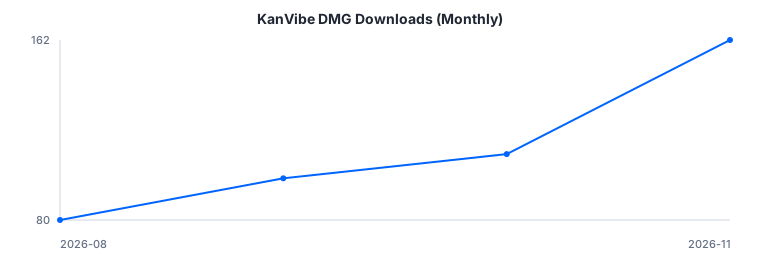
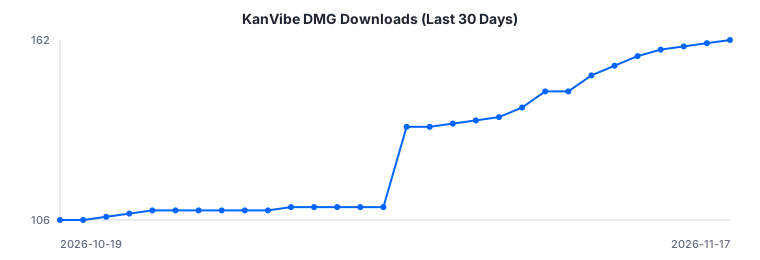
Downloads, all-time monthly trend — updated daily from GitHub Release asset download counts.
Last 30 days
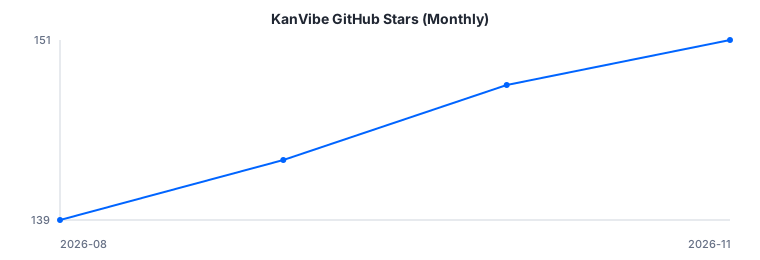
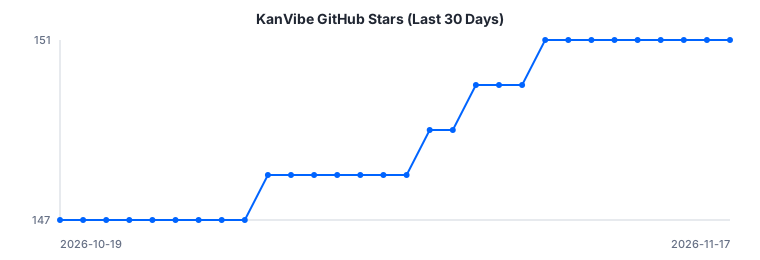
GitHub stars, all-time monthly trend.
Last 30 days
License
This project is licensed under the AGPL-3.0. You are free to use, modify, and extend it for open-source purposes. Commercial SaaS distribution is not permitted under this license. See LICENSE for details.
Contributing
See CONTRIBUTING.md for guidelines.
Inspired By
- workmux — tmux workspace manager
- vibe-kanban — AI-powered Kanban board