
FileSync
Send files from one device to many in real-time.
Automatically checked · GitHub checked 2026-11-13
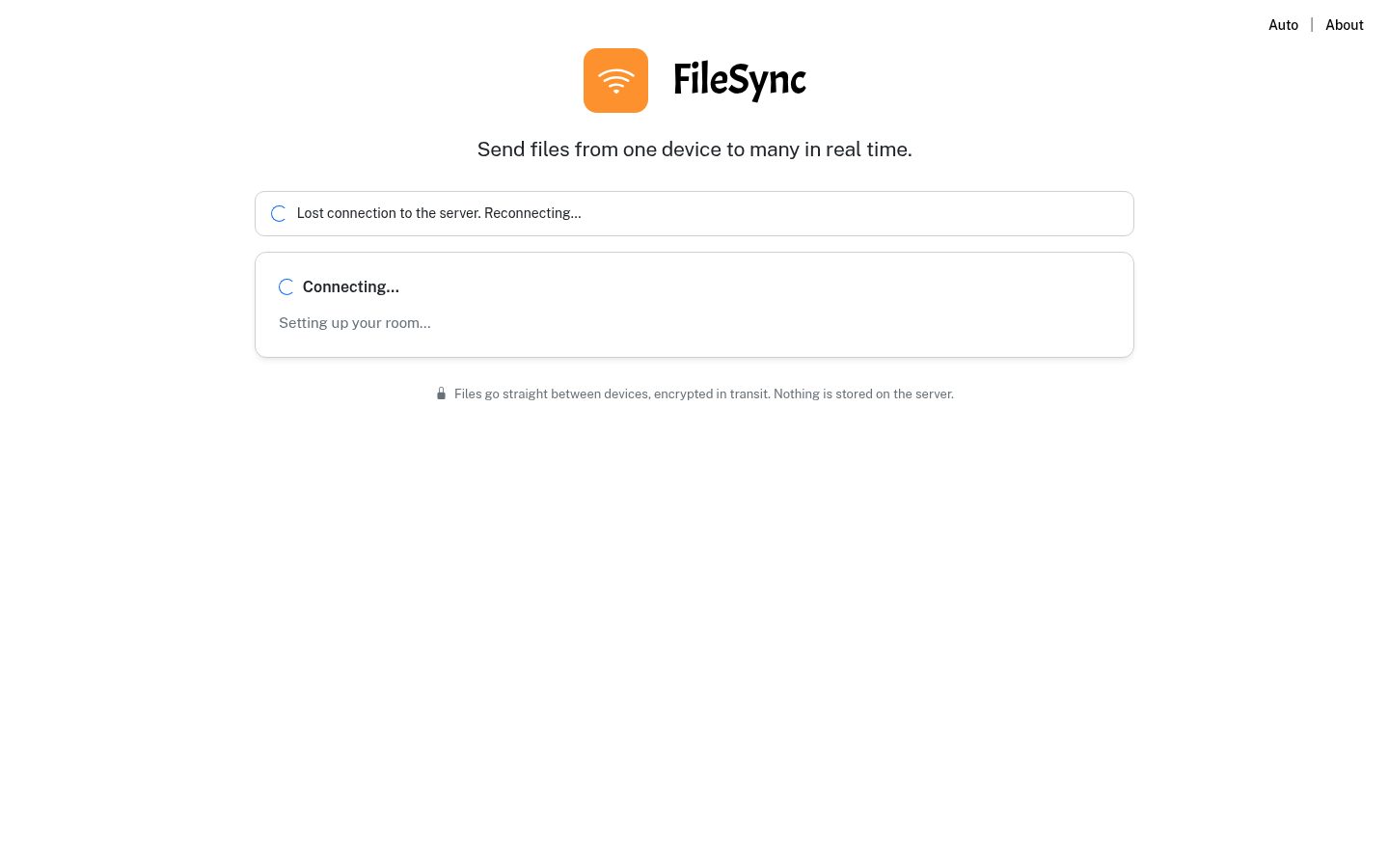
Overview

FileSync
Send files from one device to many, in real time: private, peer-to-peer, with no size limit.


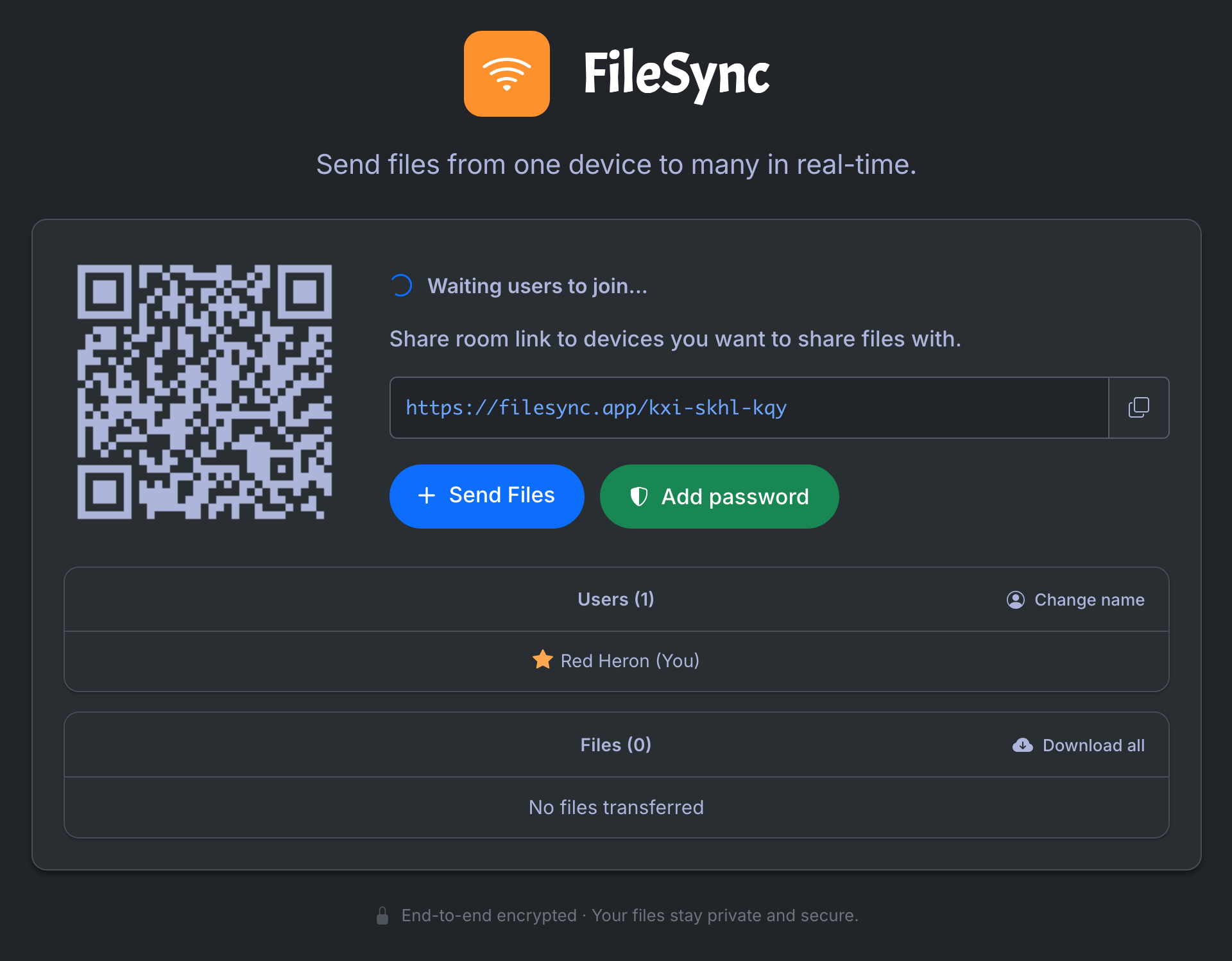
Features
- Private: files go straight between browsers, encrypted. The server never sees them.
- Verified links: a key in the link, never sent to the server, proves nobody is in between.
- Any file size: files stream to disk as they arrive, so memory stays low.
- Checked on arrival: every file is verified with SHA-256 when it lands.
- Automatic resume: interrupted transfers continue from the last byte saved.
- One-to-many: share a link or QR code; everyone can send, receive and download all as a zip.
- Folders, paste and messages: send folders, paste from the clipboard, chat with the room.
- Works across networks: direct connection when possible, automatic relay when not.
- No installs or accounts: recipients just open a link. Rooms can have a password.
- Self-hosted: one Docker image plus a TURN relay, started with one command.
How it works
One minute: opening a room, sharing the link, sending files browser to browser, verified links, and resuming large transfers. Plays as an MP4 in your browser.
Self-hosting
Prerequisites
- Docker with Docker Compose
Option A — HTTP (quick local test)
For trying FileSync on your own network. Over plain HTTP, received files are held in memory until complete, so for large files use Option B.
mkdir filesync && cd filesync
curl -fsSLO https://raw.githubusercontent.com/polius/filesync/main/deploy/docker-compose.yml
docker compose up -d
Open http://localhost on this machine, or http://<this machine's IP> from another device on the same network.
Option B — HTTPS (own domain, recommended)
You need a server with a public IP and a domain name.
-
Point your domain's DNS (an
Arecord) at the server. -
Open the required ports on the server's firewall.
-
Download the two files:
mkdir filesync && cd filesync curl -fsSLO https://raw.githubusercontent.com/polius/filesync/main/deploy/docker-compose-ssl.yml curl -fsSLO https://raw.githubusercontent.com/polius/filesync/main/deploy/Caddyfile -
Open
Caddyfileand replaceyourdomain.comon the first line with your domain. -
Start it:
docker compose -f docker-compose-ssl.yml up -d
Open https://yourdomain.com. Caddy gets the certificate automatically.
Updating
From the filesync folder:
docker compose pull && docker compose up -d
For Option B, add -f docker-compose-ssl.yml after docker compose in both commands. When the release notes say the compose files changed, download them again first.
Required ports
Open these on your server's firewall (and in your cloud provider's security group, if it has one):
| Port | Protocol | Purpose |
|---|---|---|
80 and 443 | TCP | Web interface (80 only redirects to HTTPS in Option B) |
3478 | TCP + UDP | STUN/TURN: finding the best connection between devices |
50000–50100 | UDP | TURN relay range, used when a direct connection isn't possible |
Most transfers connect directly. The relay range carries traffic only when one side is behind a strict firewall or symmetric NAT. Each pair of devices uses at most one relay port, so the default range serves about 100 relayed pairs at once.
If something doesn't work on a device, open /test.html on it for a diagnostic report.
Configuration (optional)
Set these as environment: entries on the filesync service.
| Variable | Default | Purpose |
|---|---|---|
TURN_HOST | the address users open | Hostname or IP of the TURN server, if it differs from the website's |
TURN_PORT | 3478 | TURN/STUN port advertised to browsers |
TURN_EXTERNAL_IP | unset | Public IP of the TURN server. Set it when the website sits behind a CDN or proxy whose address isn't the TURN server's |
FILESYNC_TURN_TTL_SECONDS | 3600 | Lifetime of TURN credentials (browsers refresh them automatically) |
FILESYNC_CLAIM_GRACE_SECONDS | 120 | How long a room stays reserved after its host disconnects, so a reload keeps the same link |
FILESYNC_MAX_WS | 10000 | Maximum simultaneous signaling connections |
FILESYNC_EXPOSE_STATS | unset | Set to 1 to include connection counts in /api/health |
Custom HTTP port. In docker-compose.yml, change the first number of the filesync port mapping, for example "8080:80".
Related projects
If you prefer the terminal, check out fsend: fast, private file sharing from your command line.
License
Released under the MIT License. Third-party components and their licenses are listed in THIRD_PARTY_NOTICES.md.
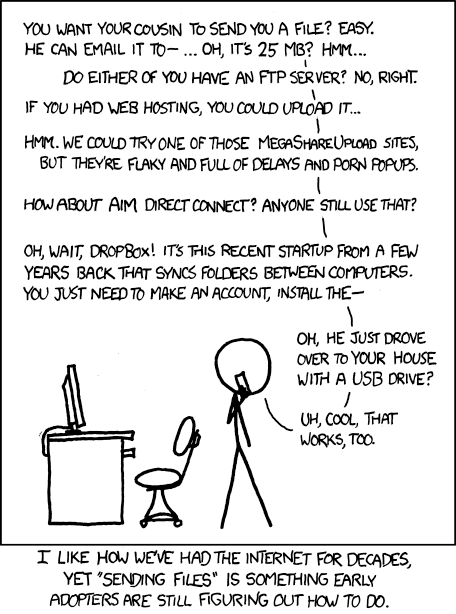
Comic: xkcd #949 — "File Transfer" by Randall Munroe, licensed under CC BY-NC 2.5.