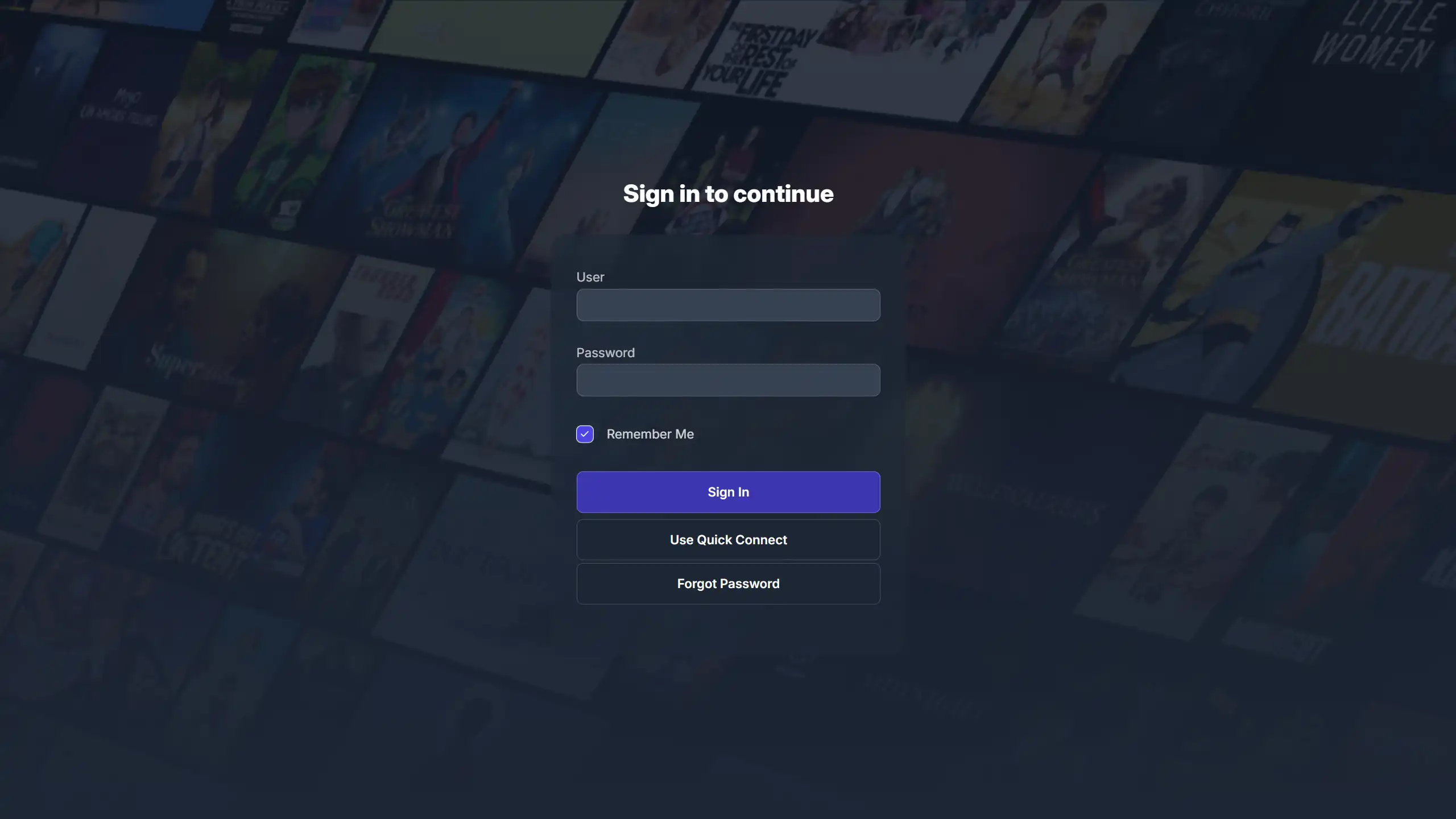
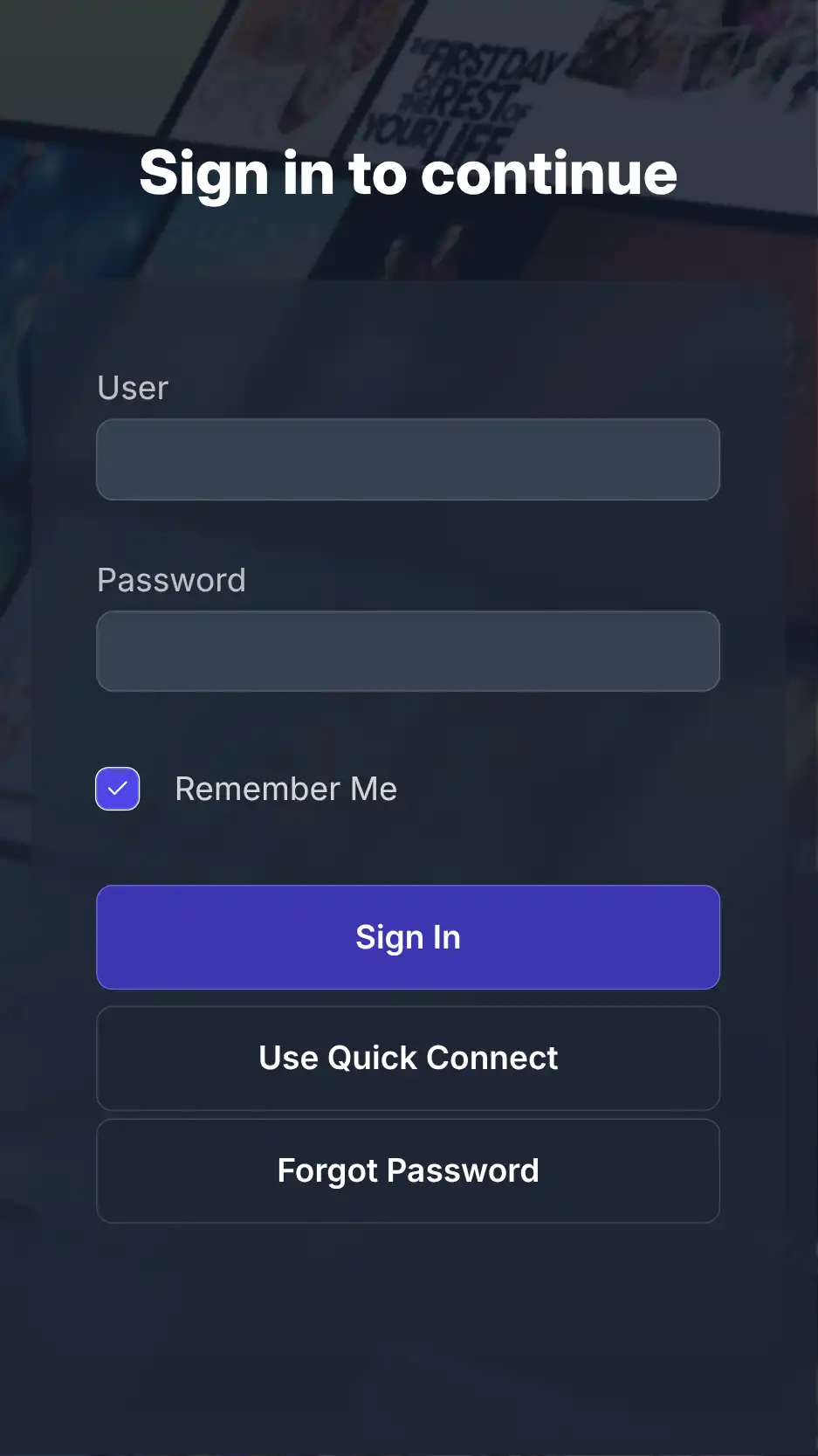
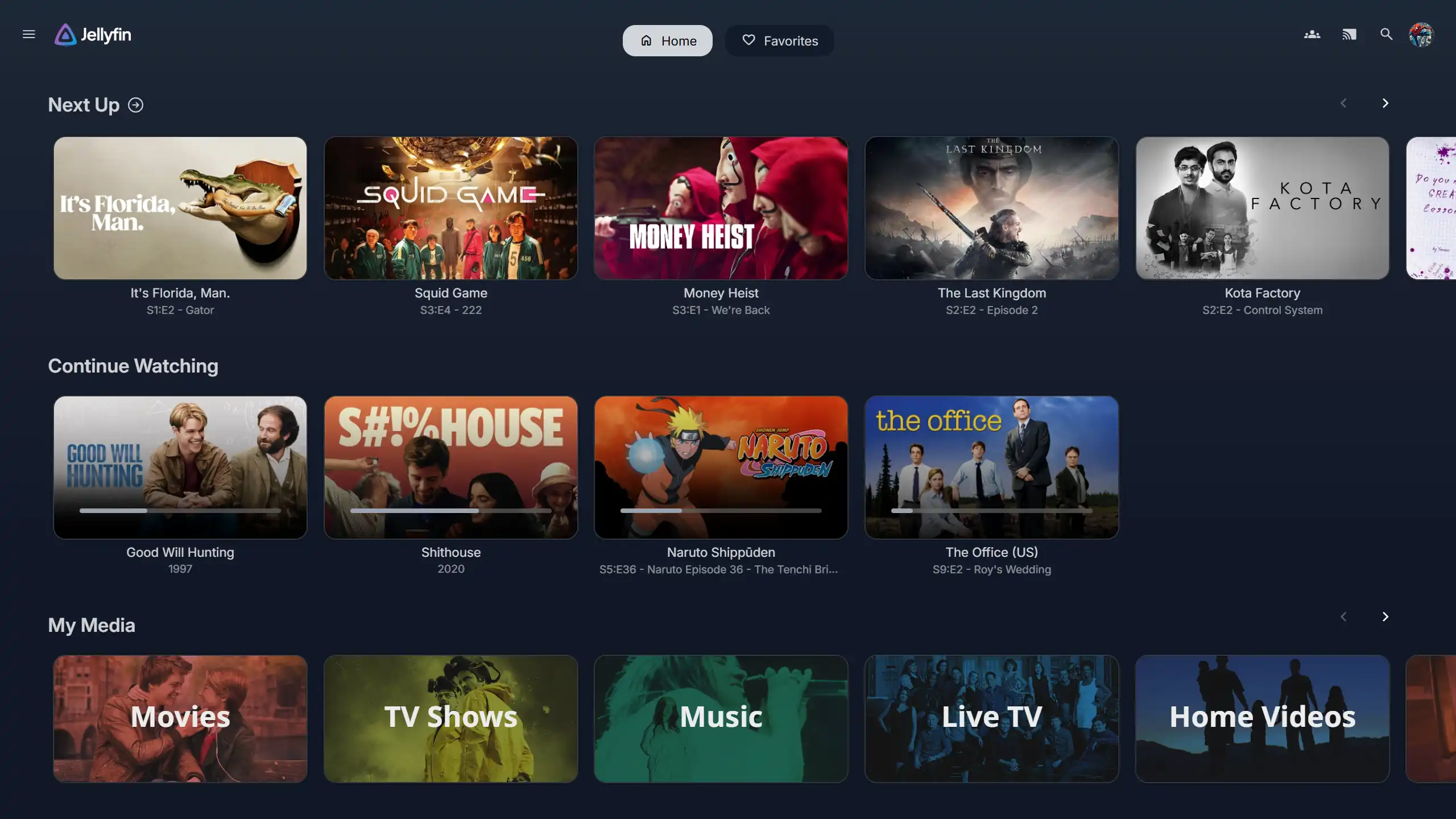
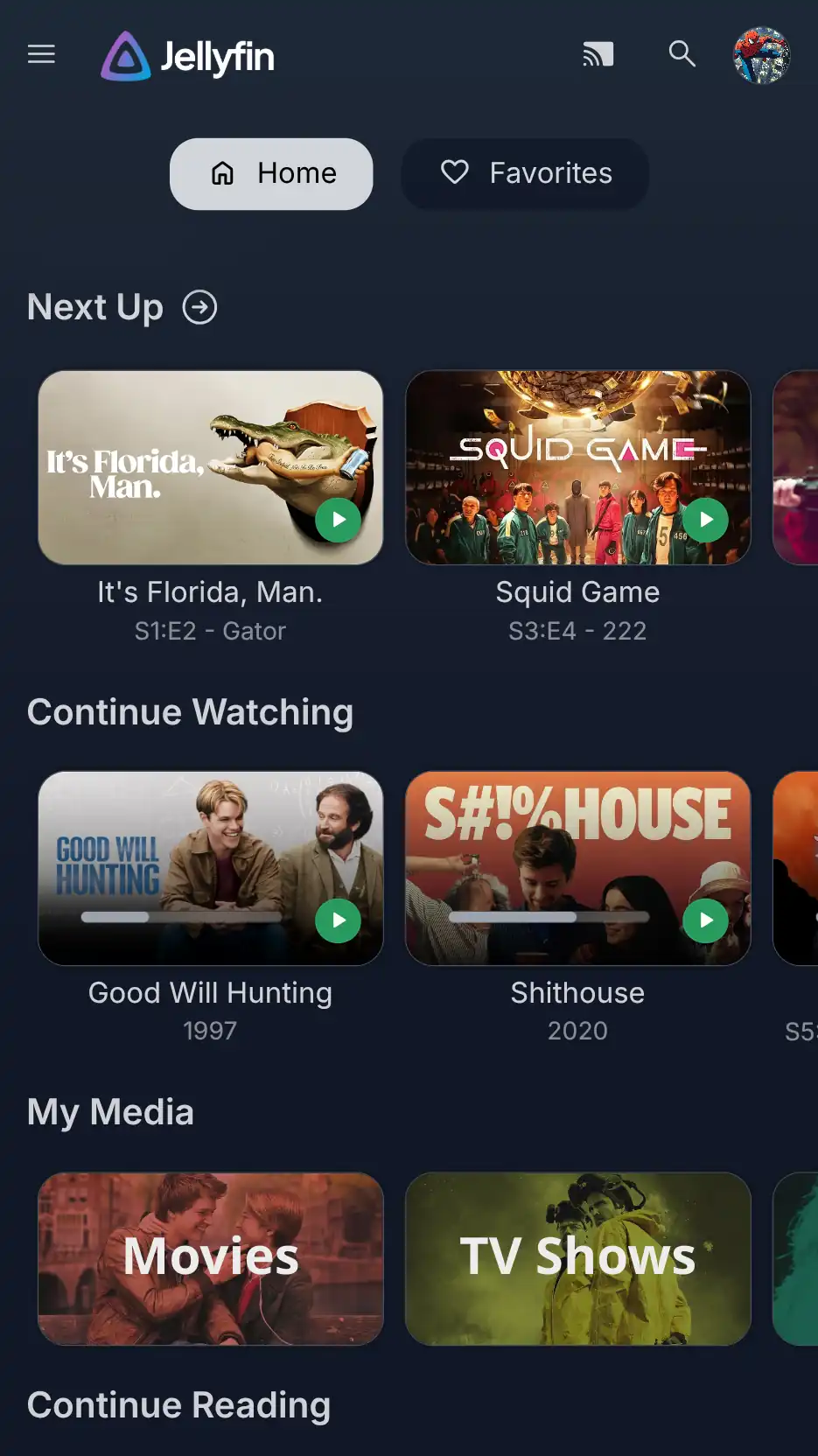
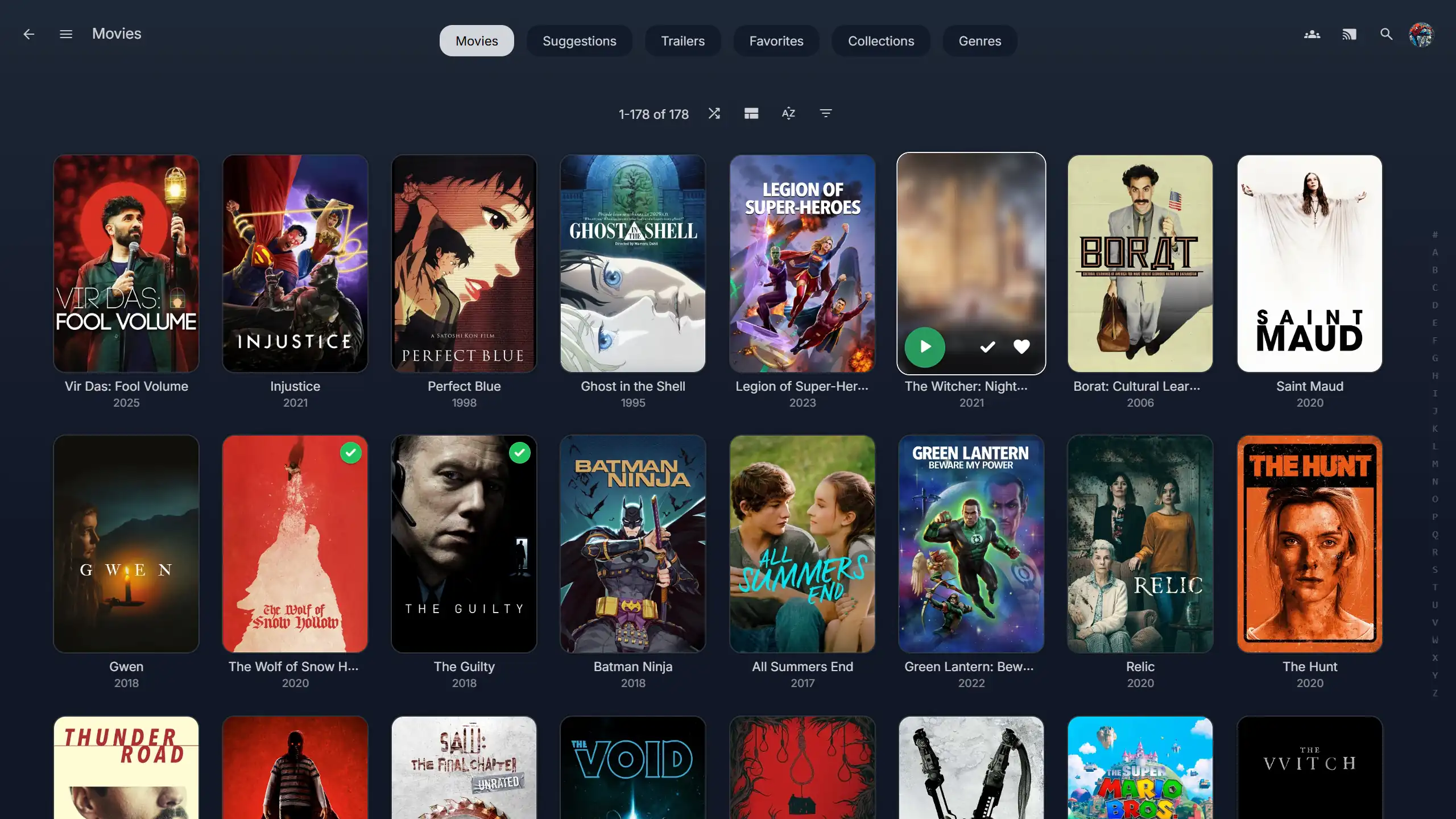
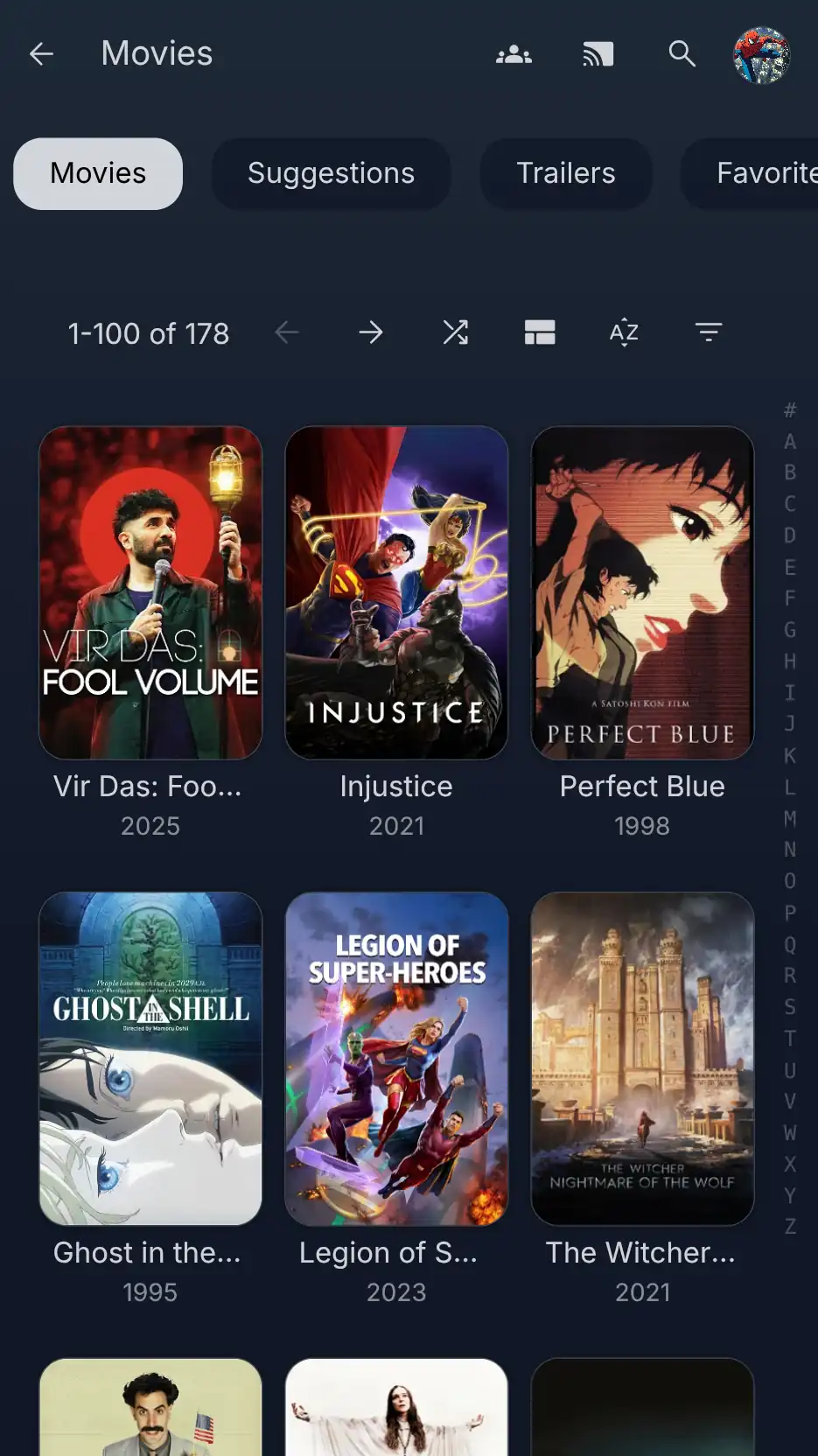
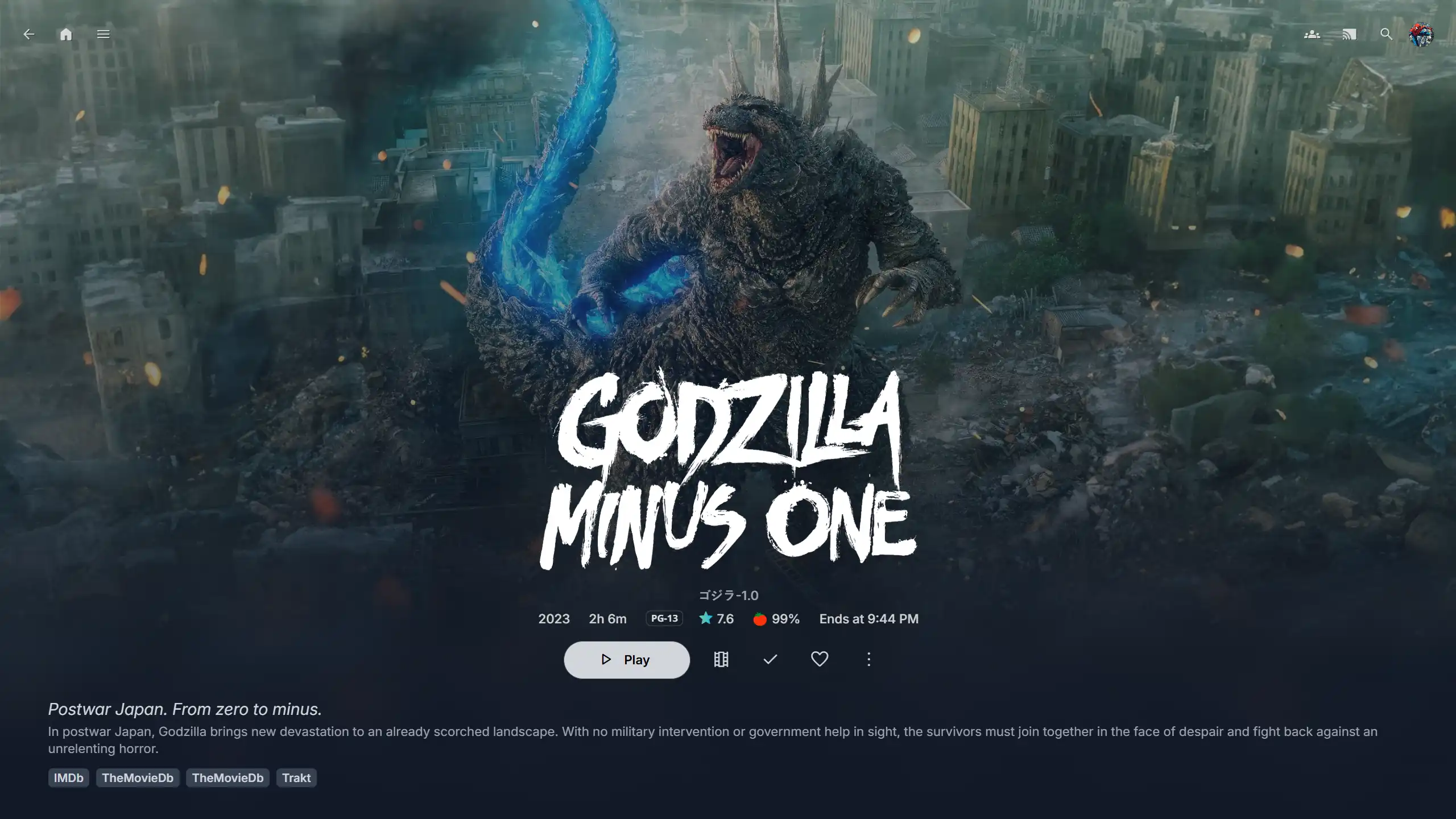
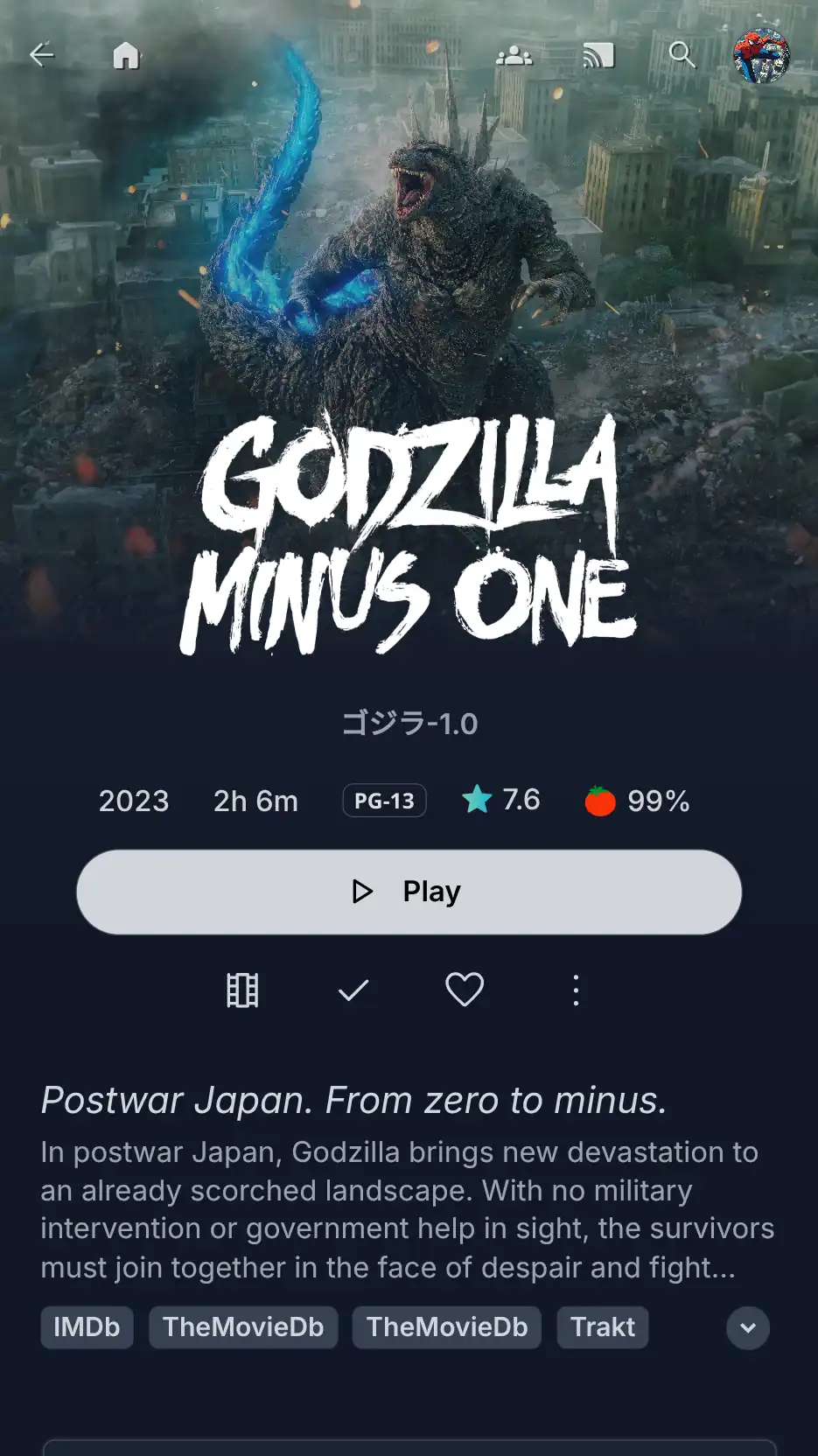
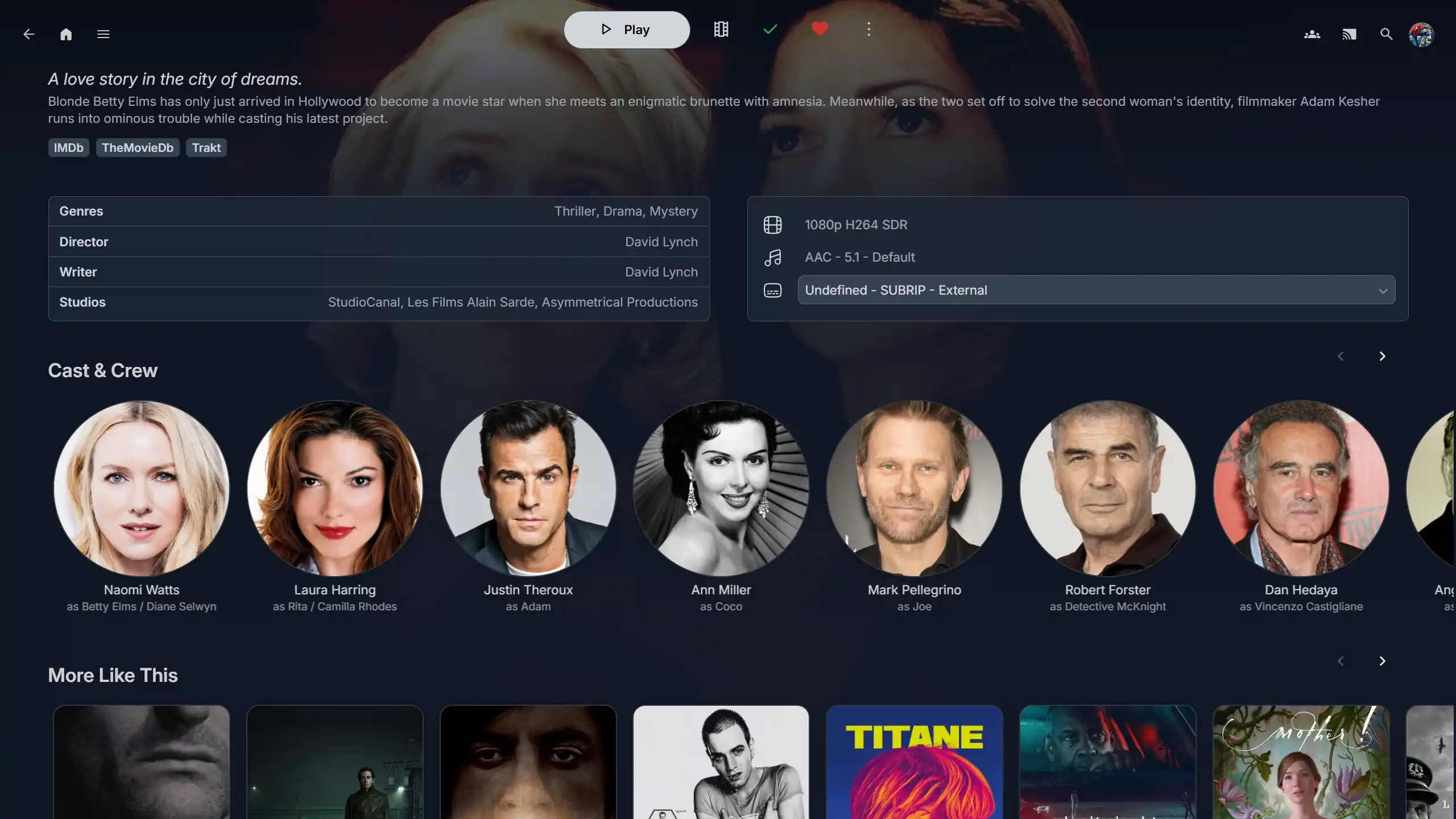
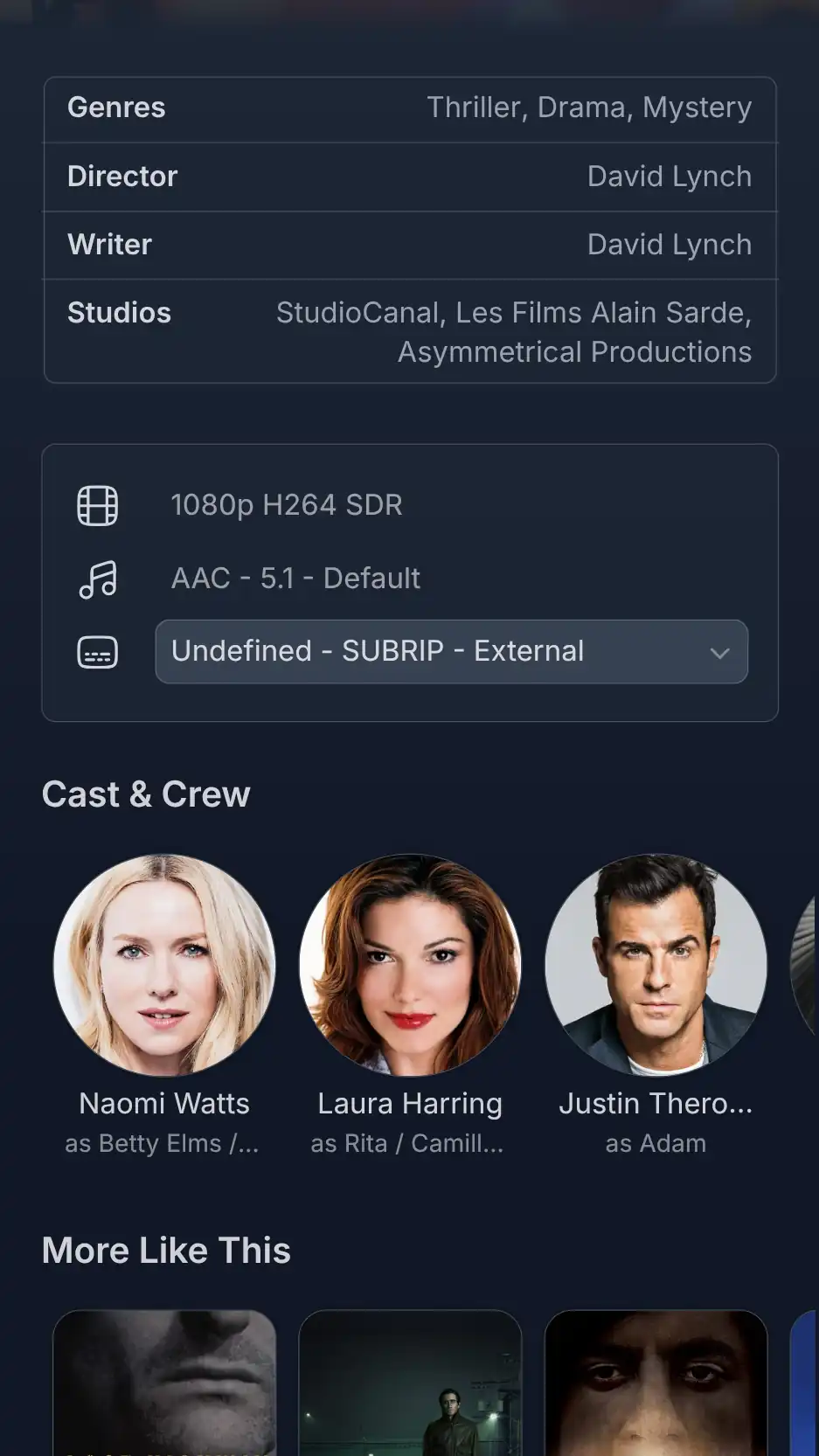
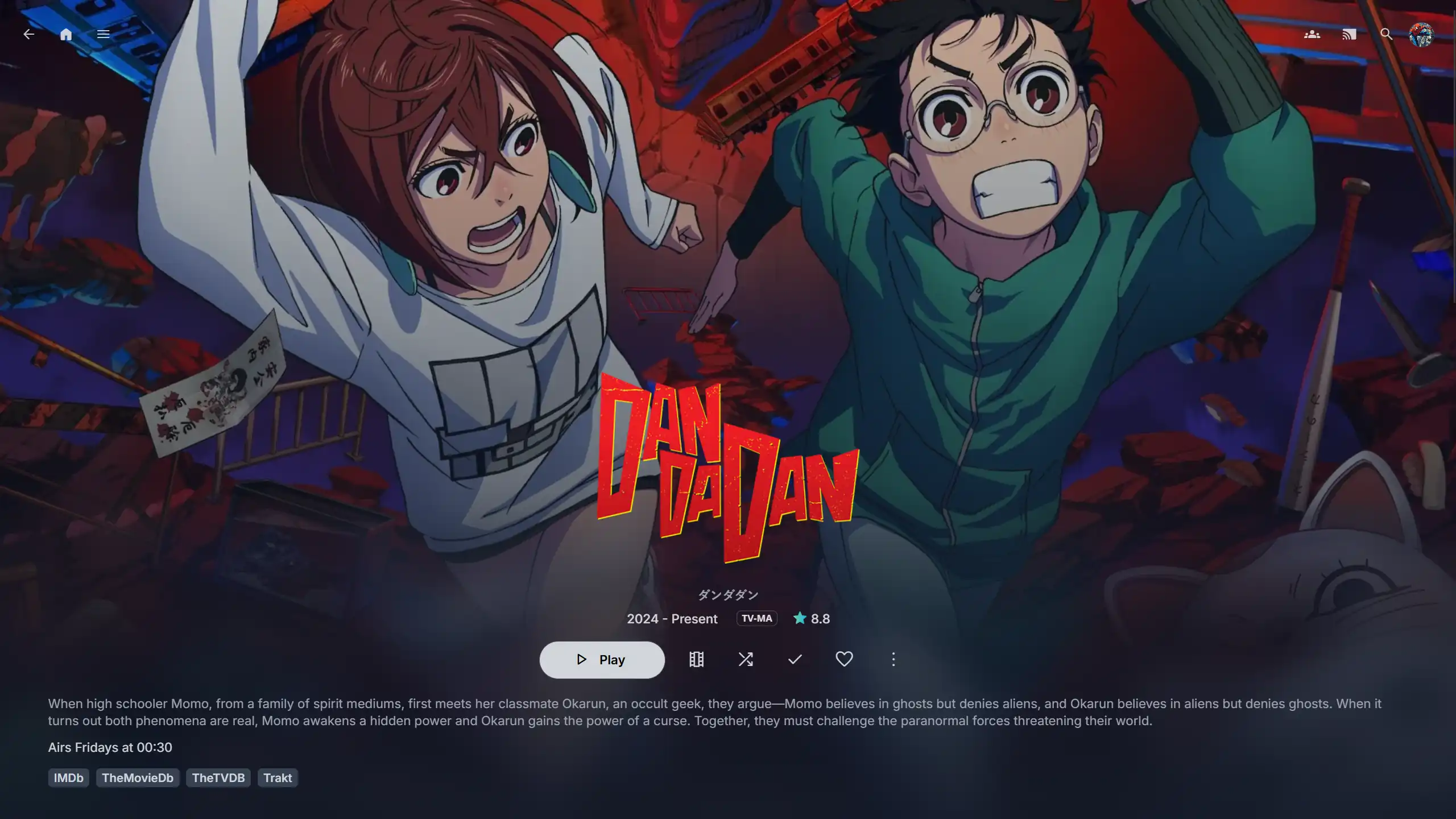
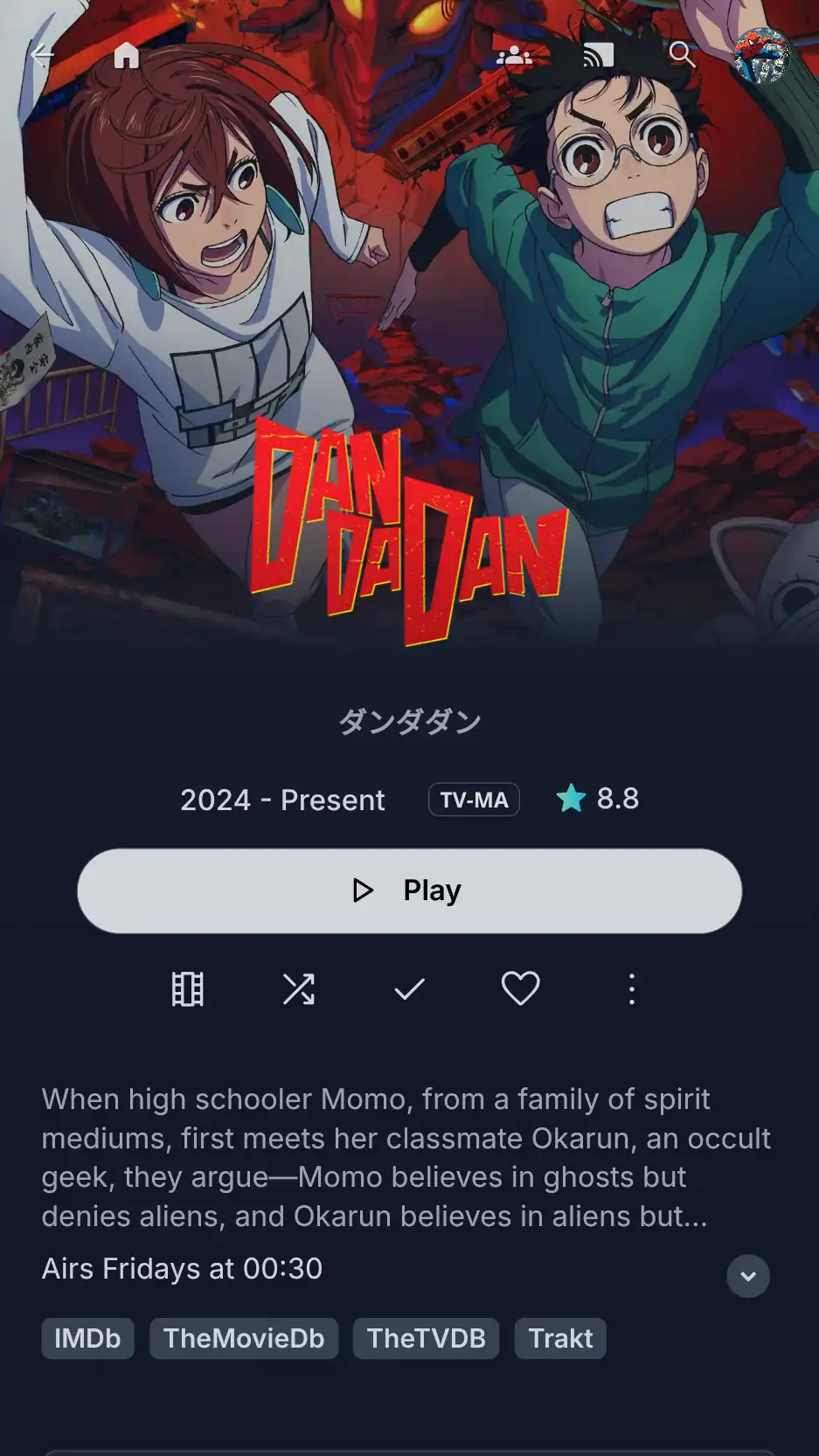
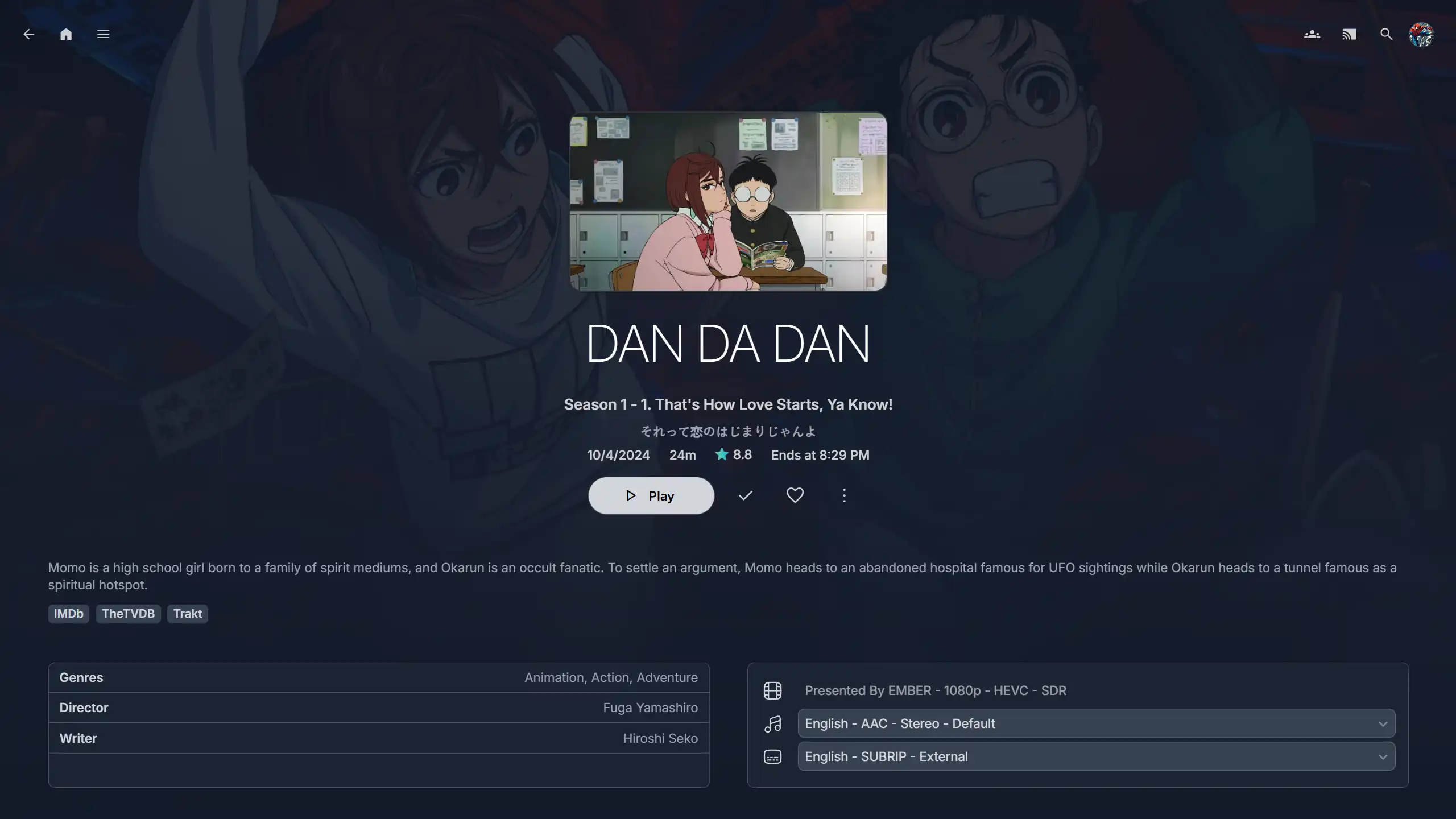
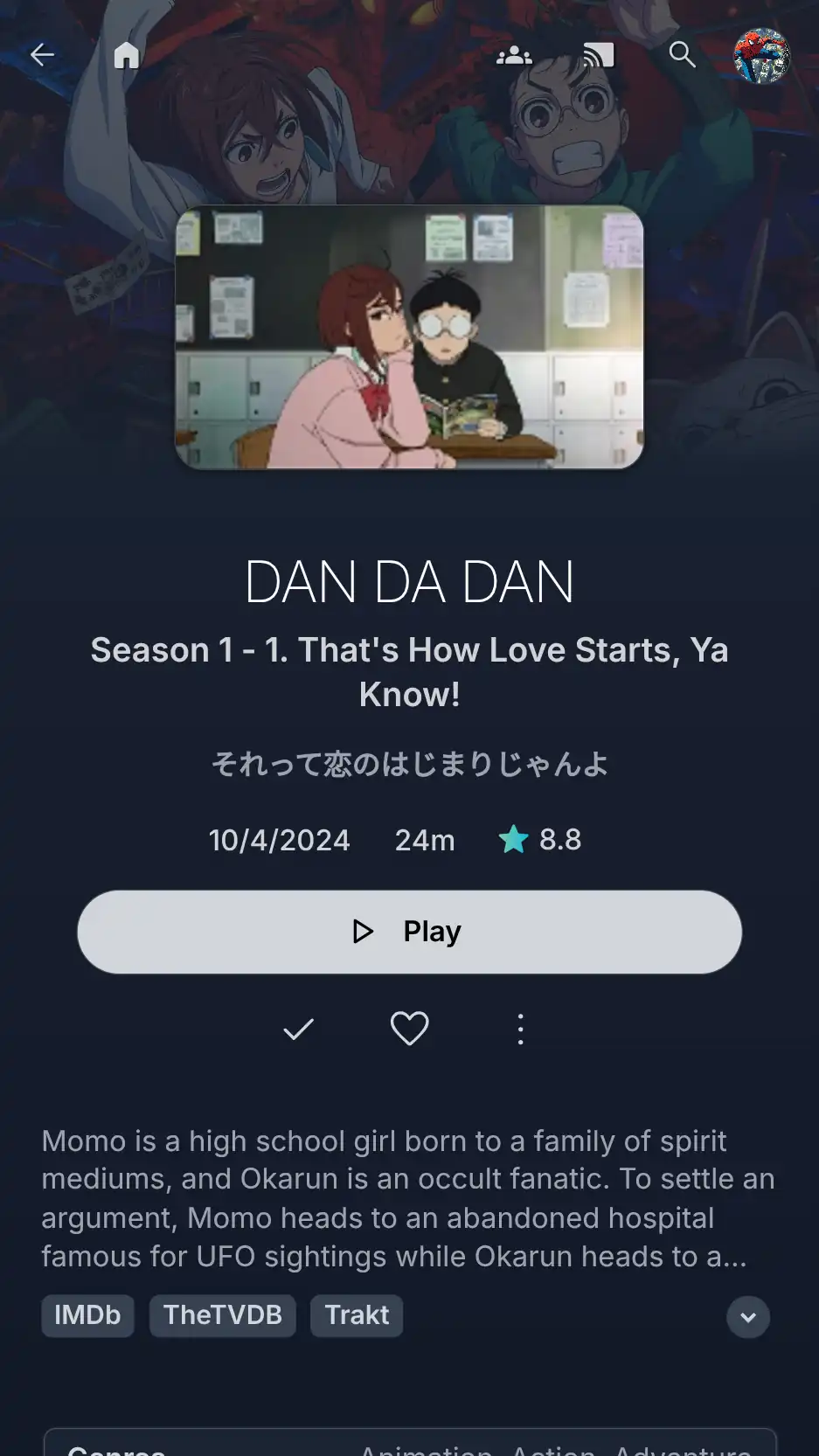
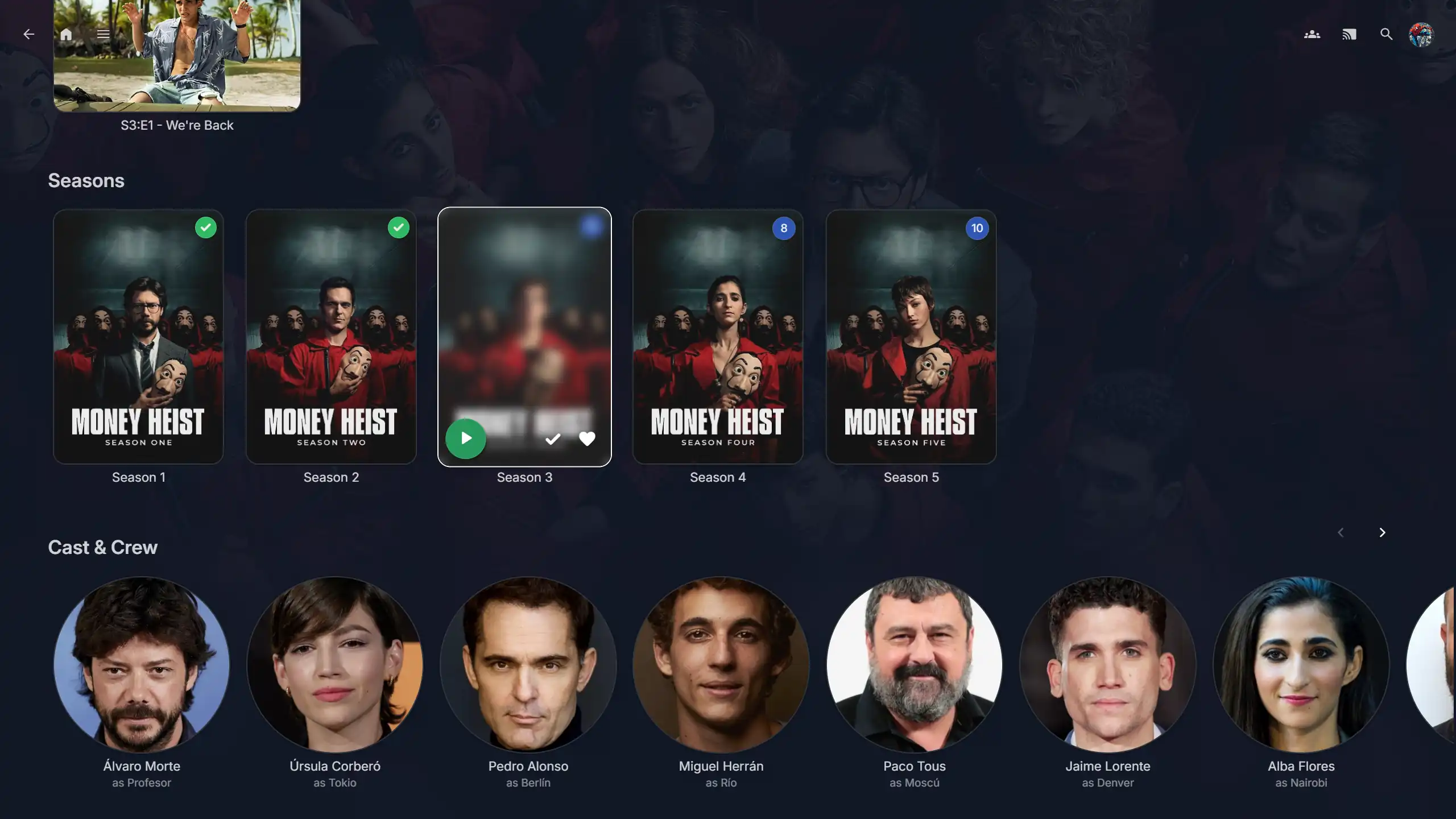
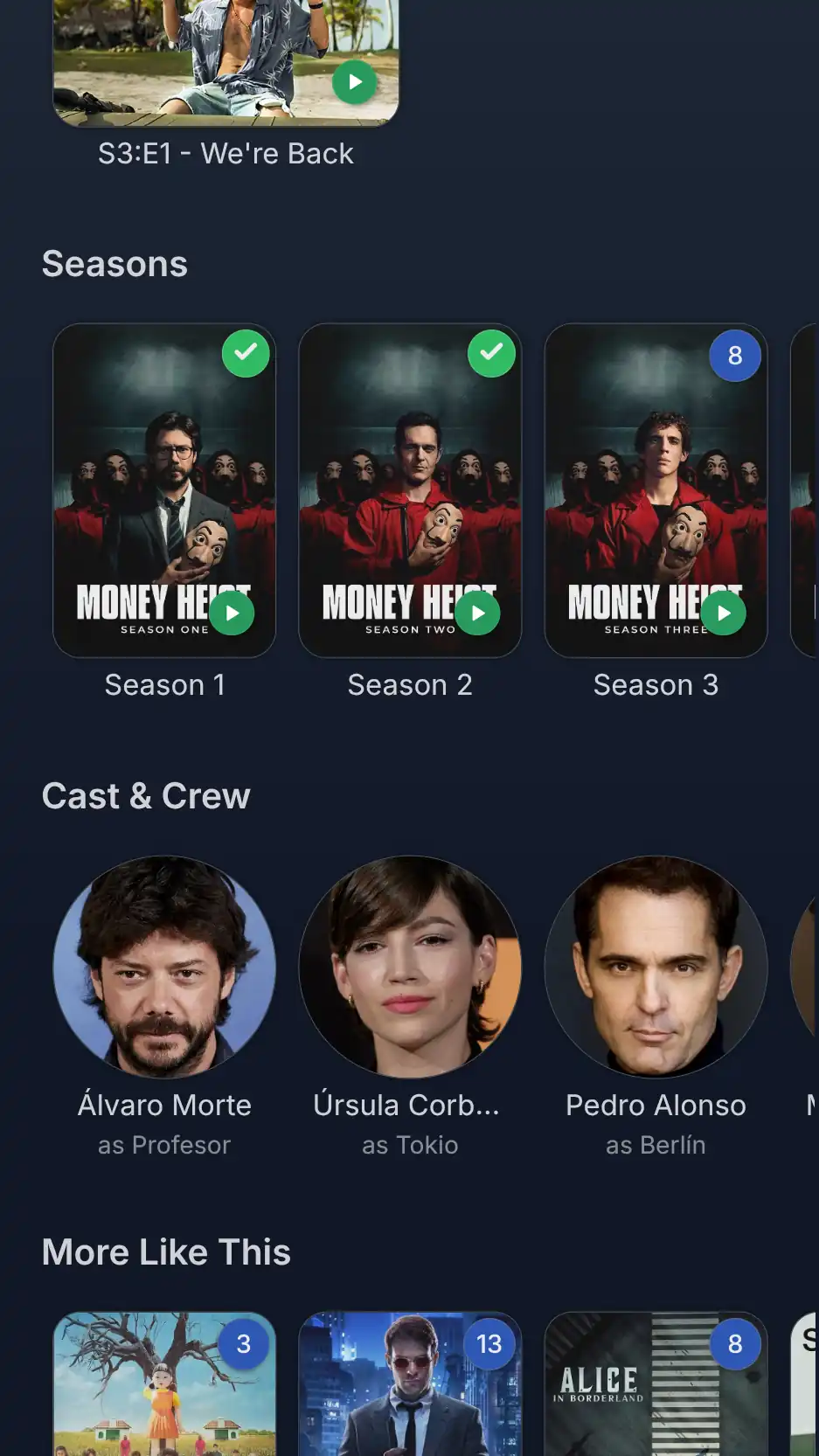
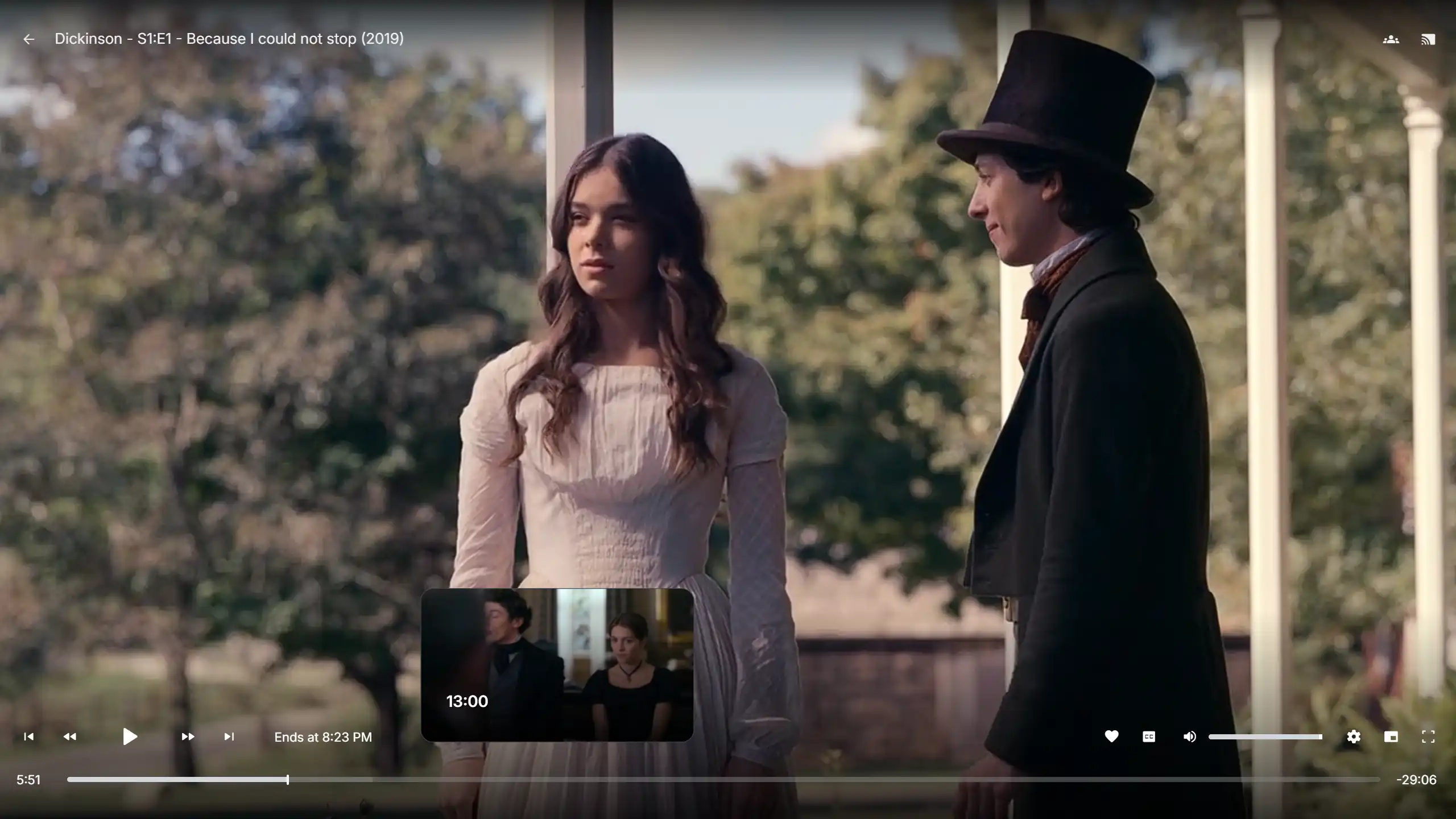
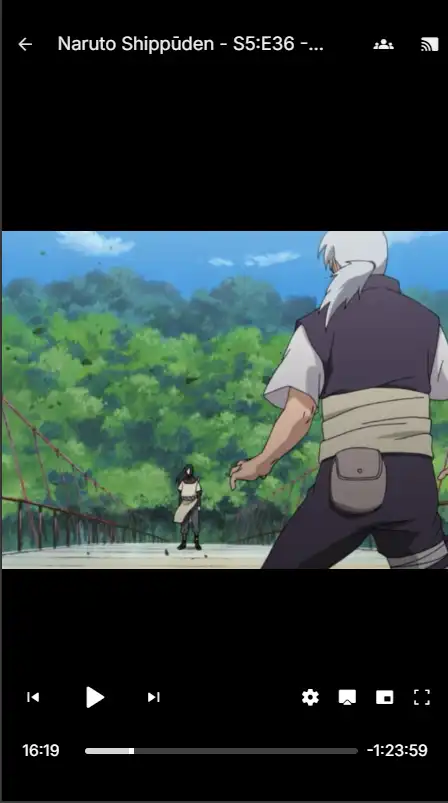
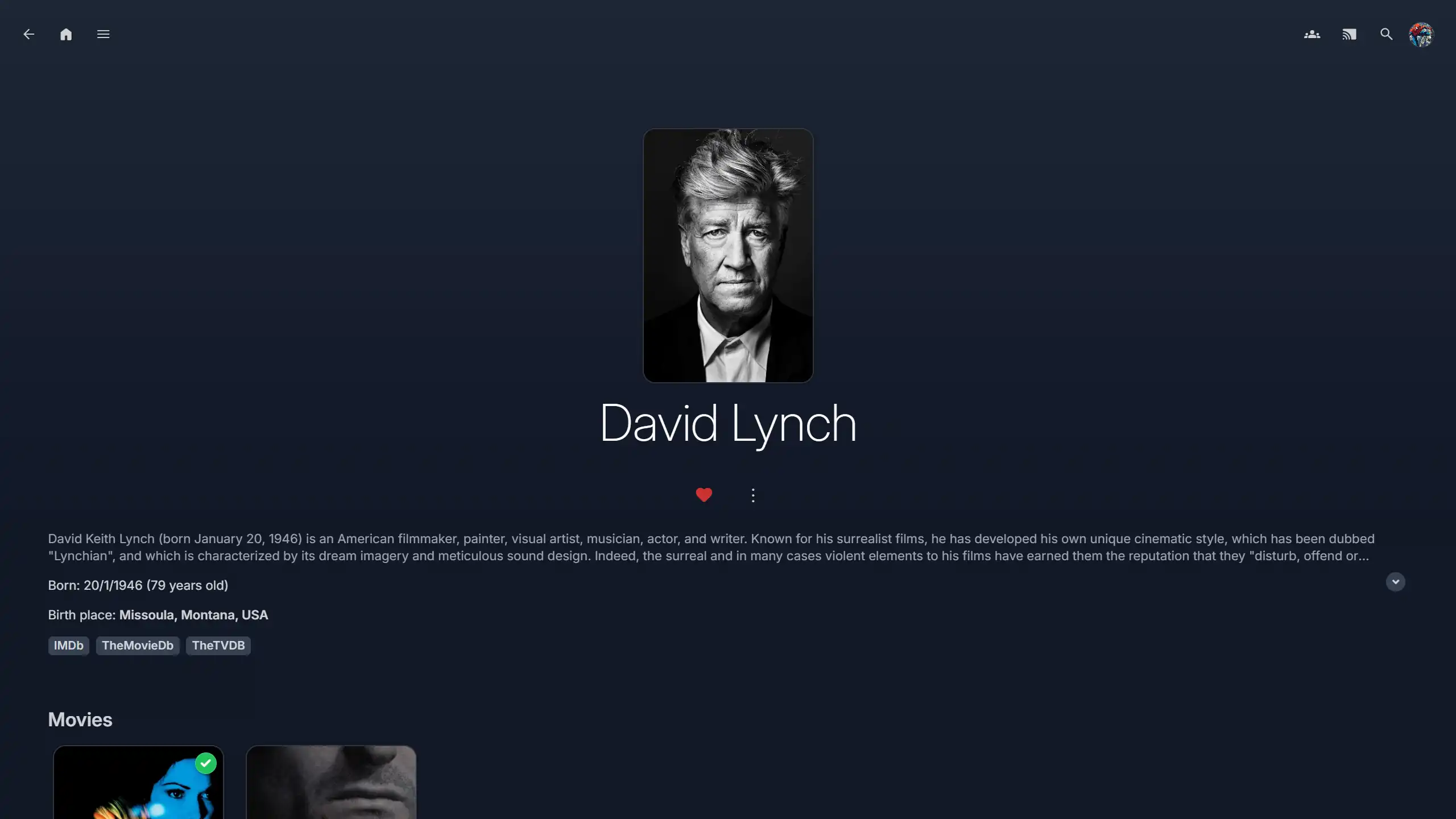
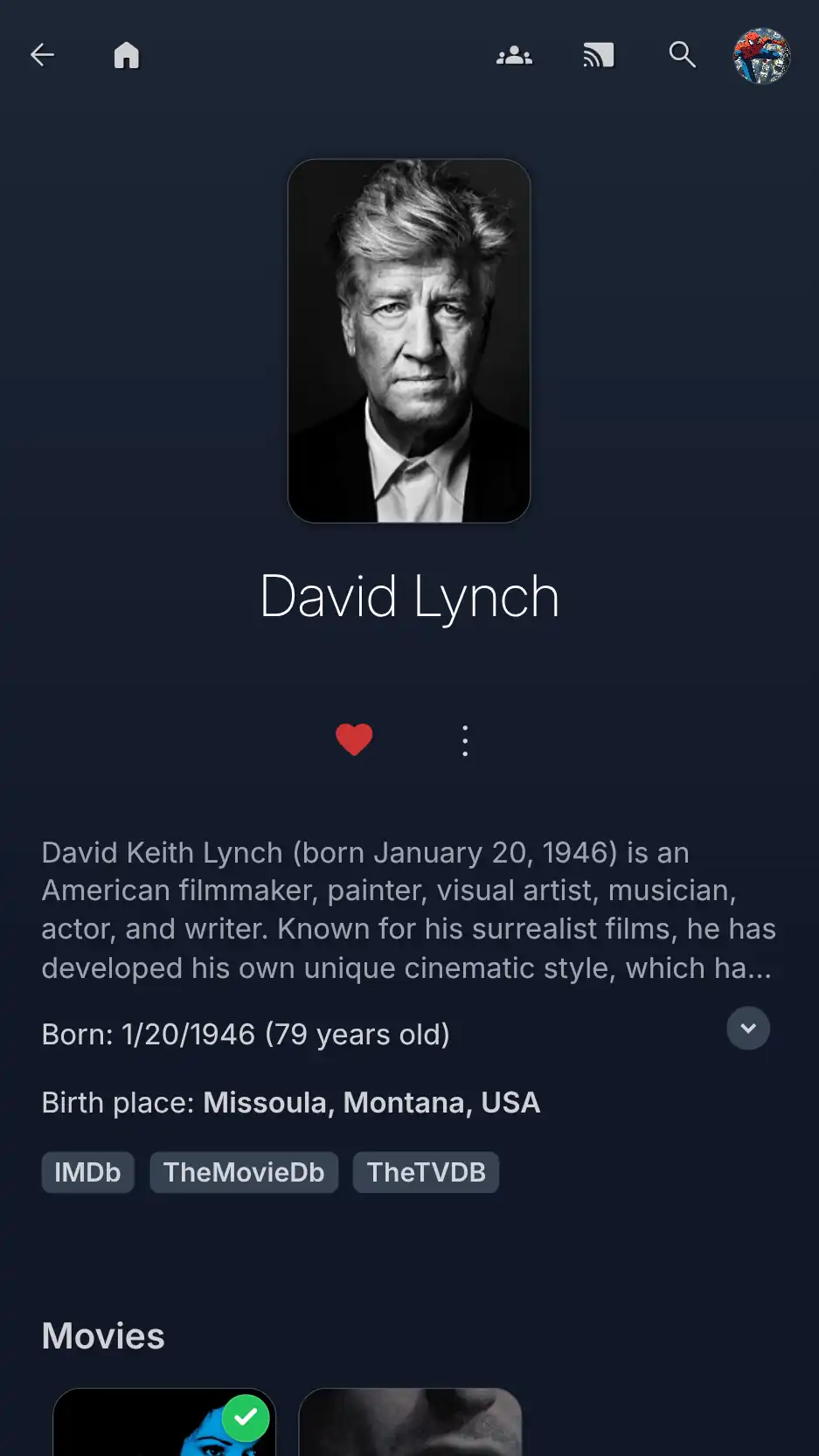
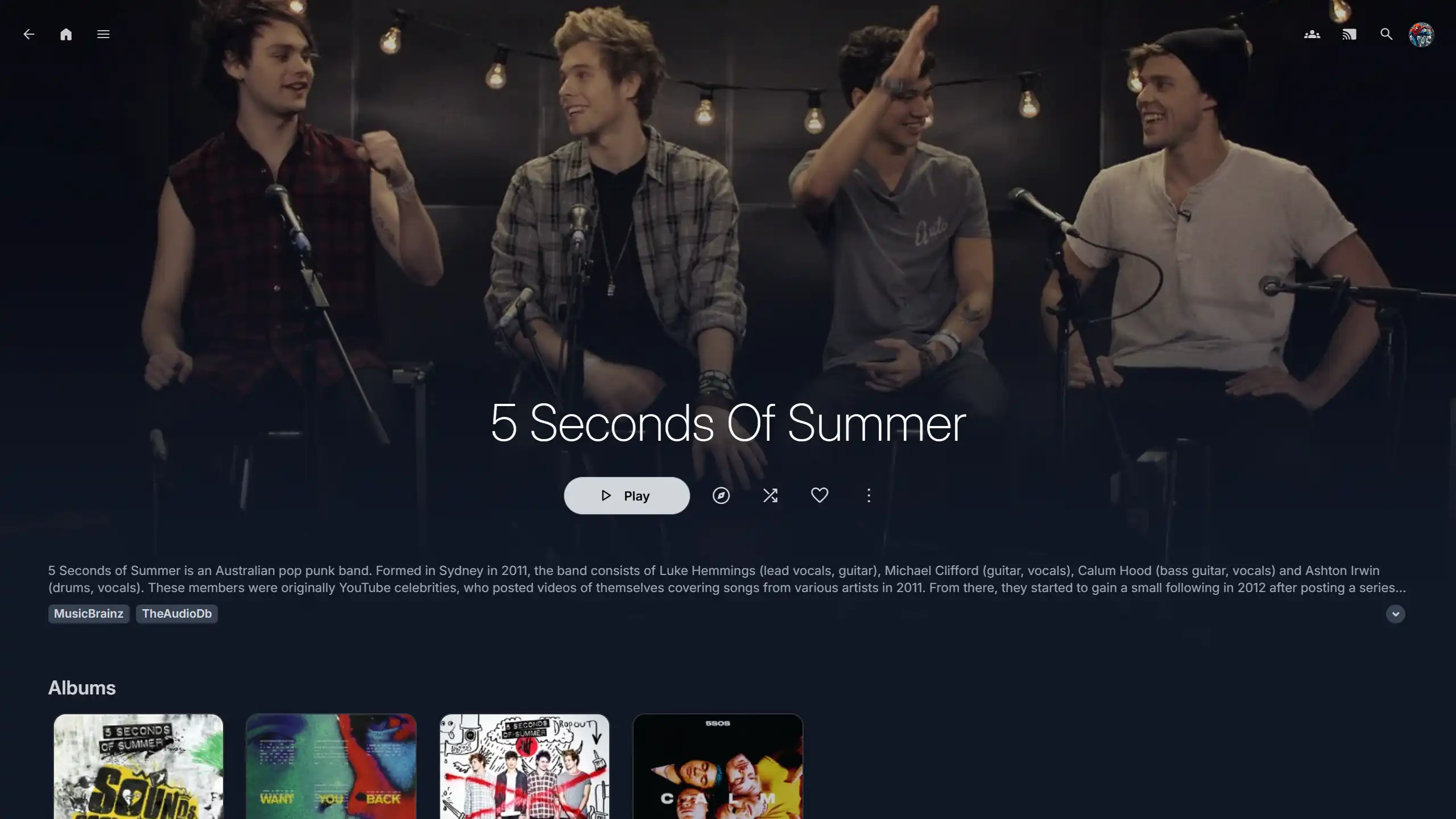
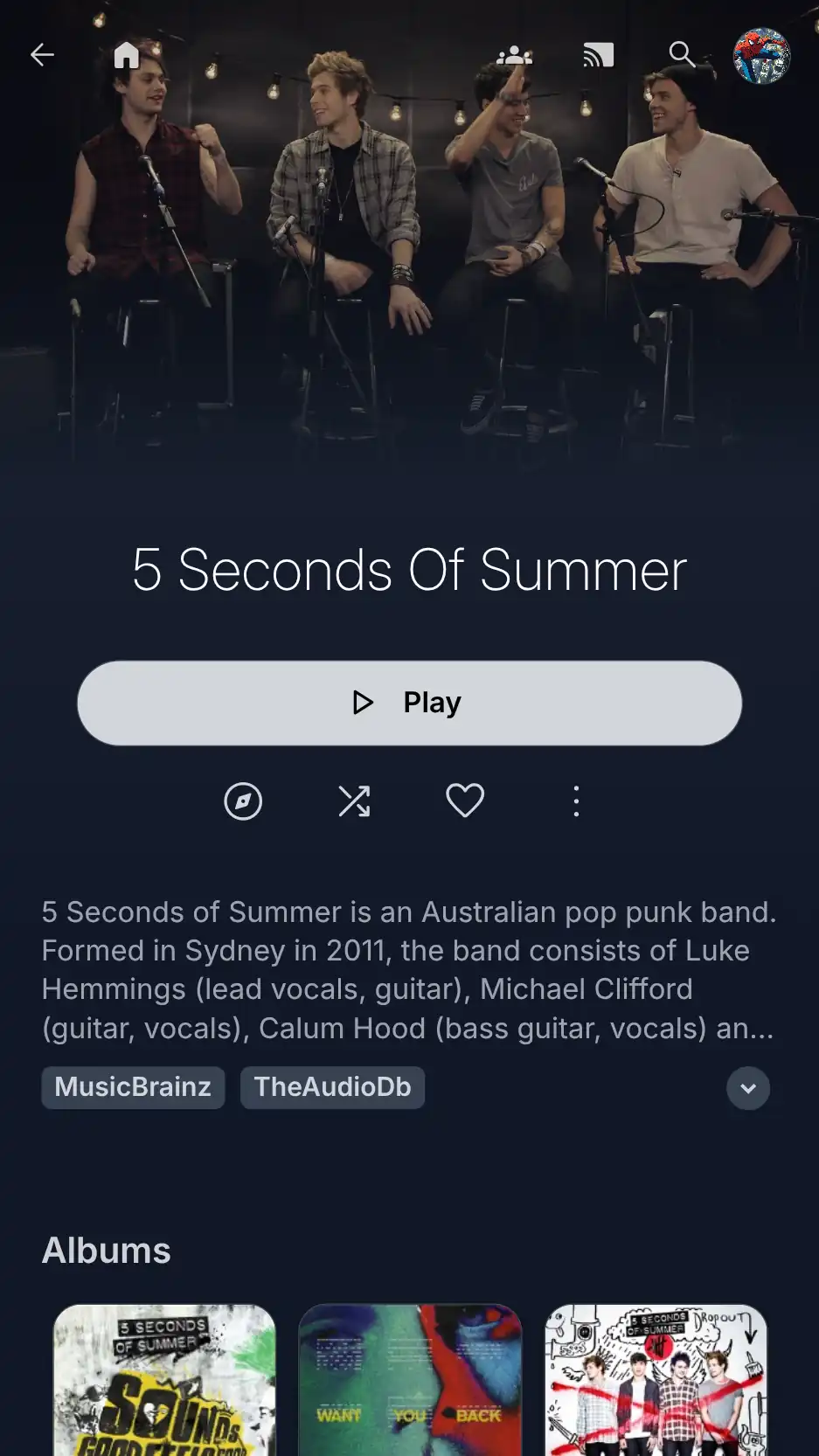
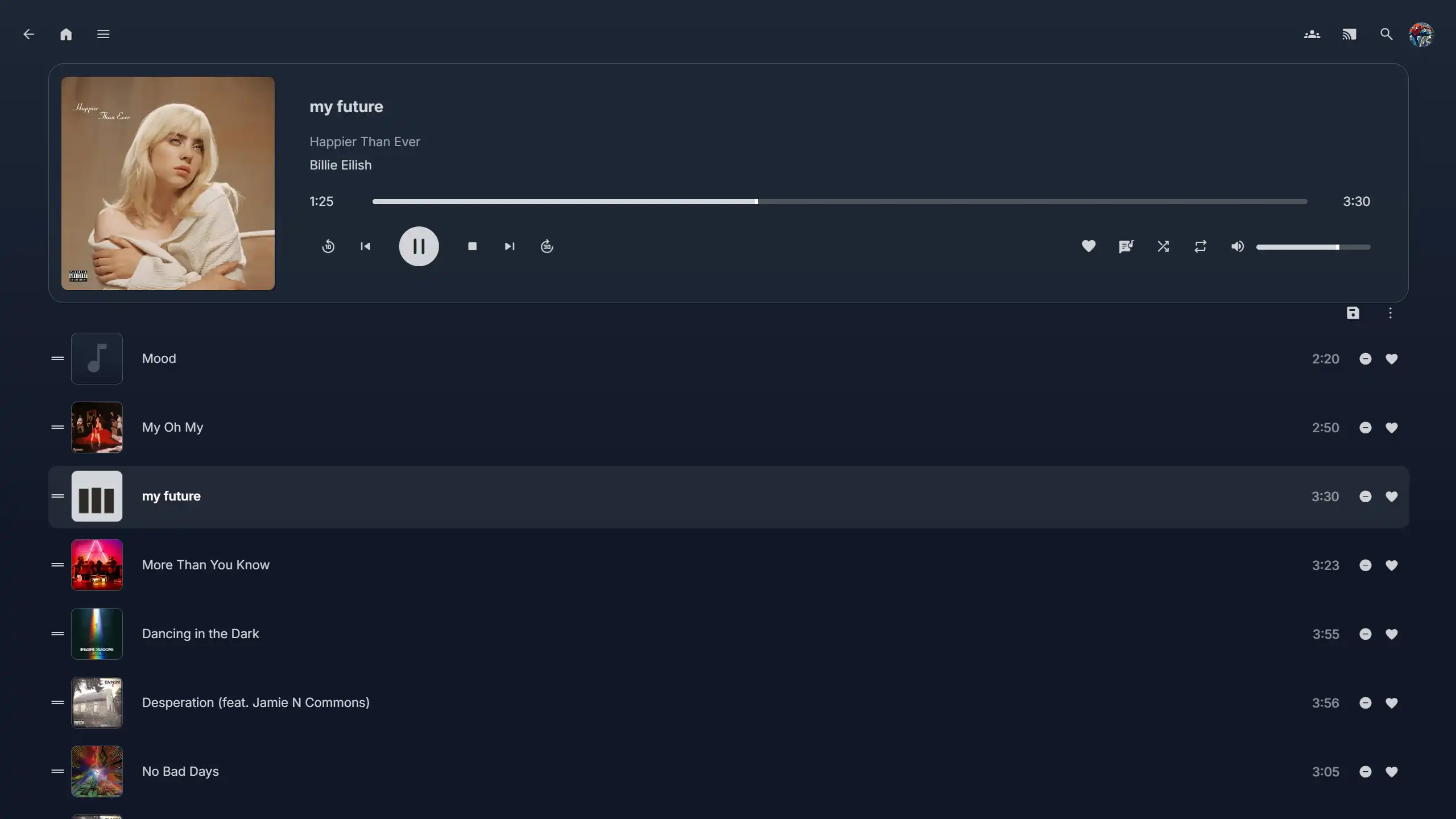
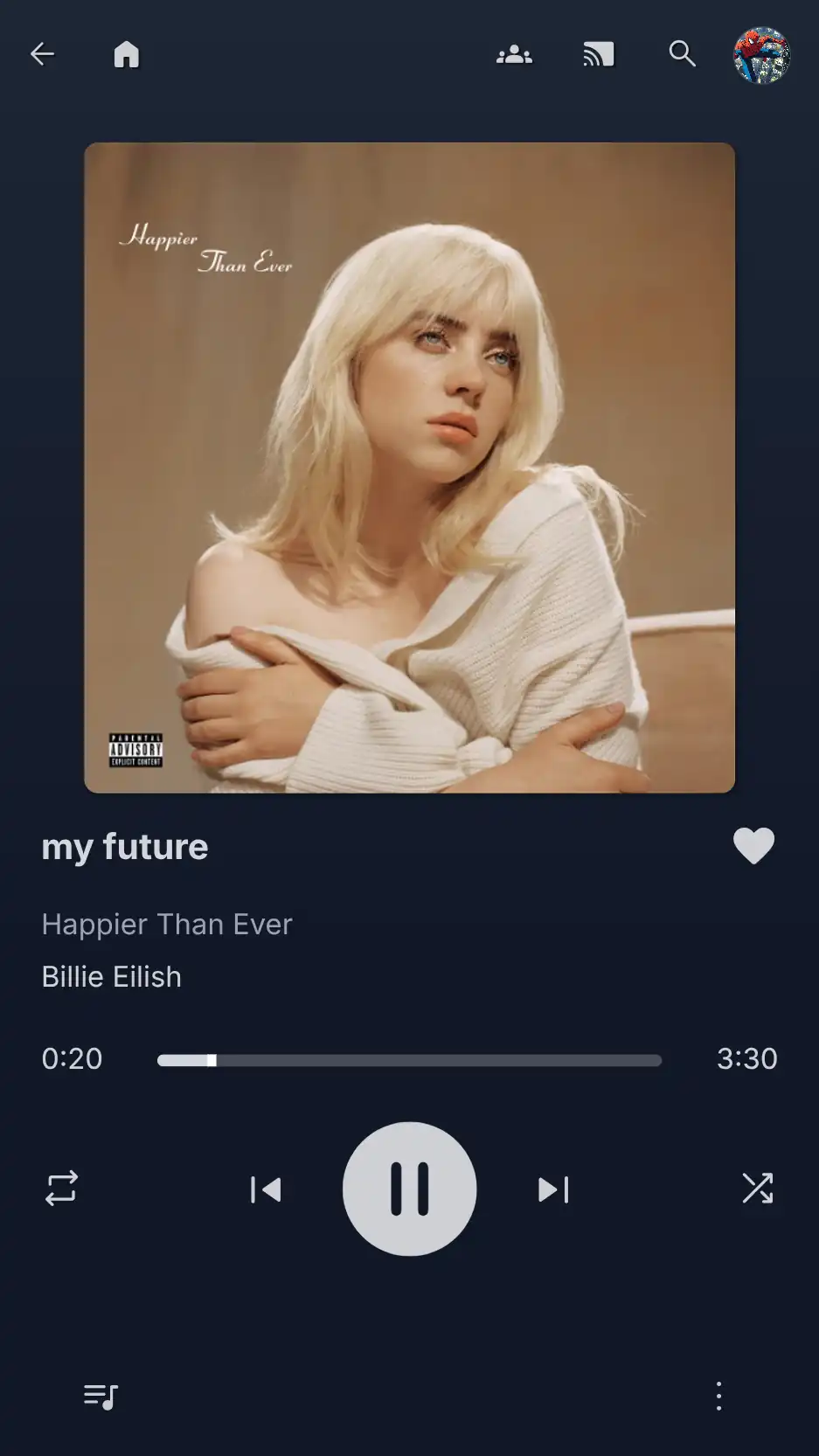
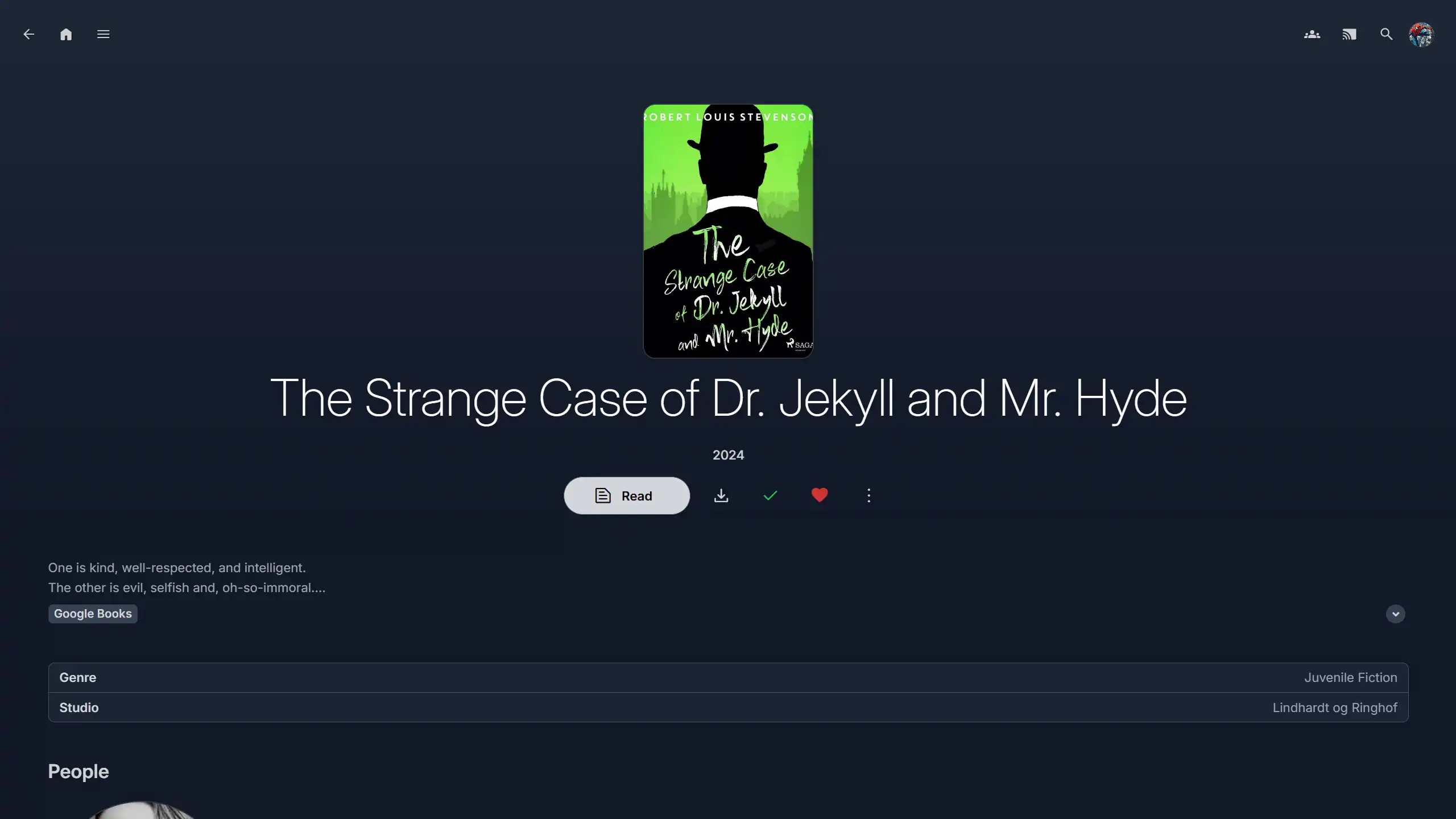
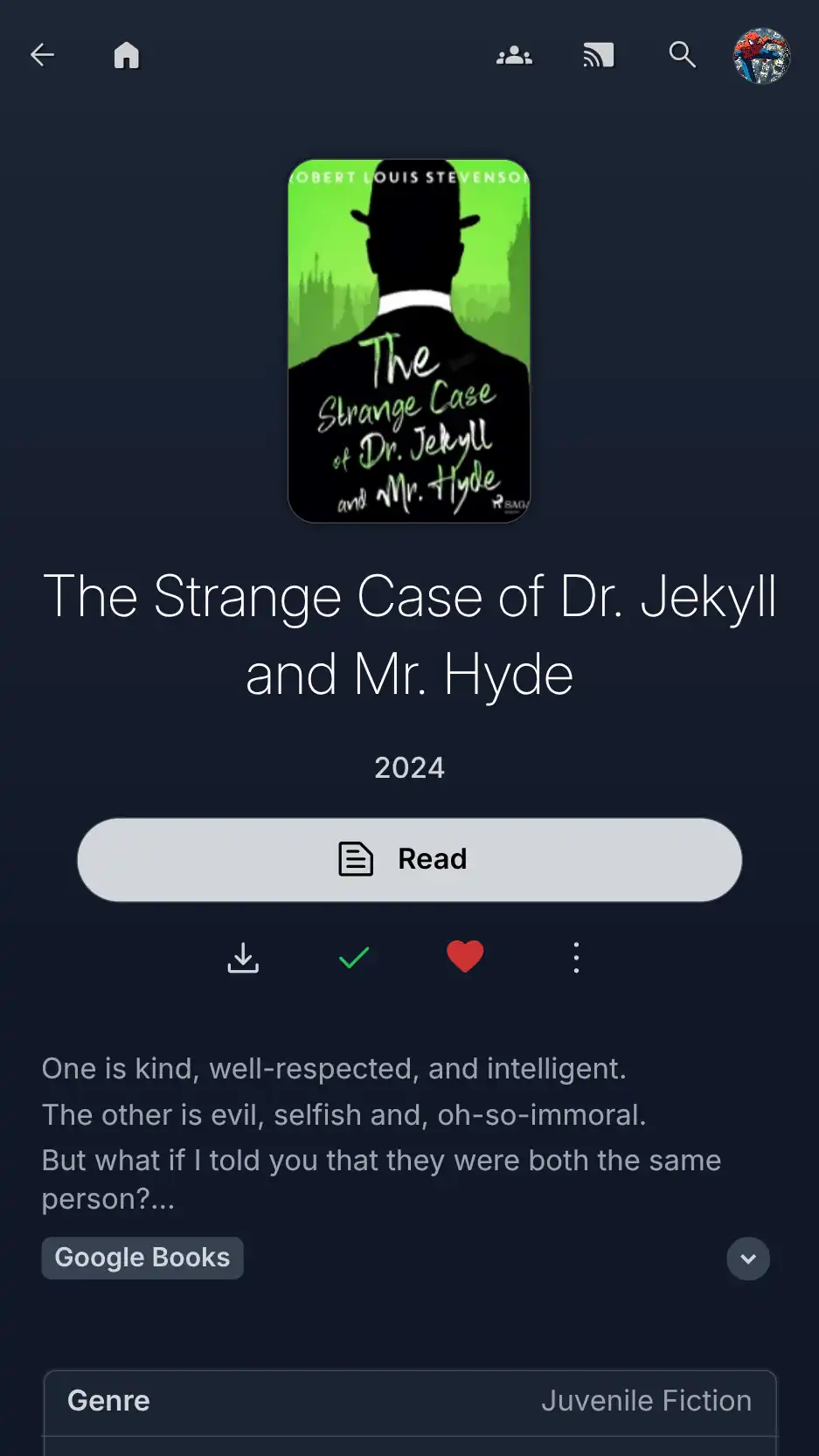
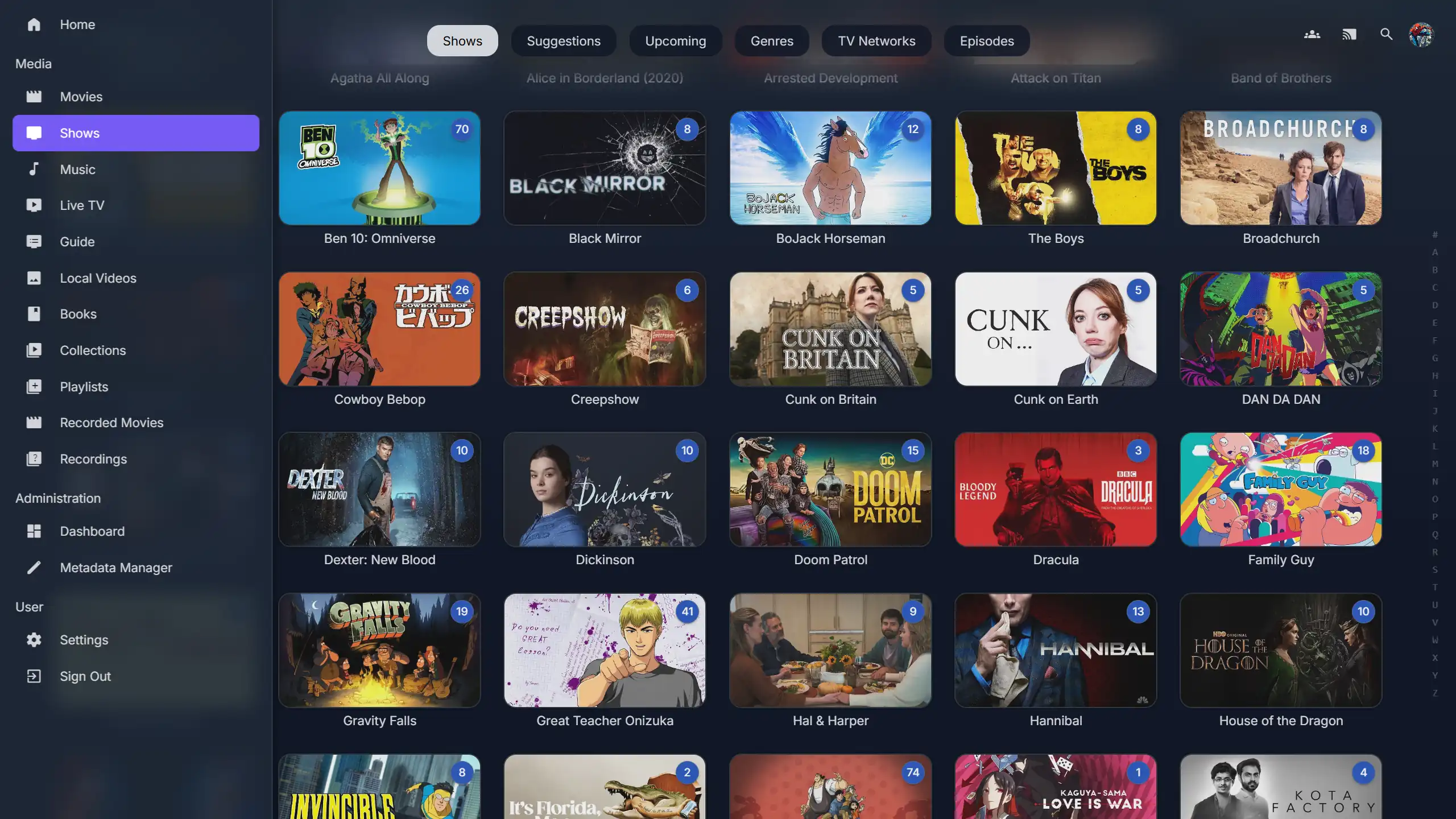
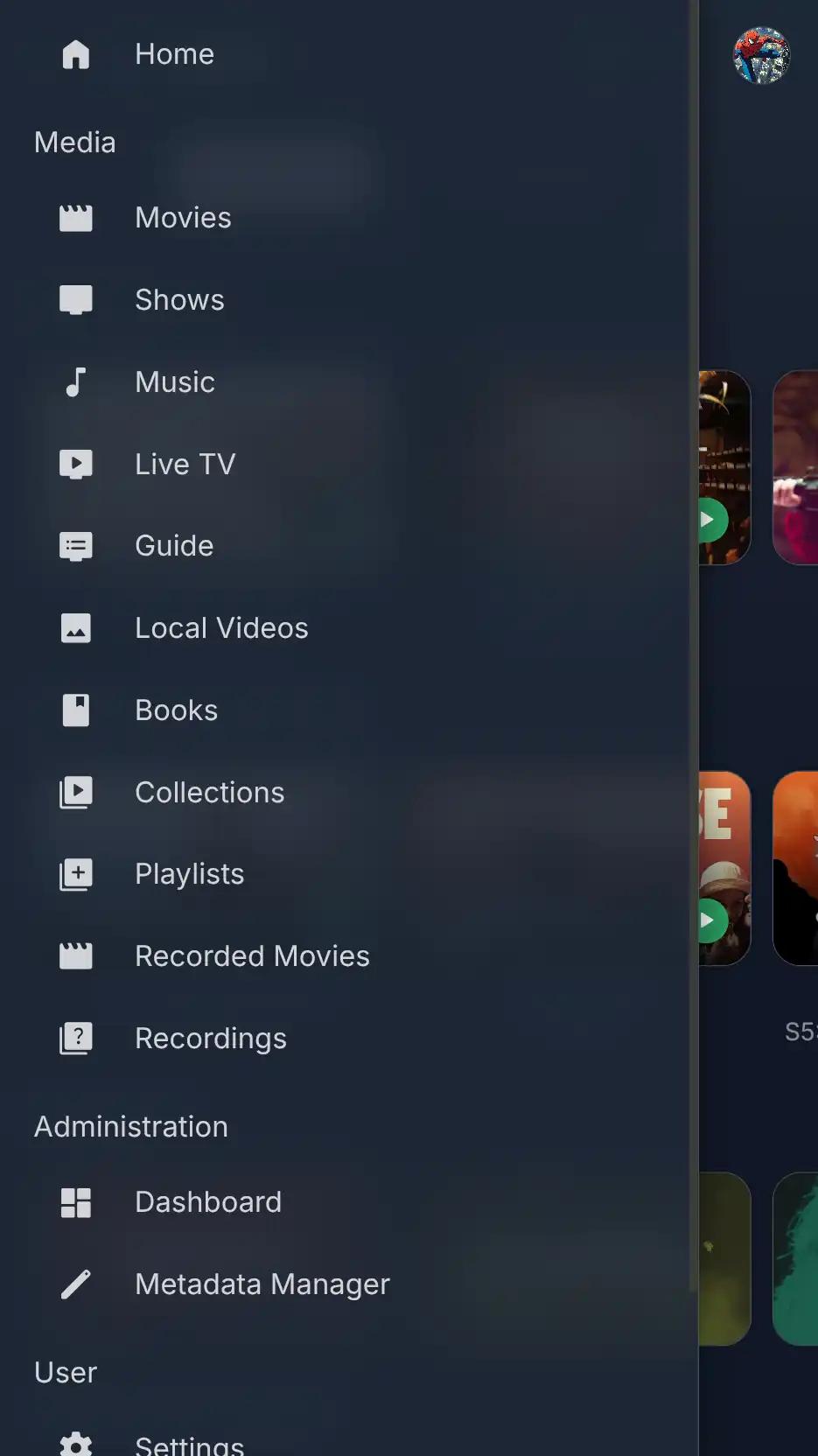
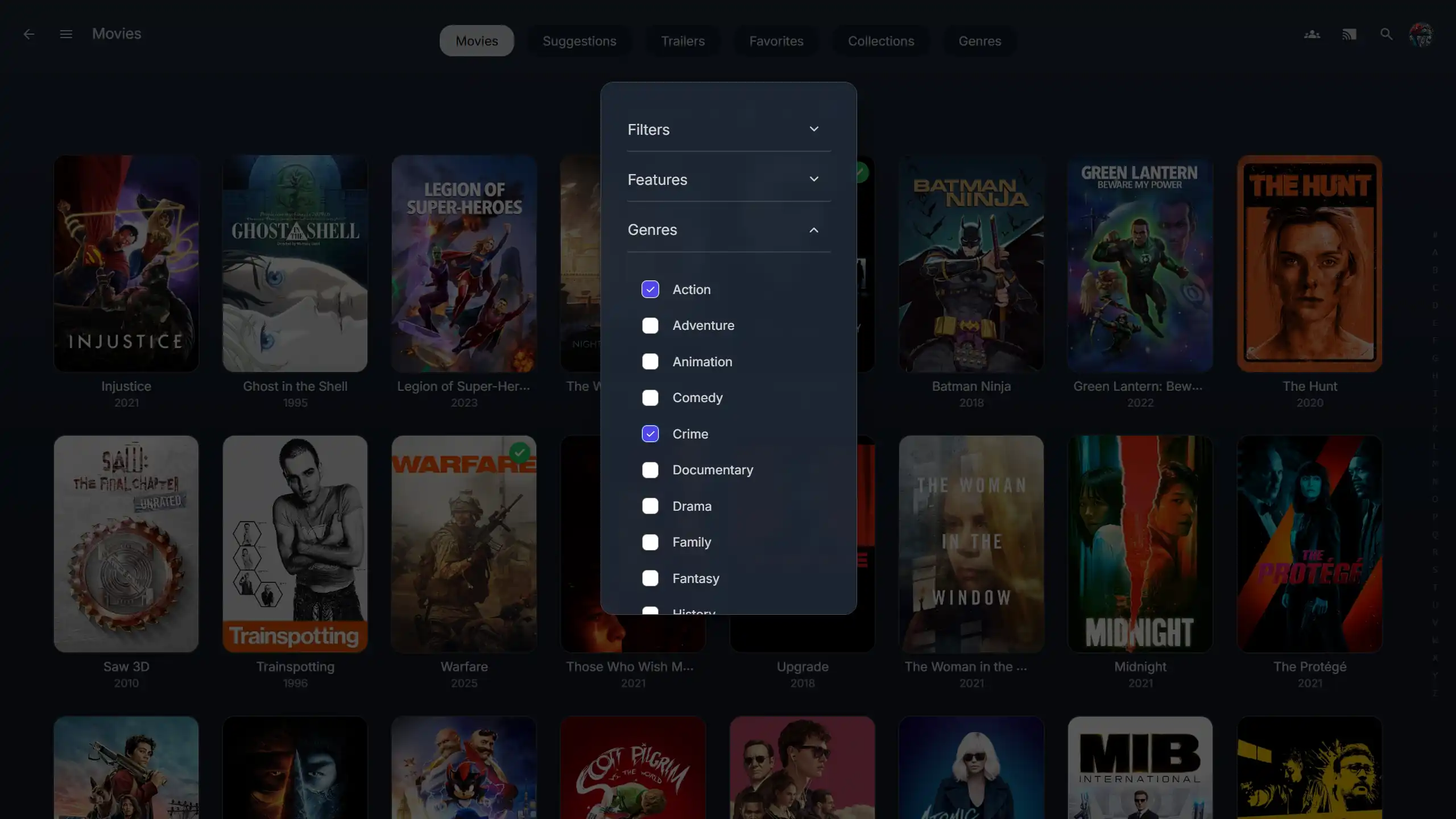
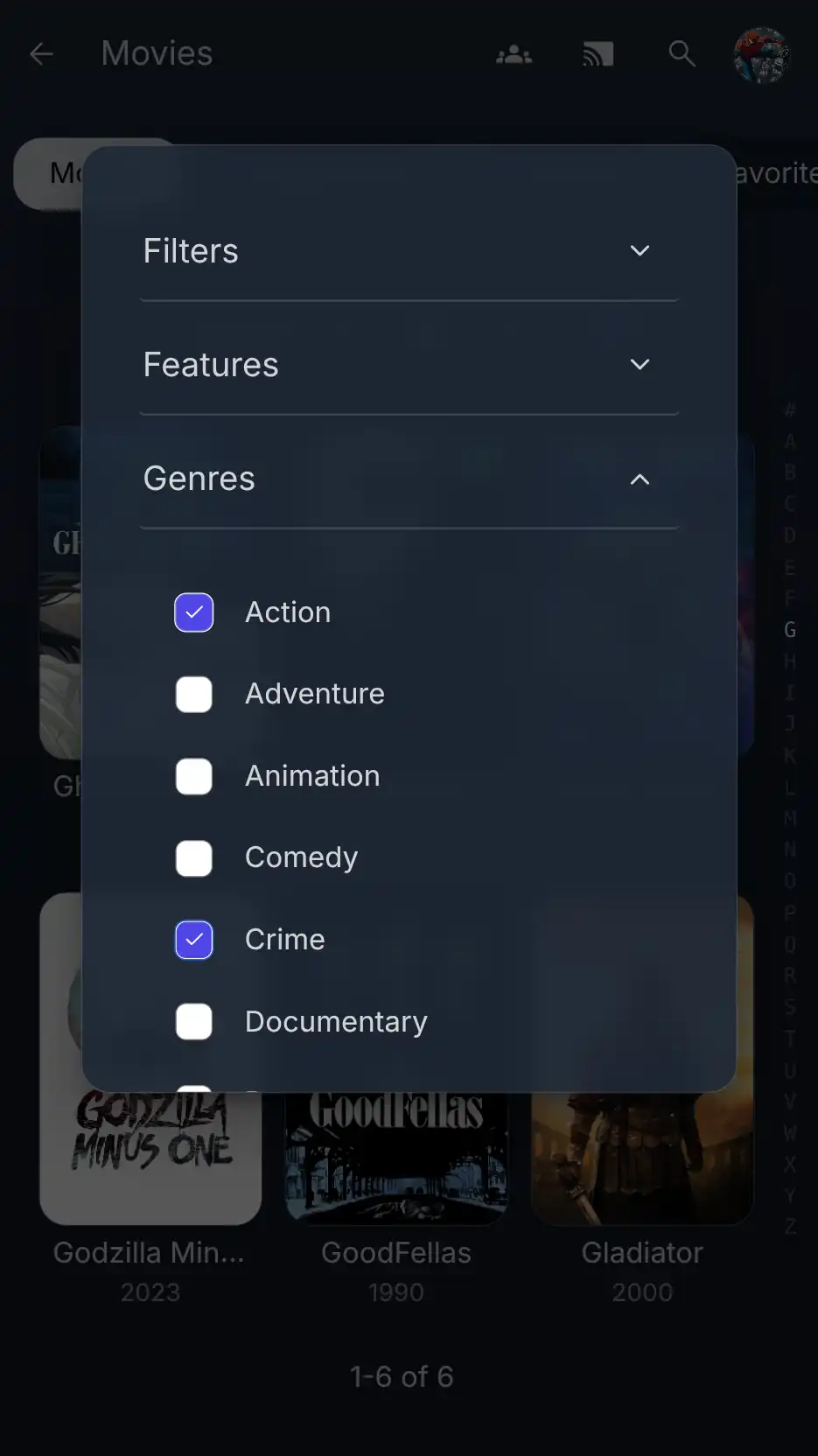
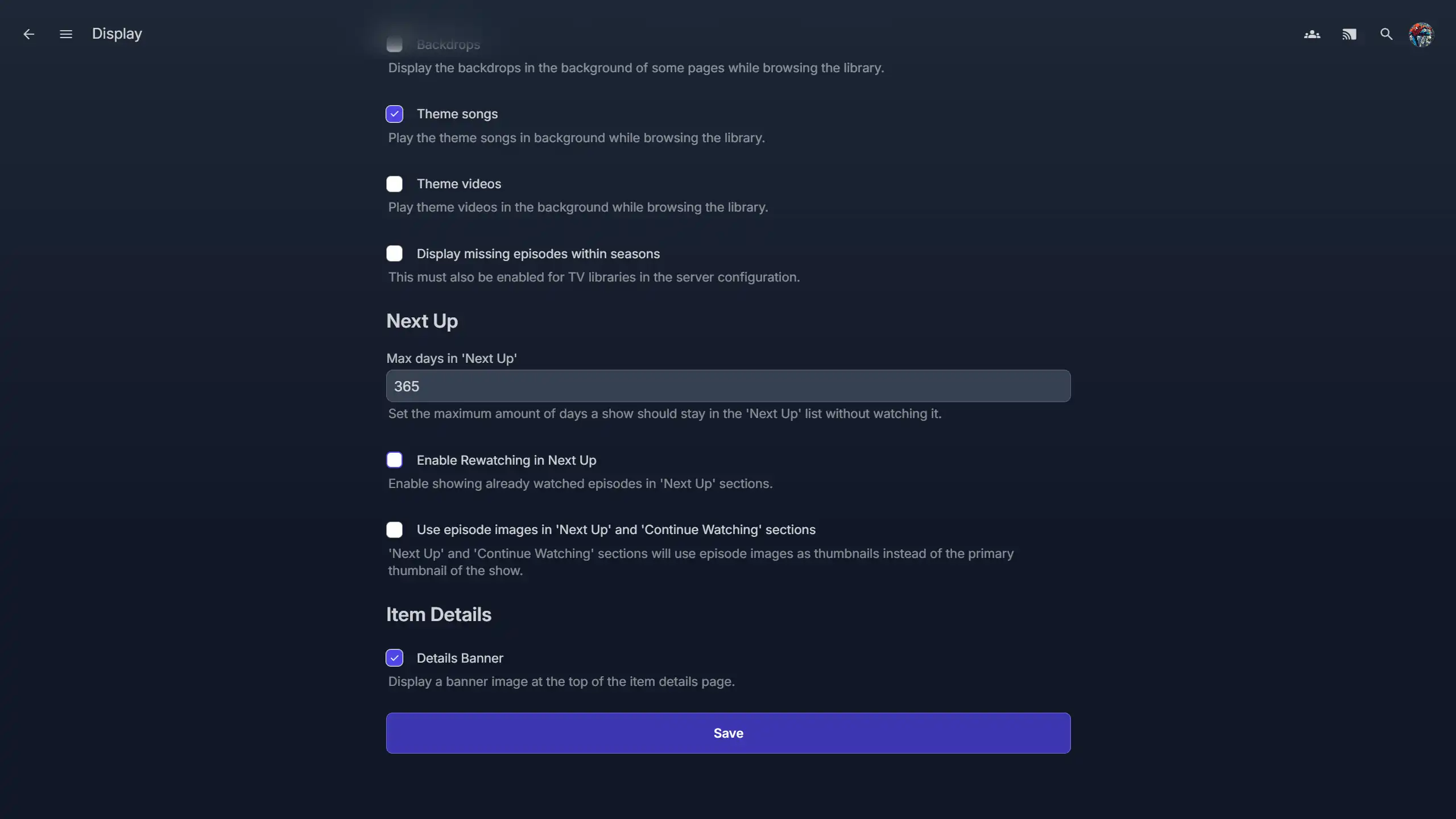
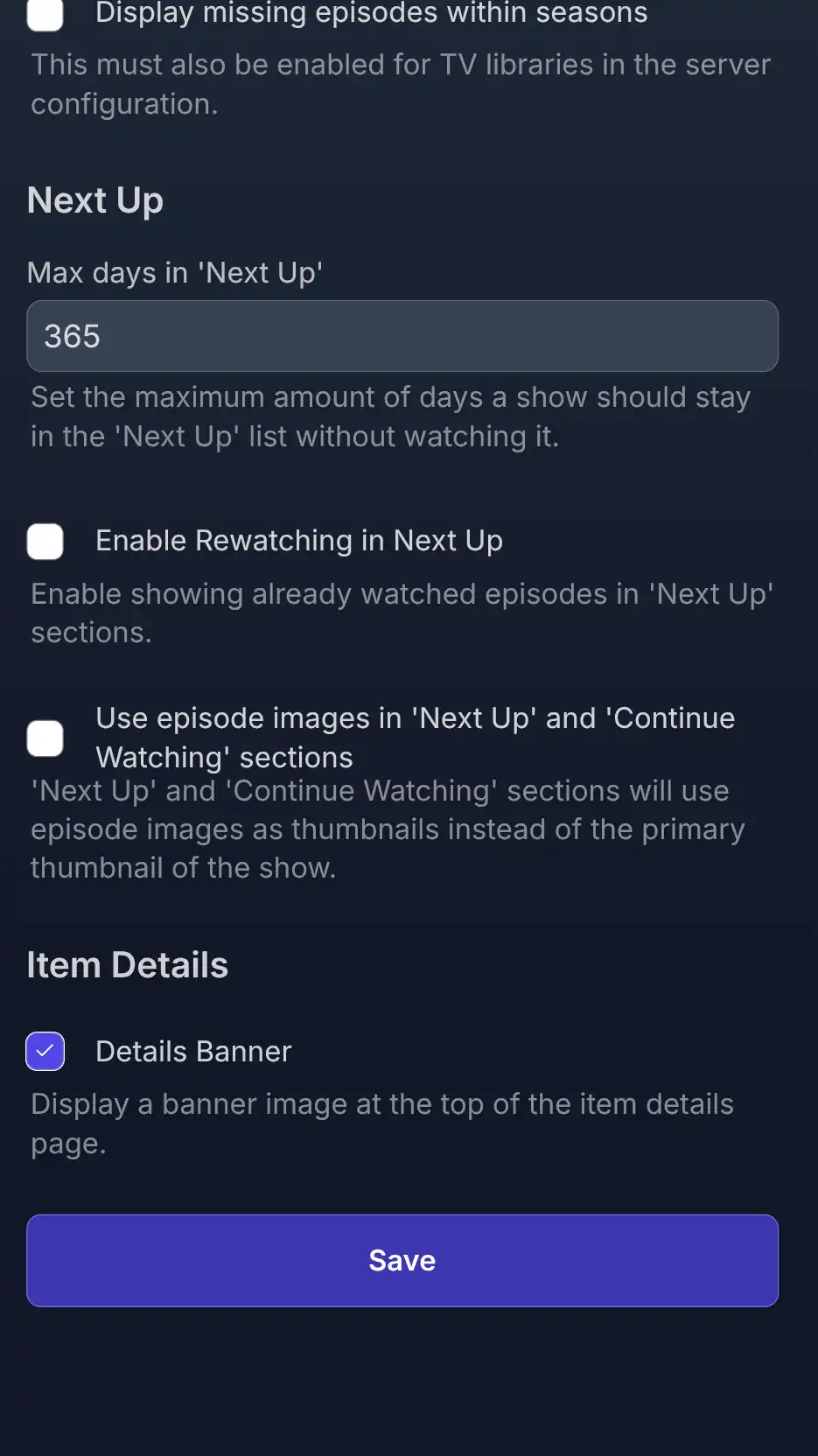
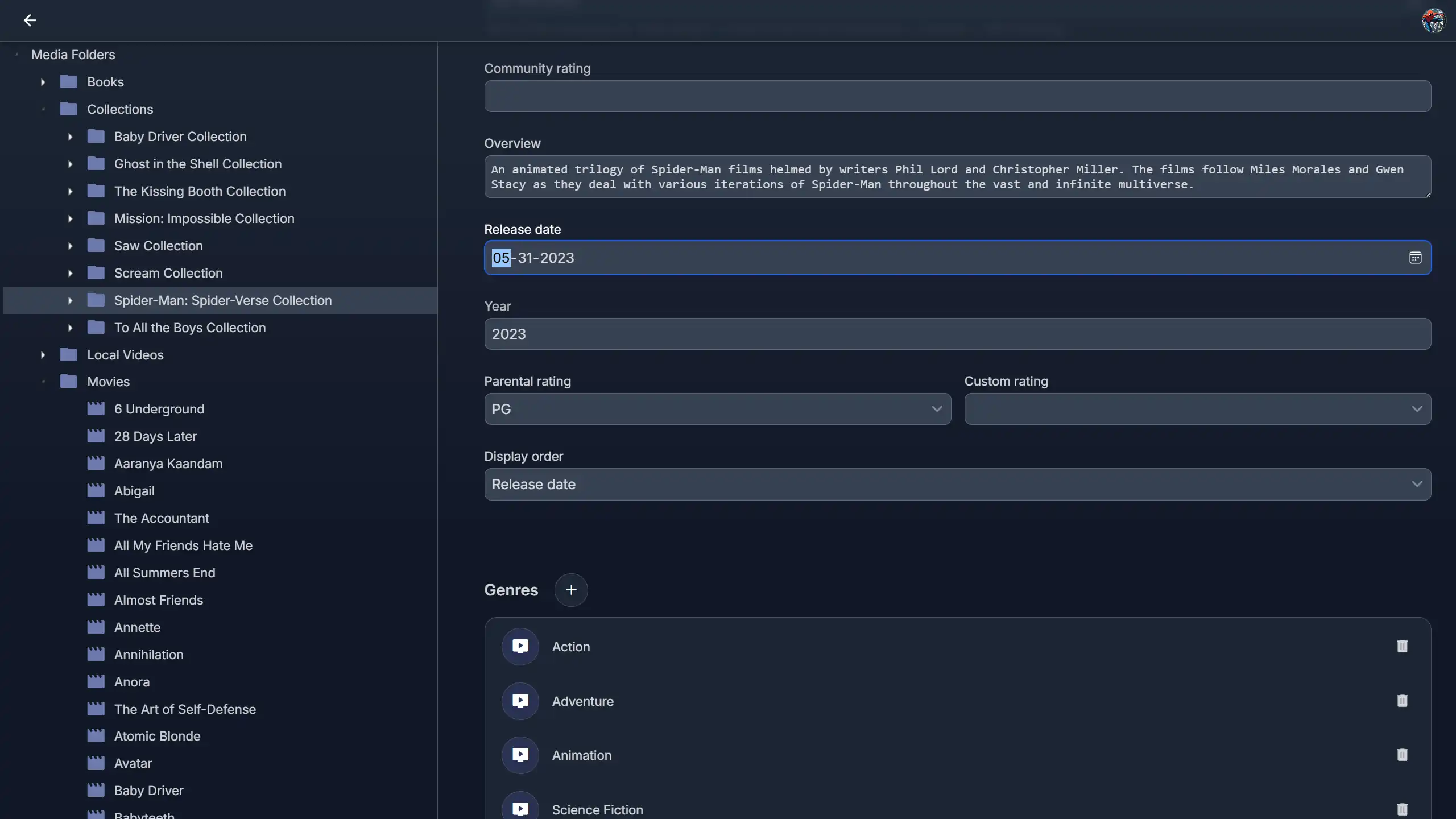
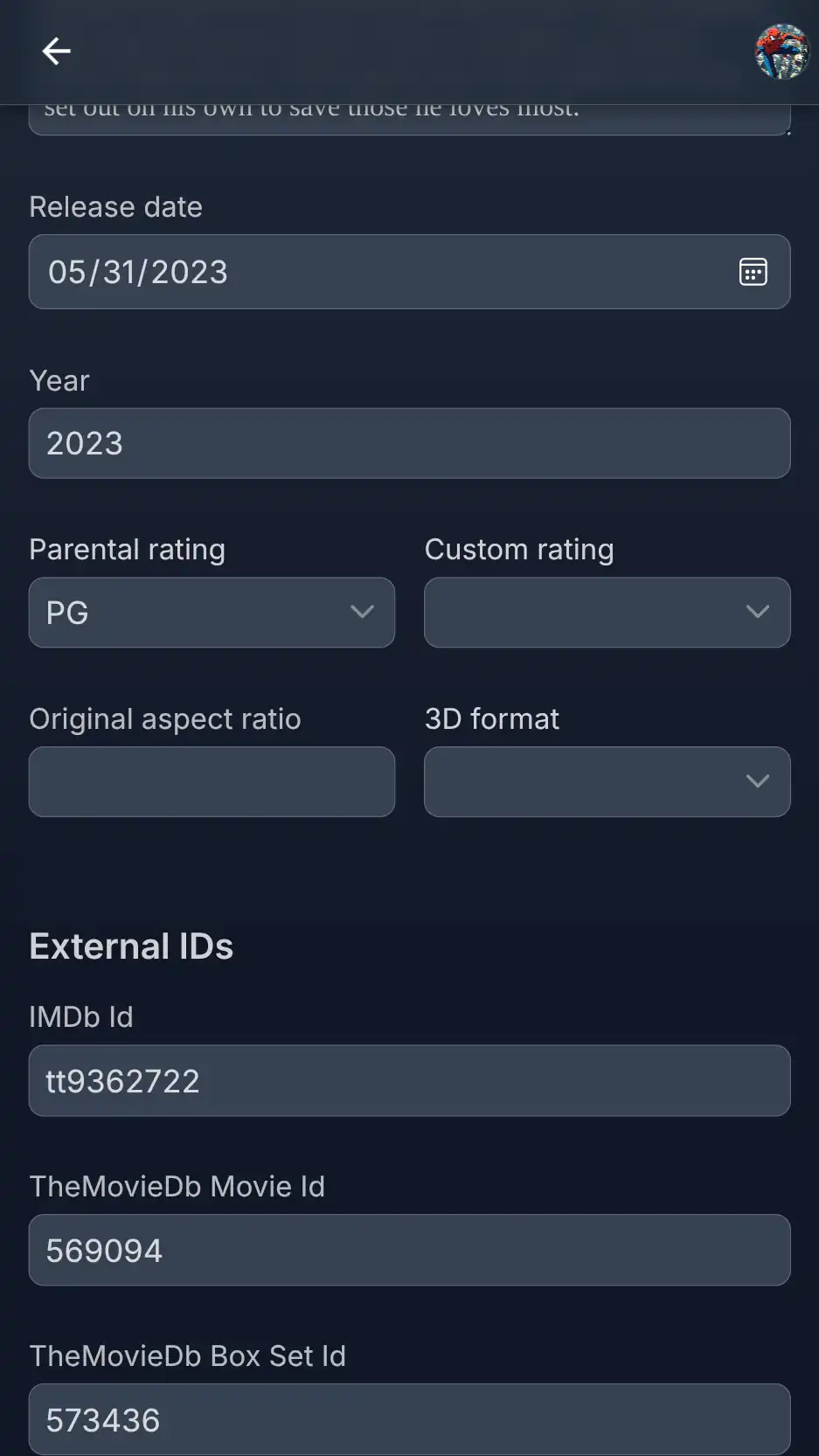
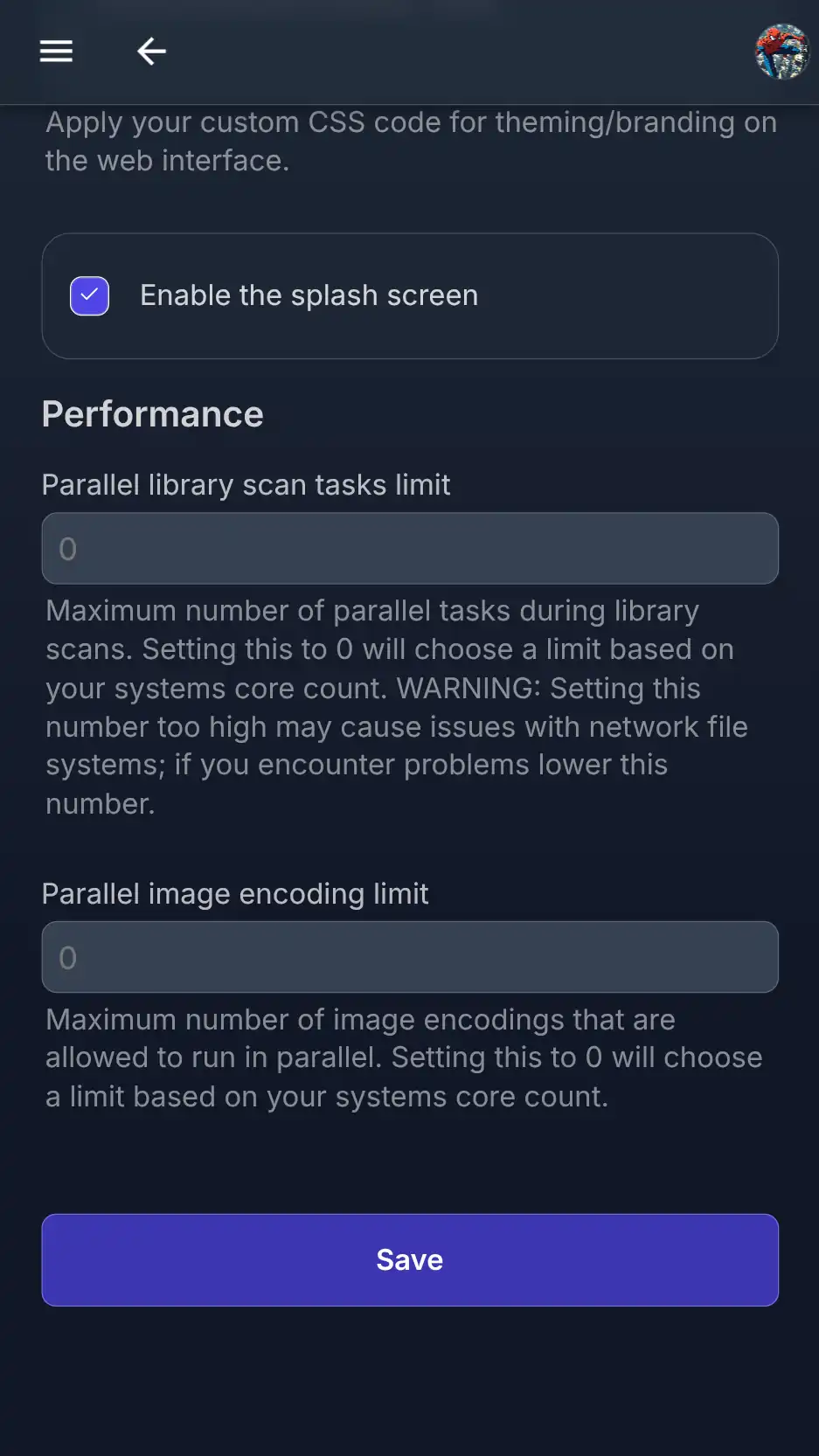
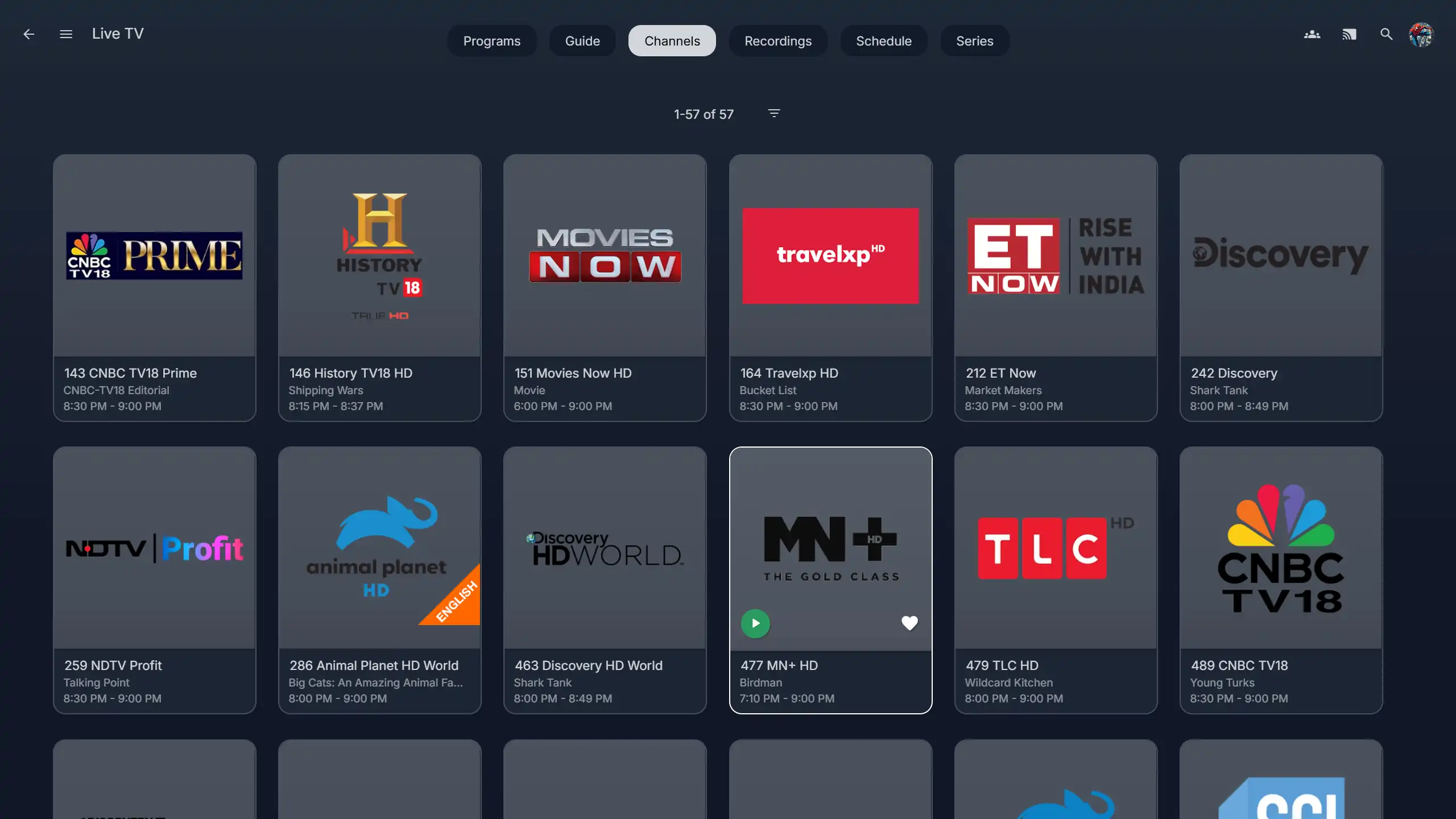
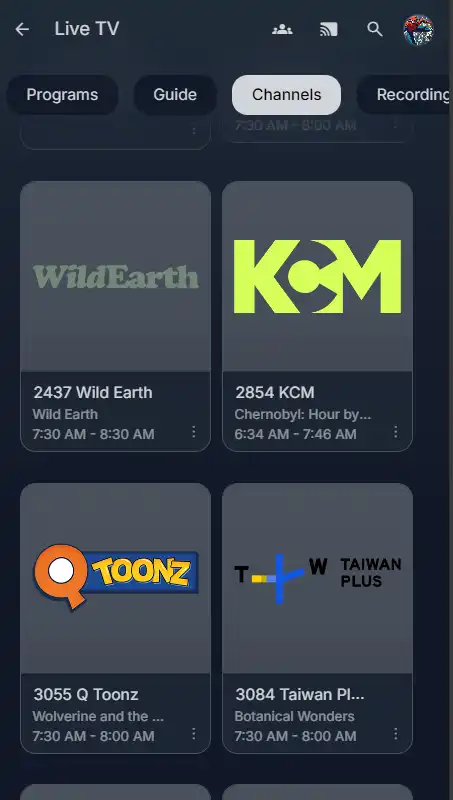
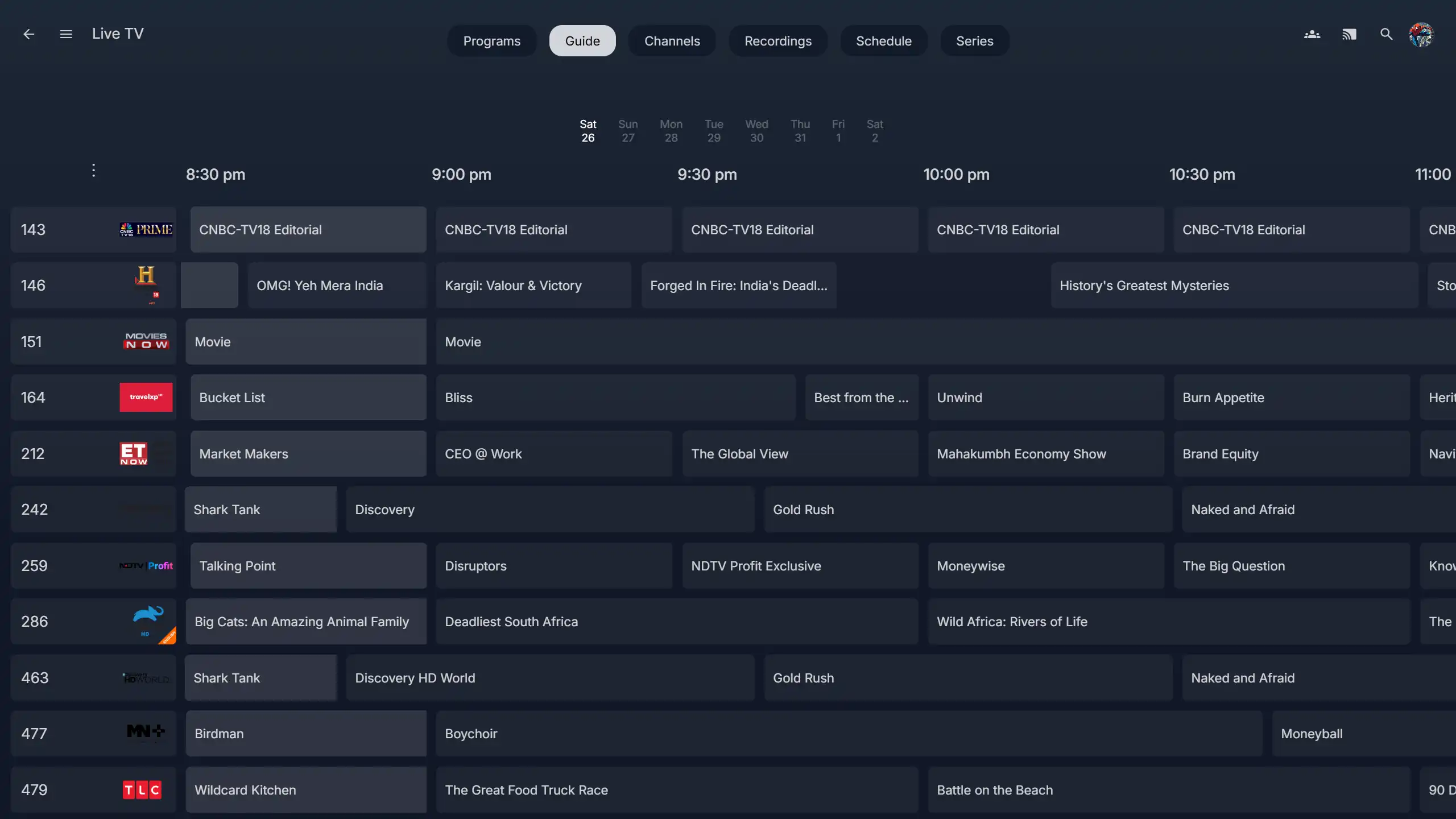
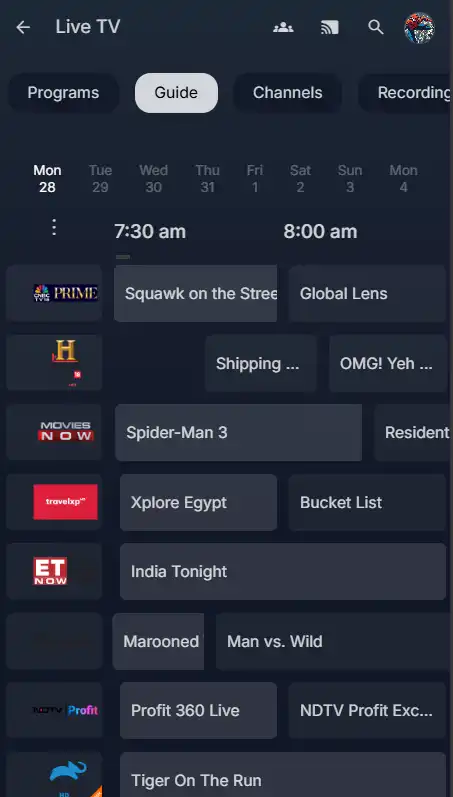
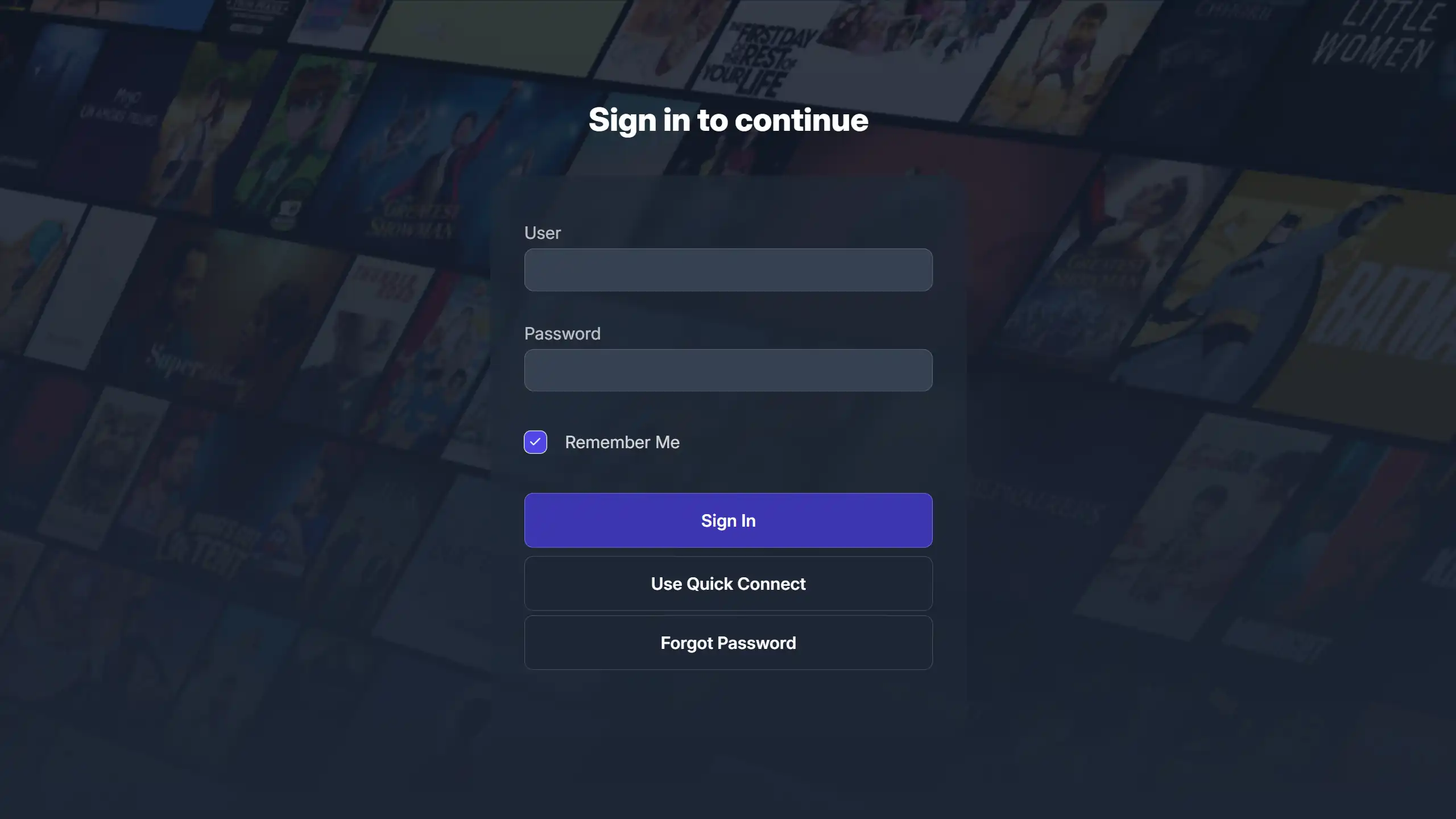
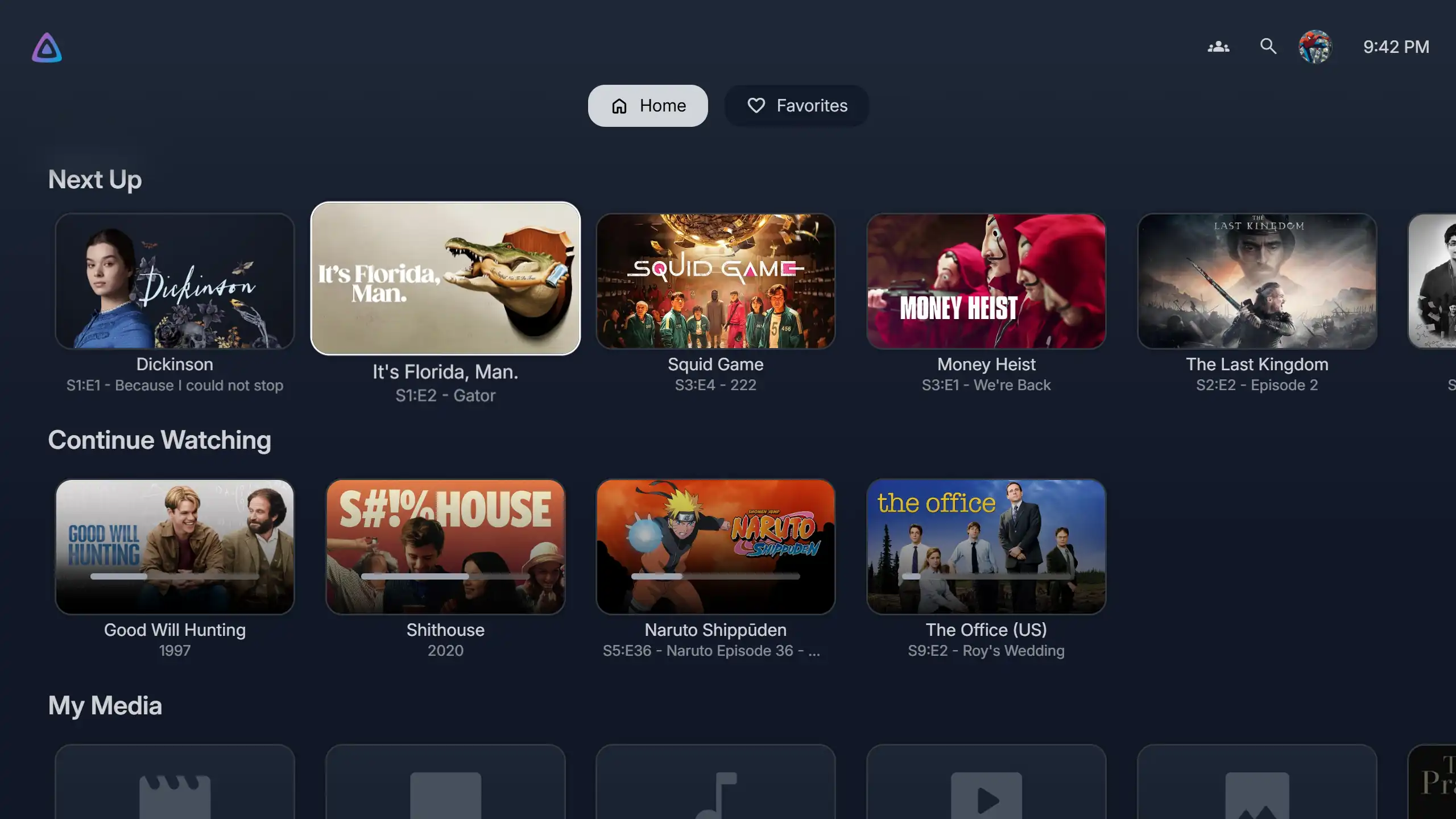
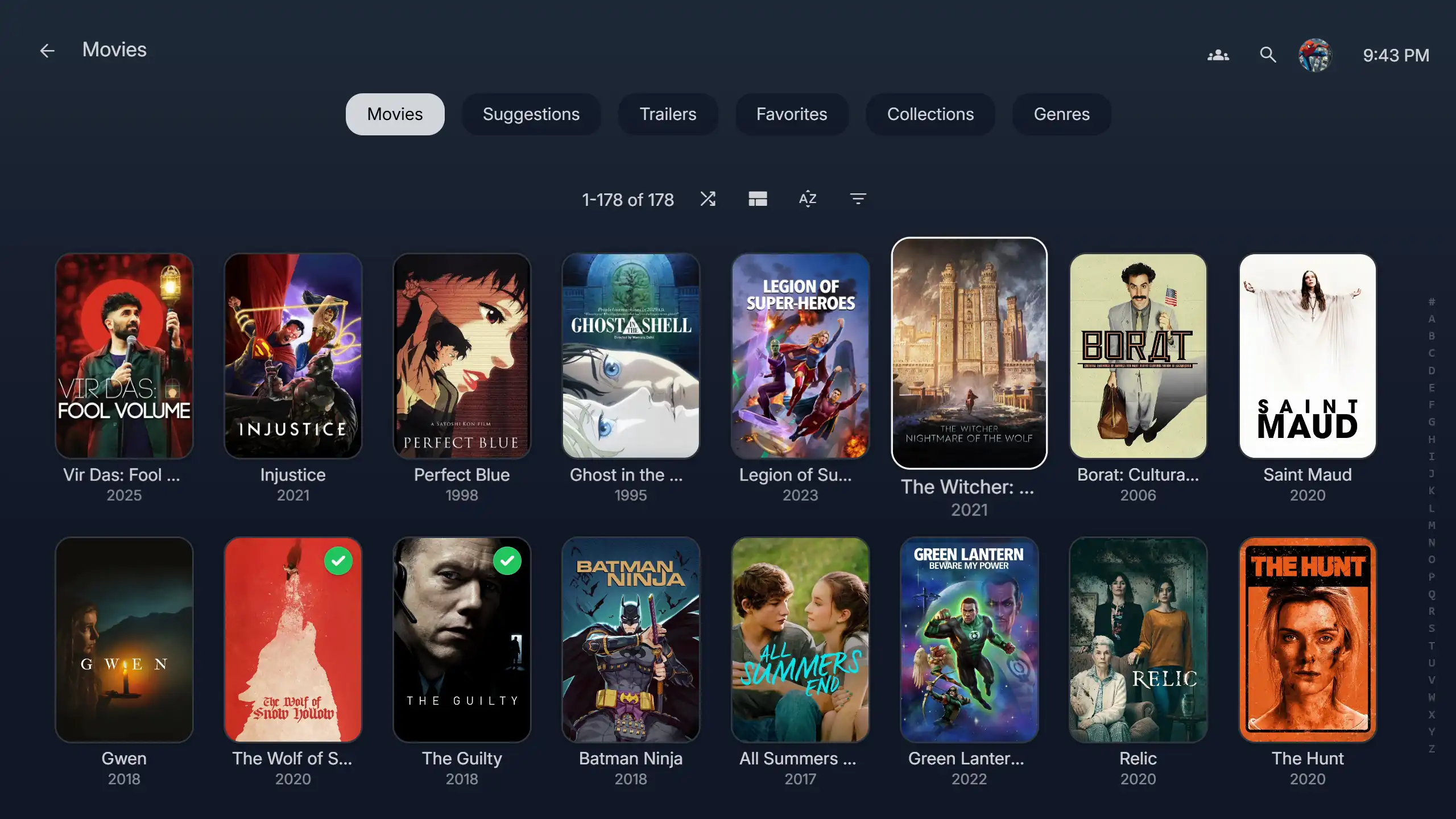
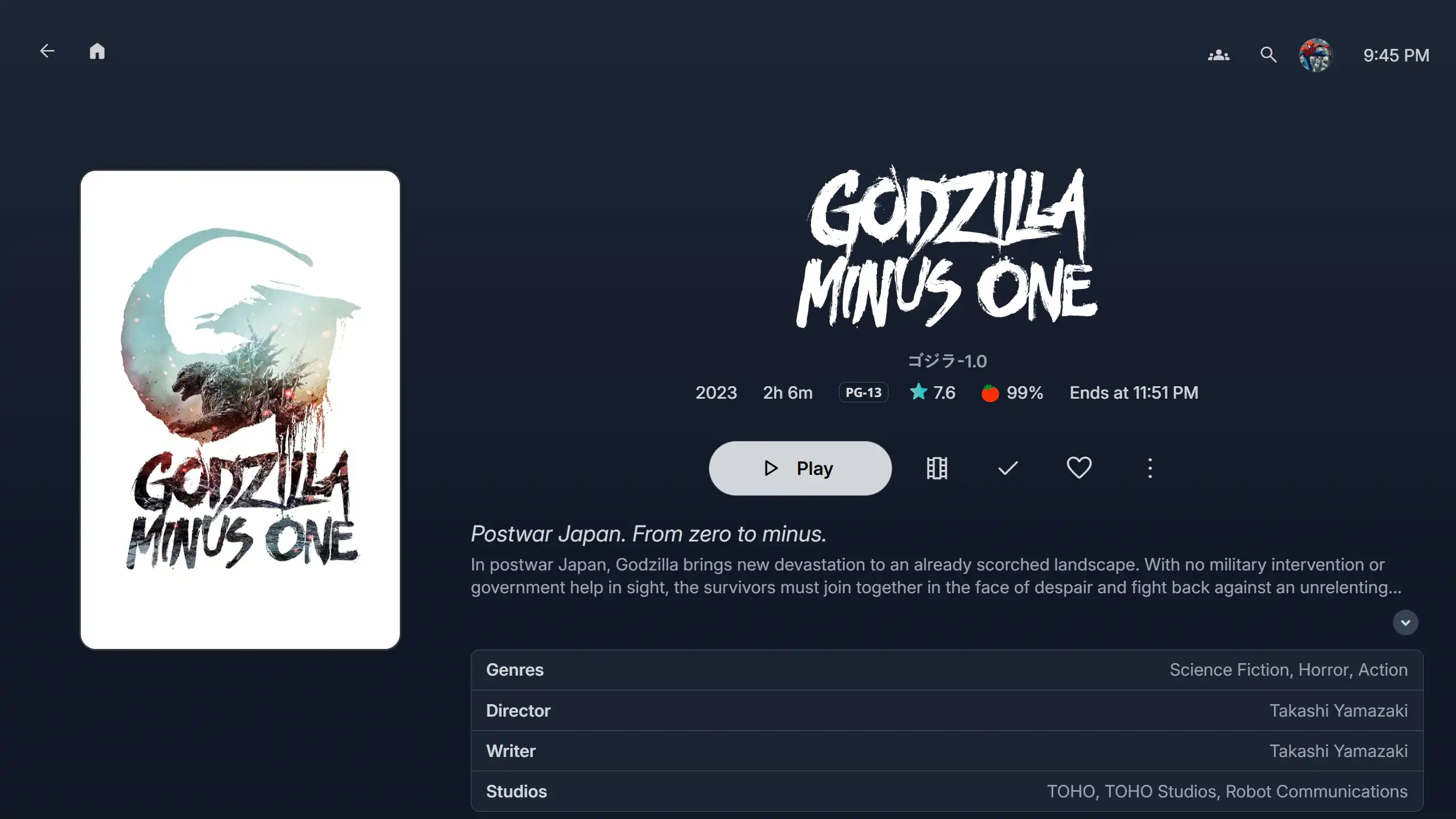
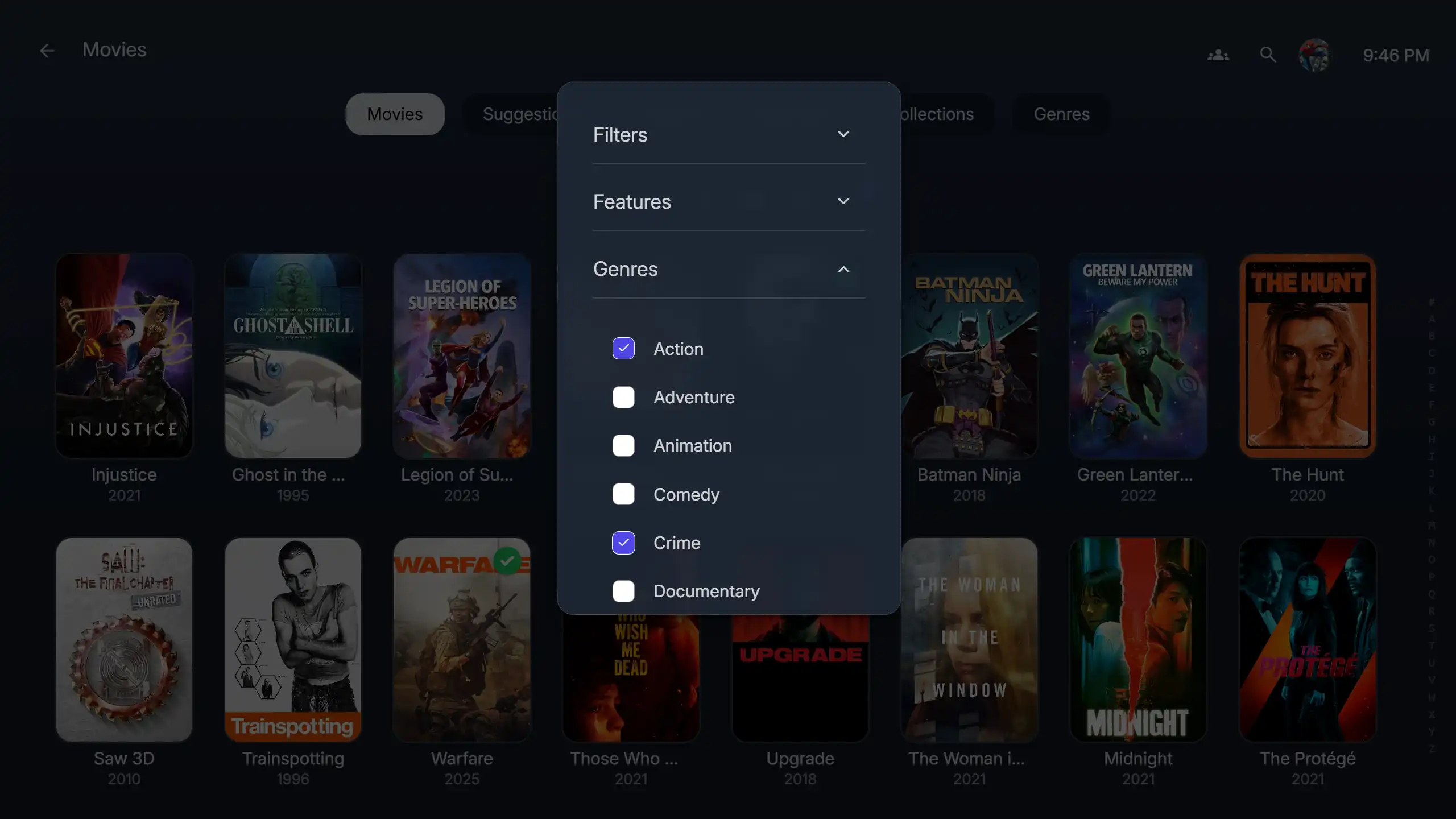
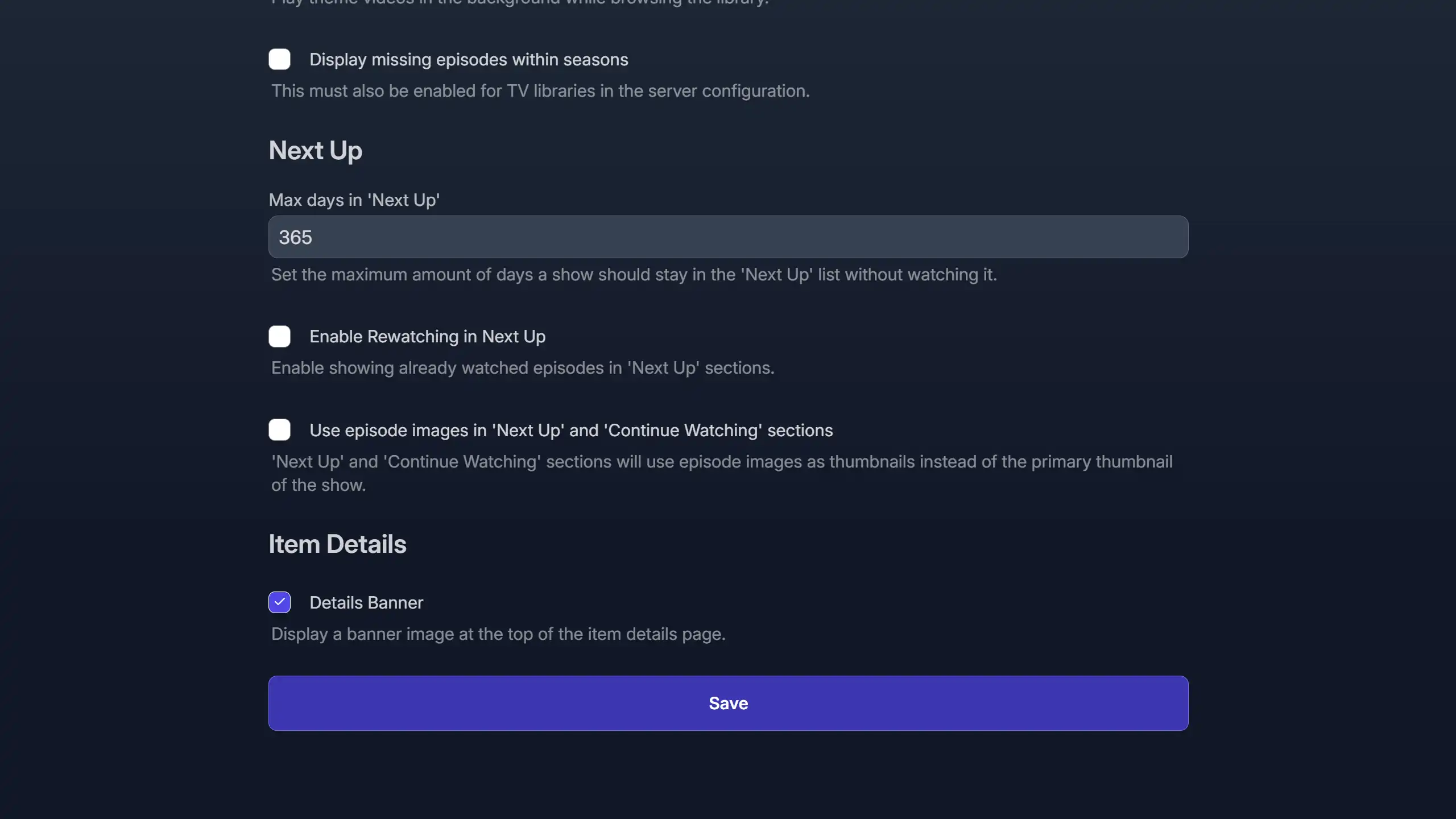
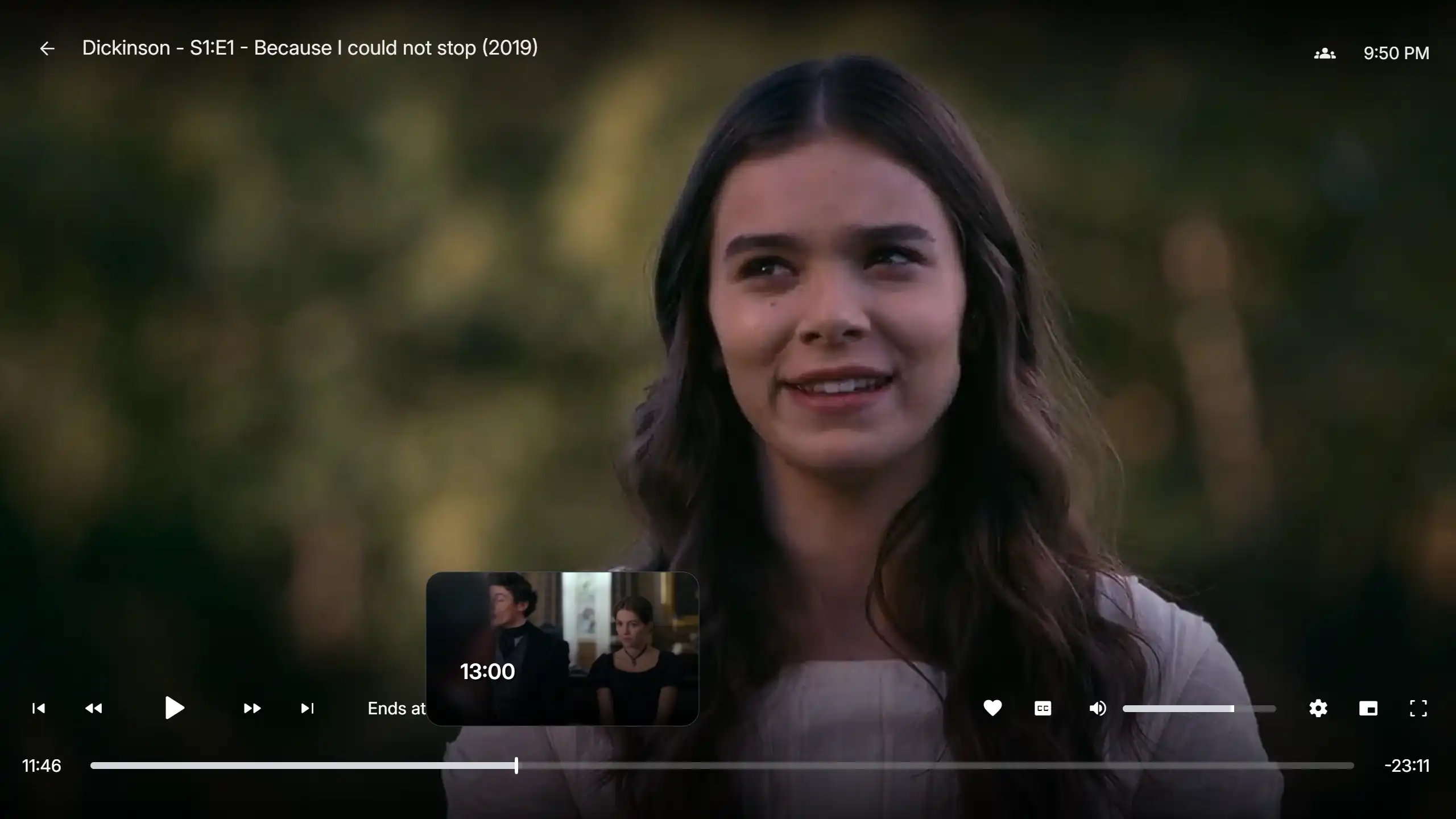
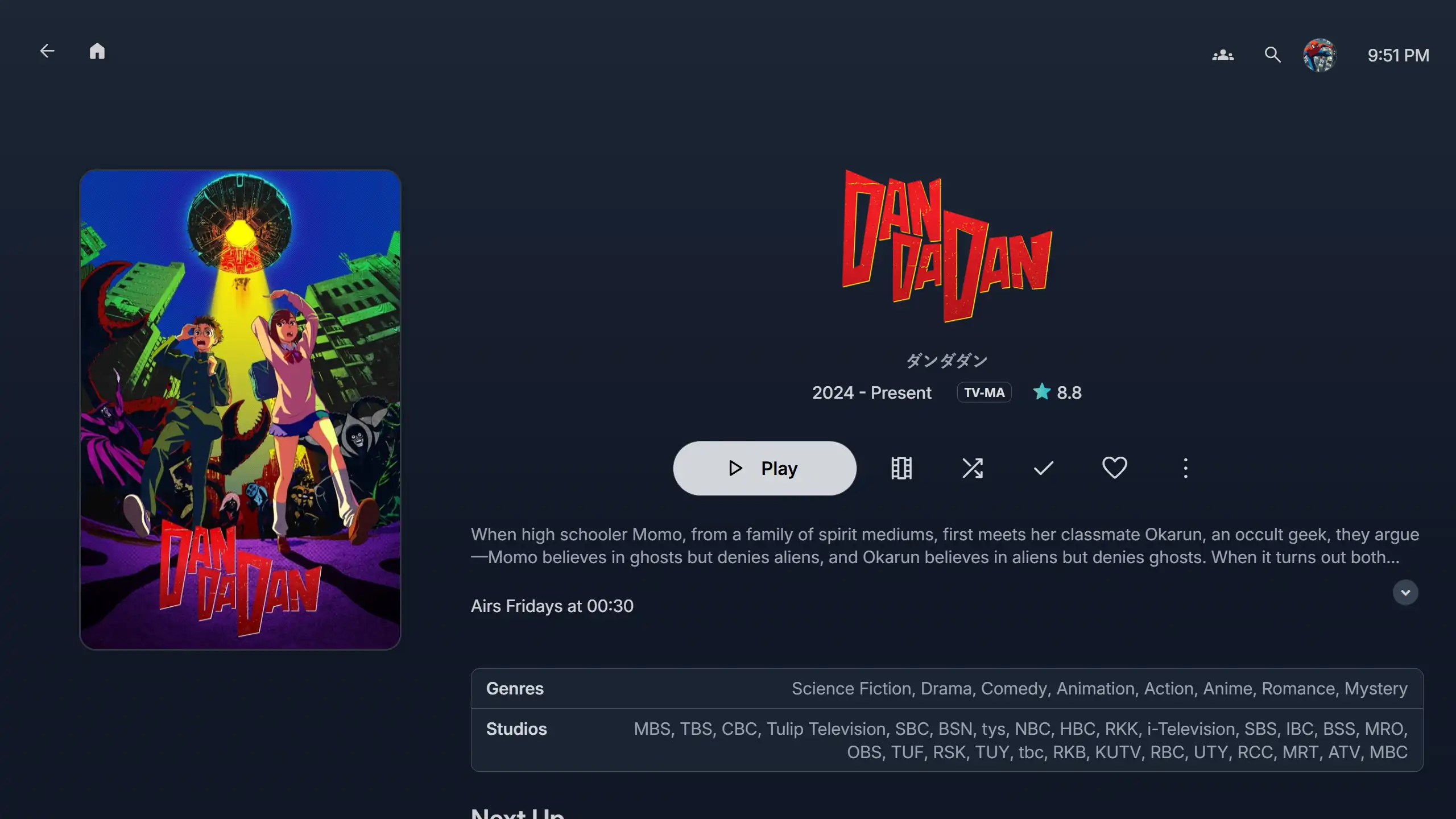
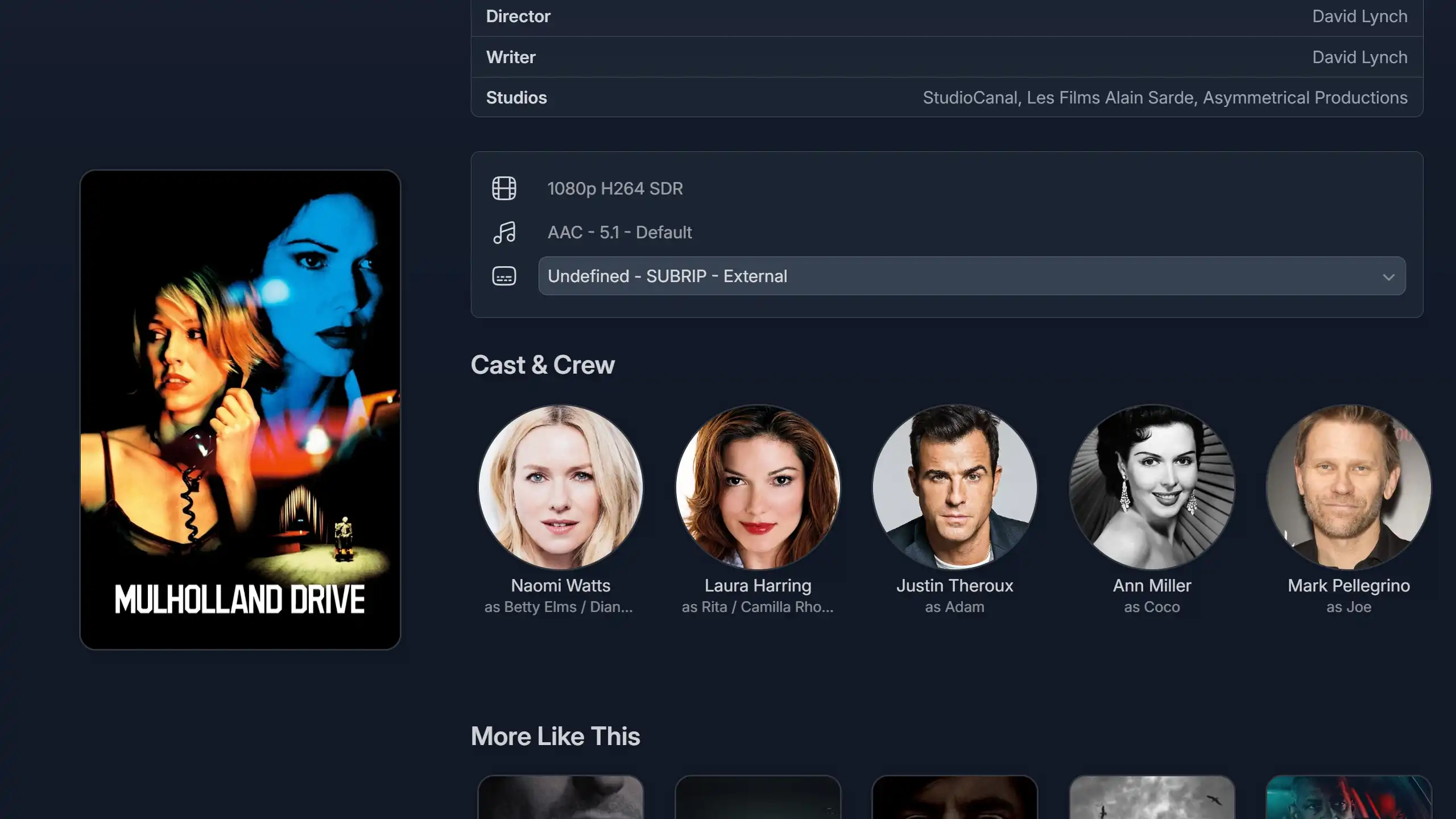
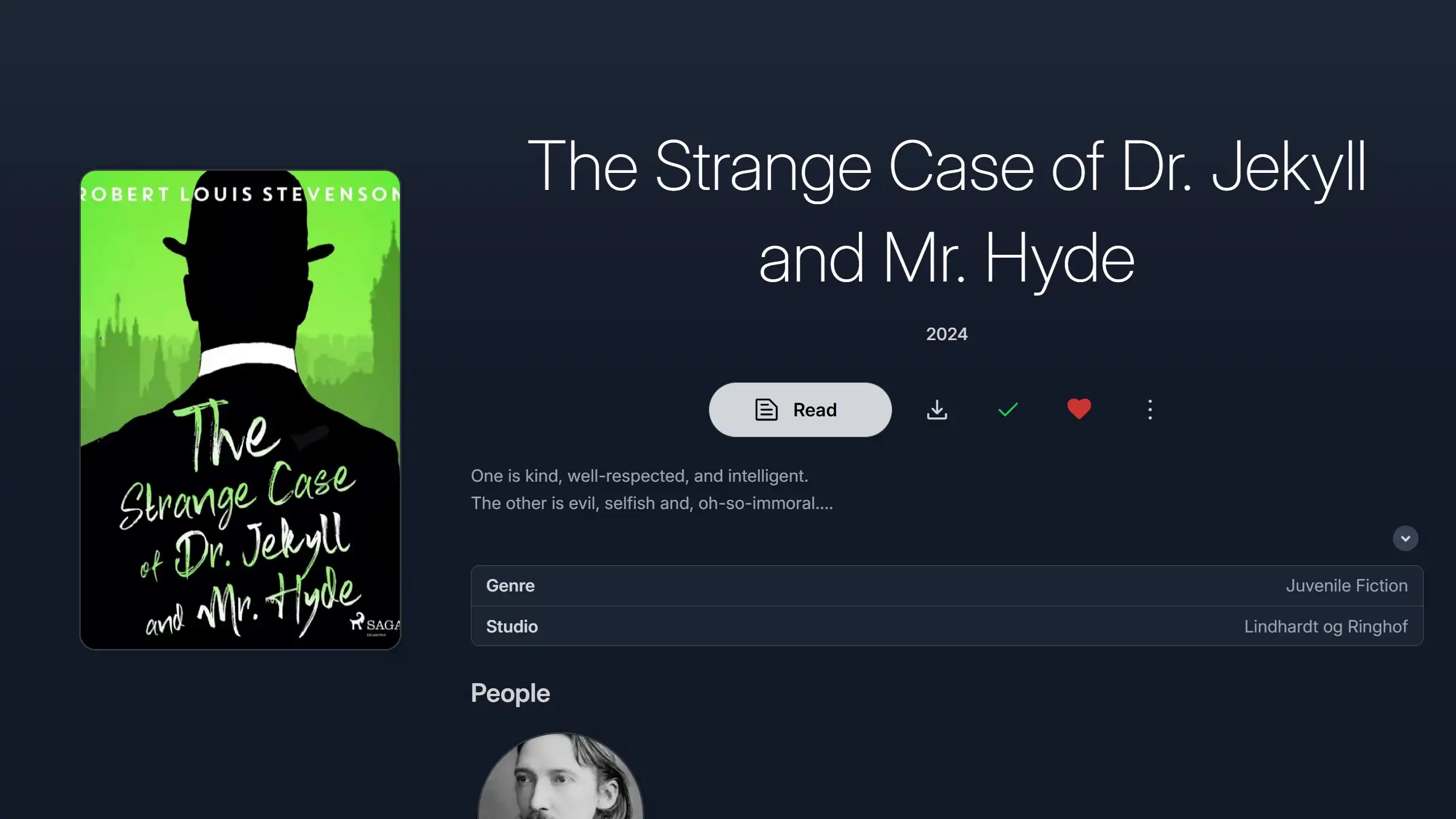
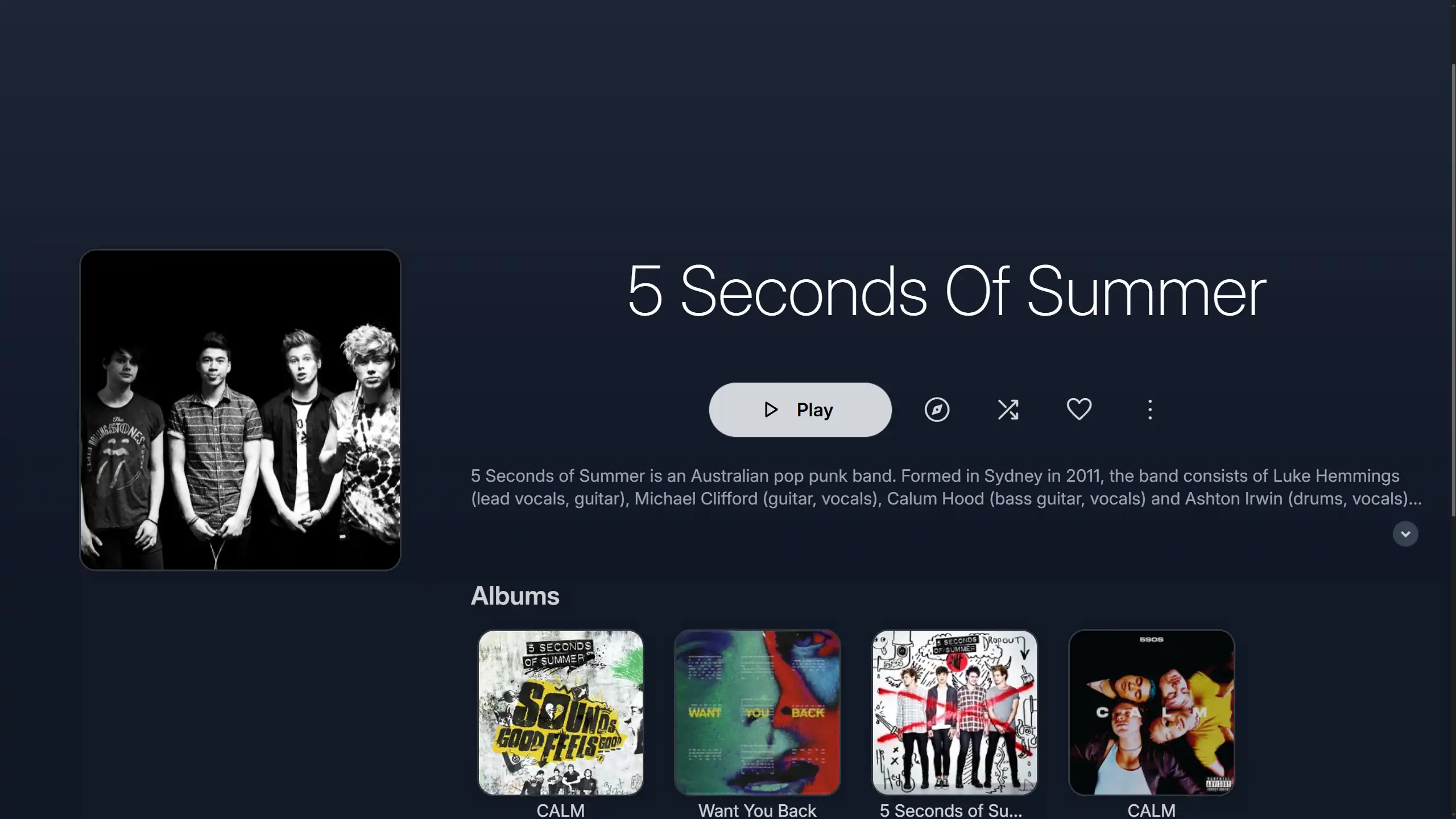
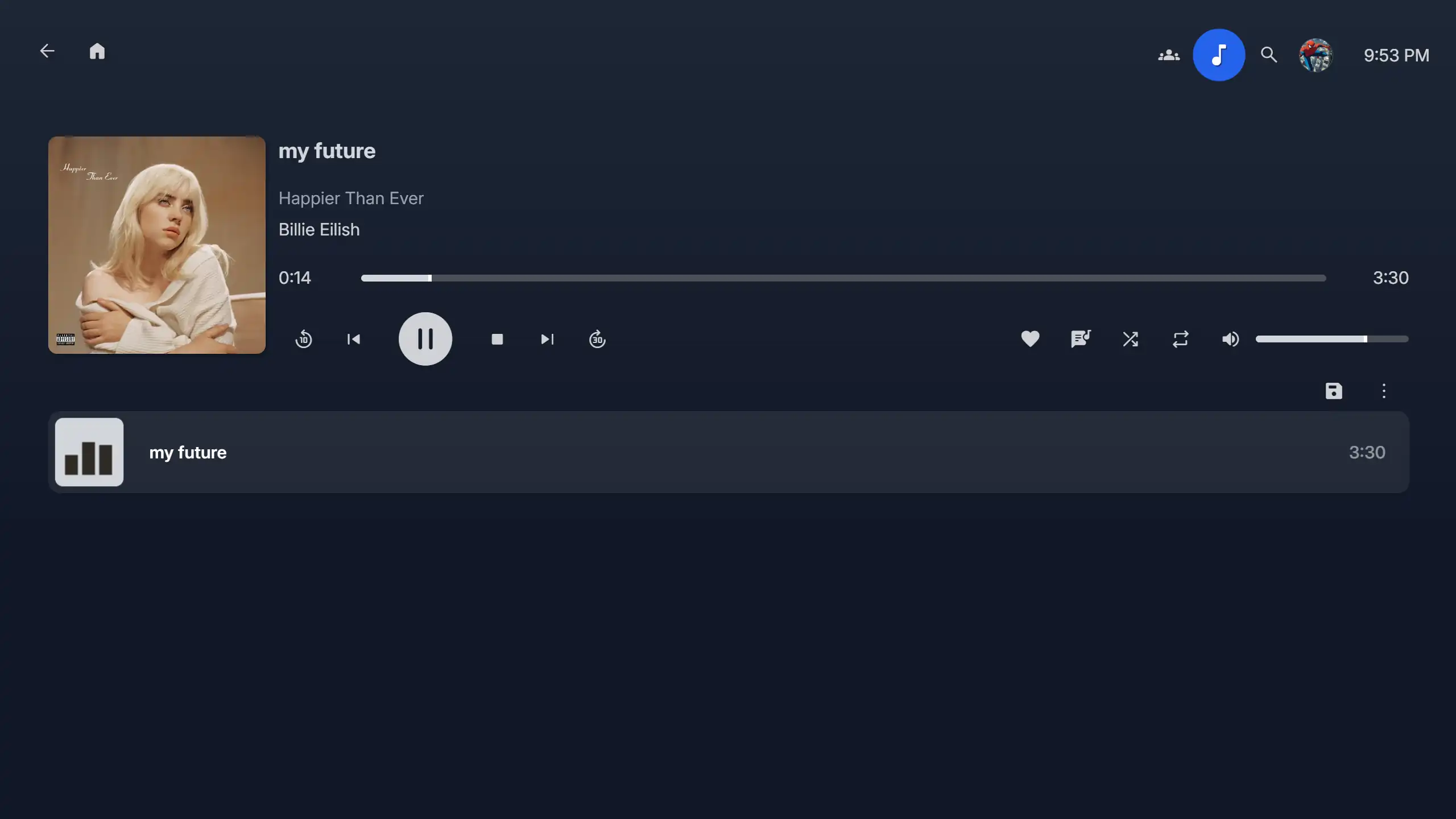
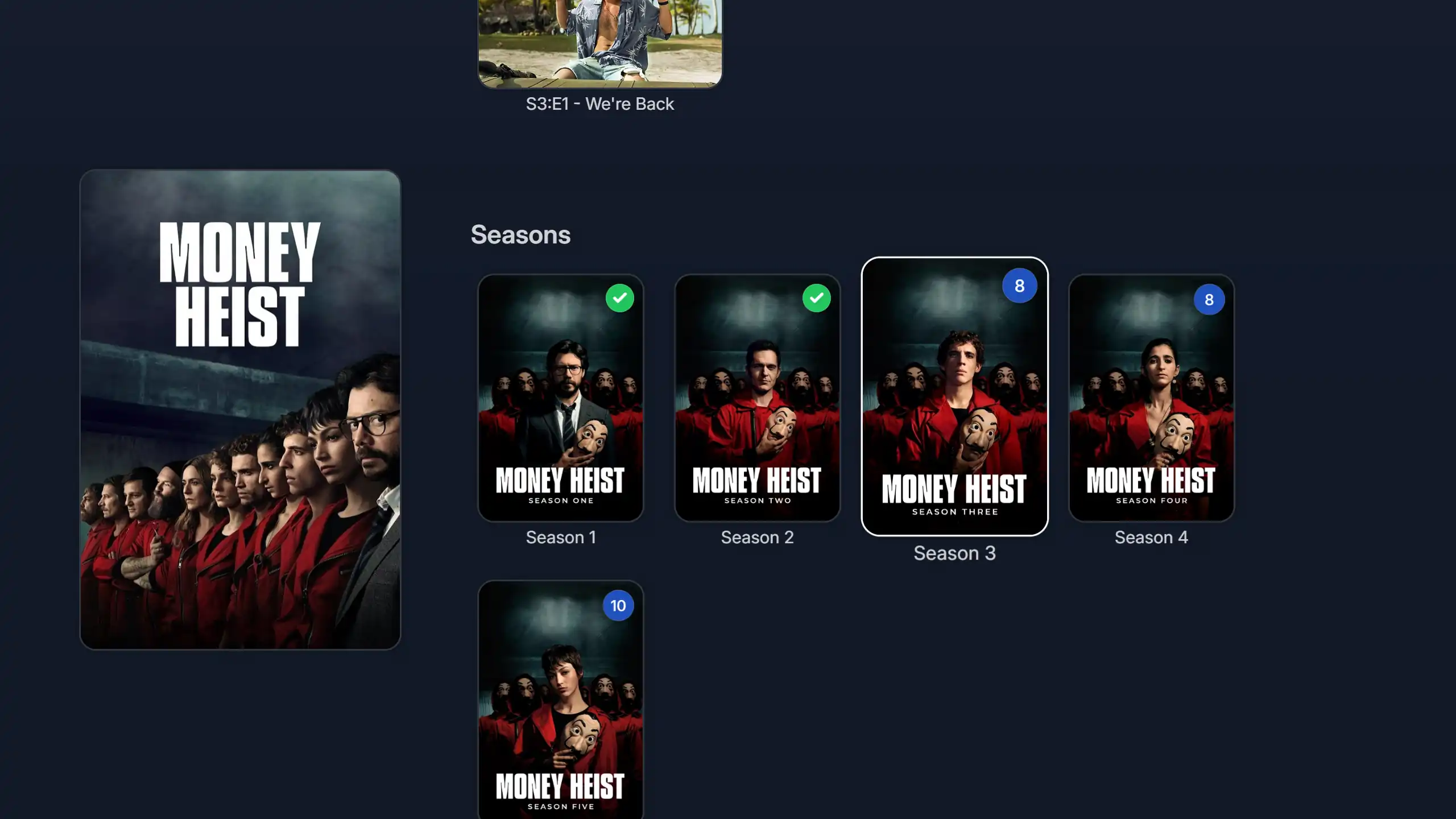
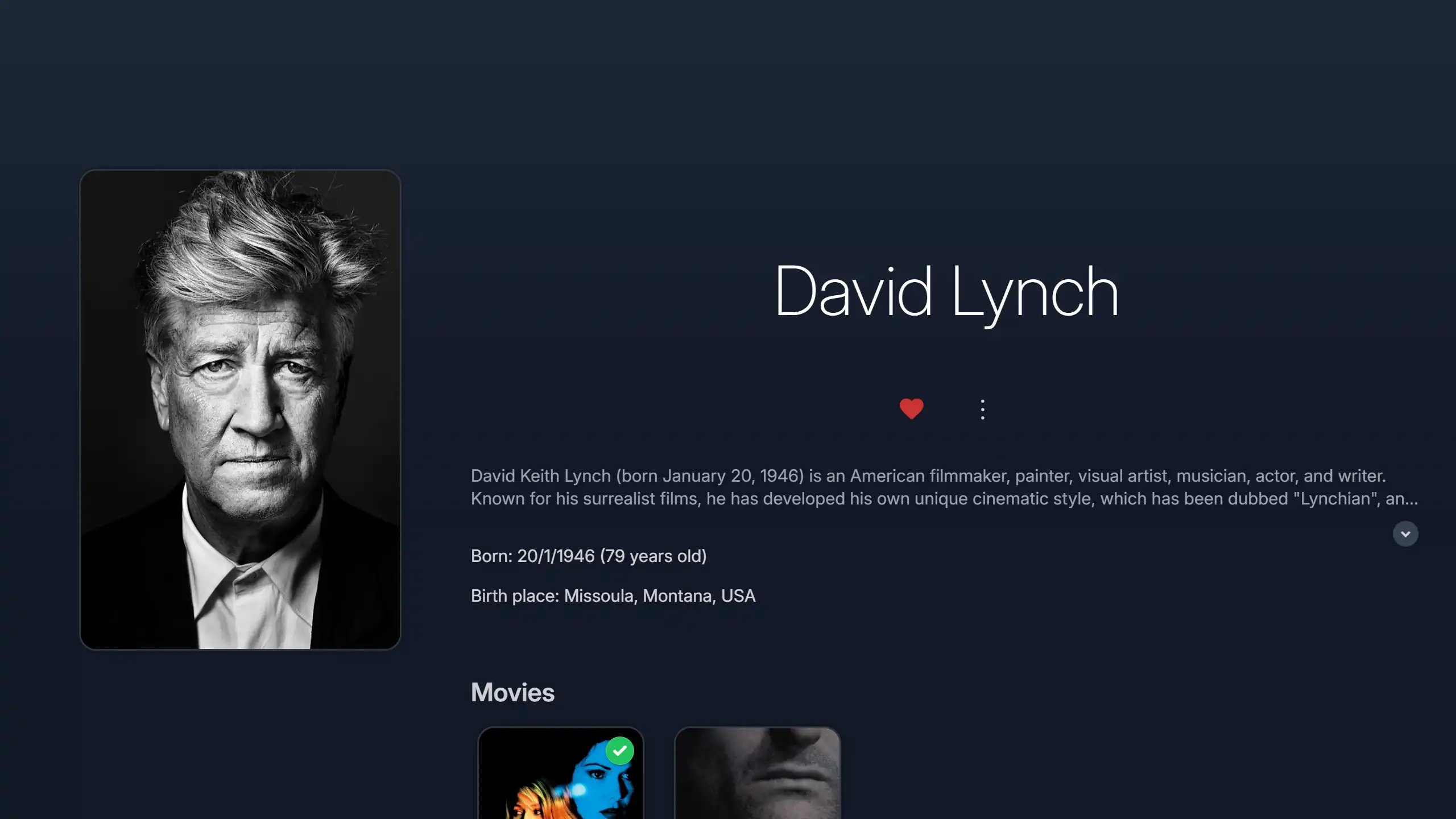
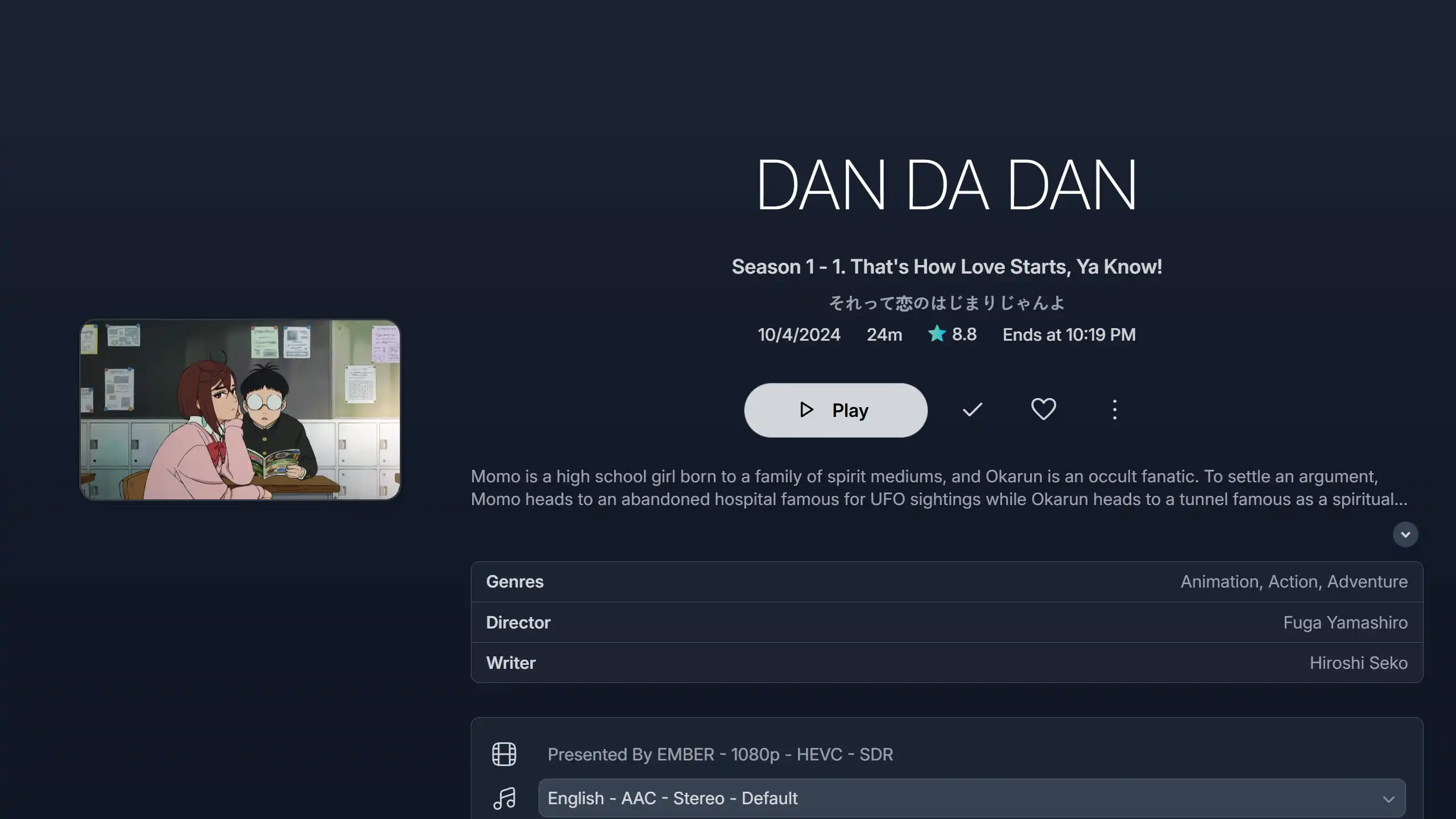
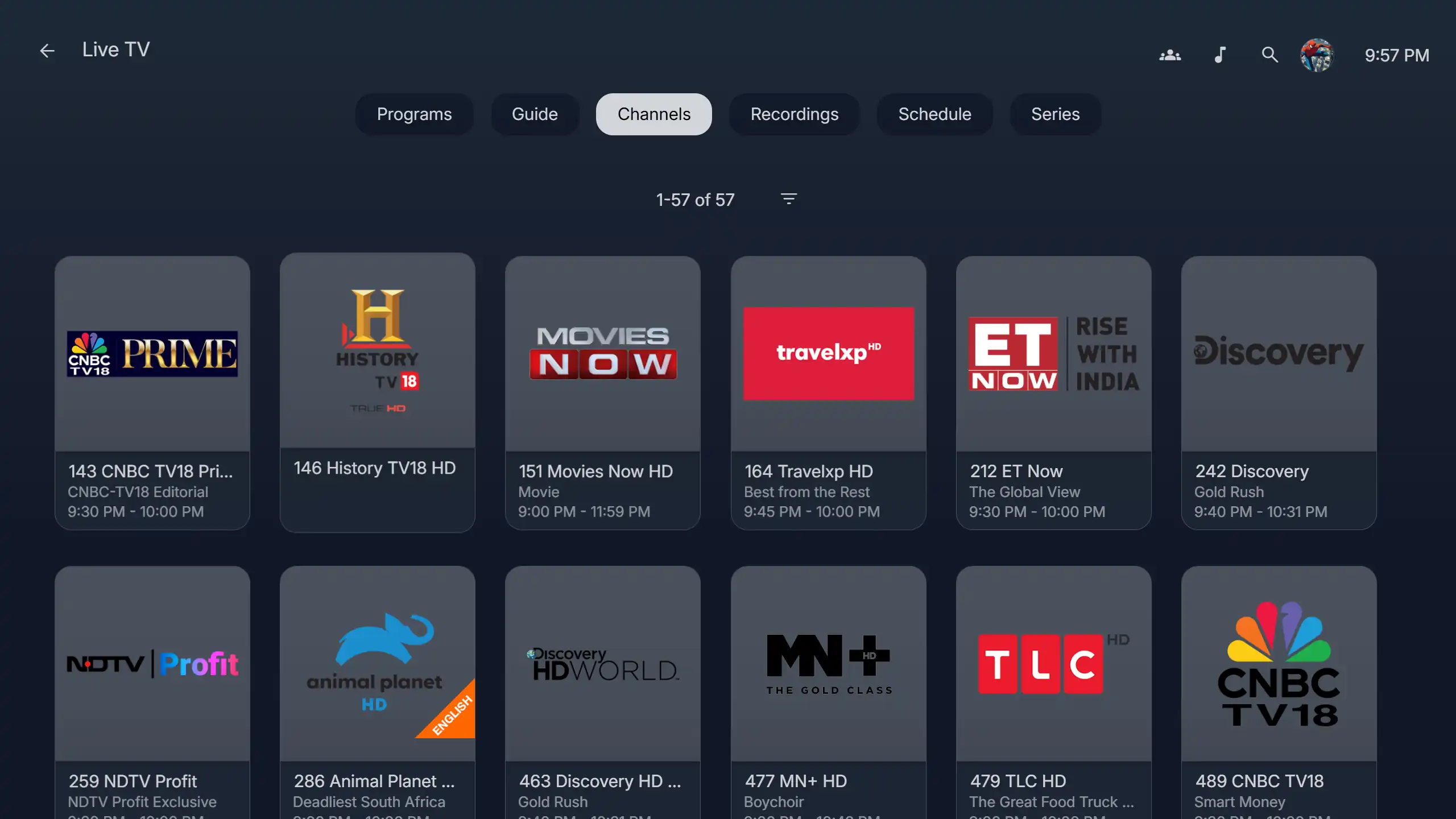
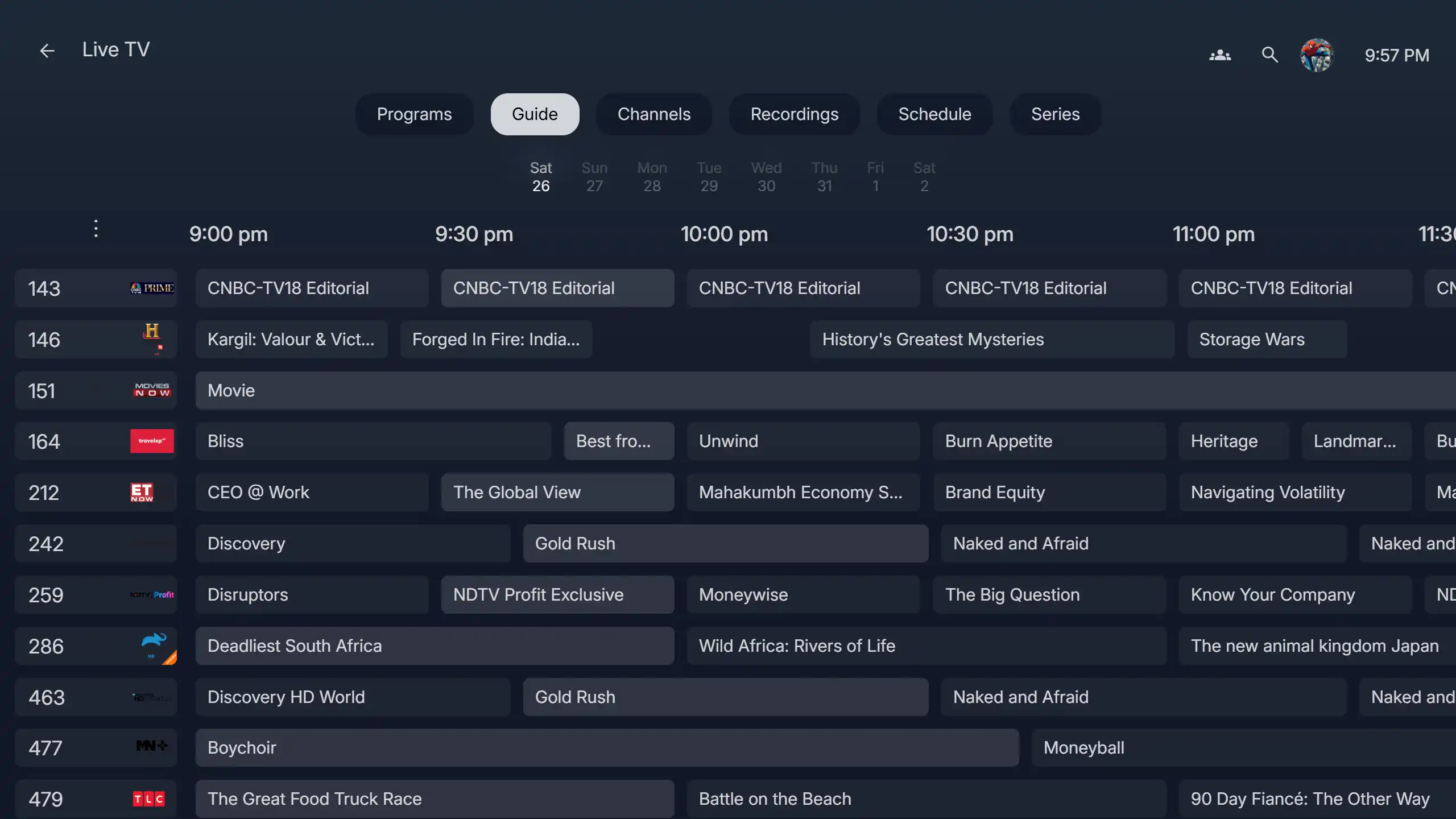
This is a Jellyfin theme inspired from Jellyseerr to improve the overall look and experience with various fixes to the UI/UX. It gives Jellyfin a fresh, modern look, and it aims to work on mobile, desktop, and TV, with just one import.
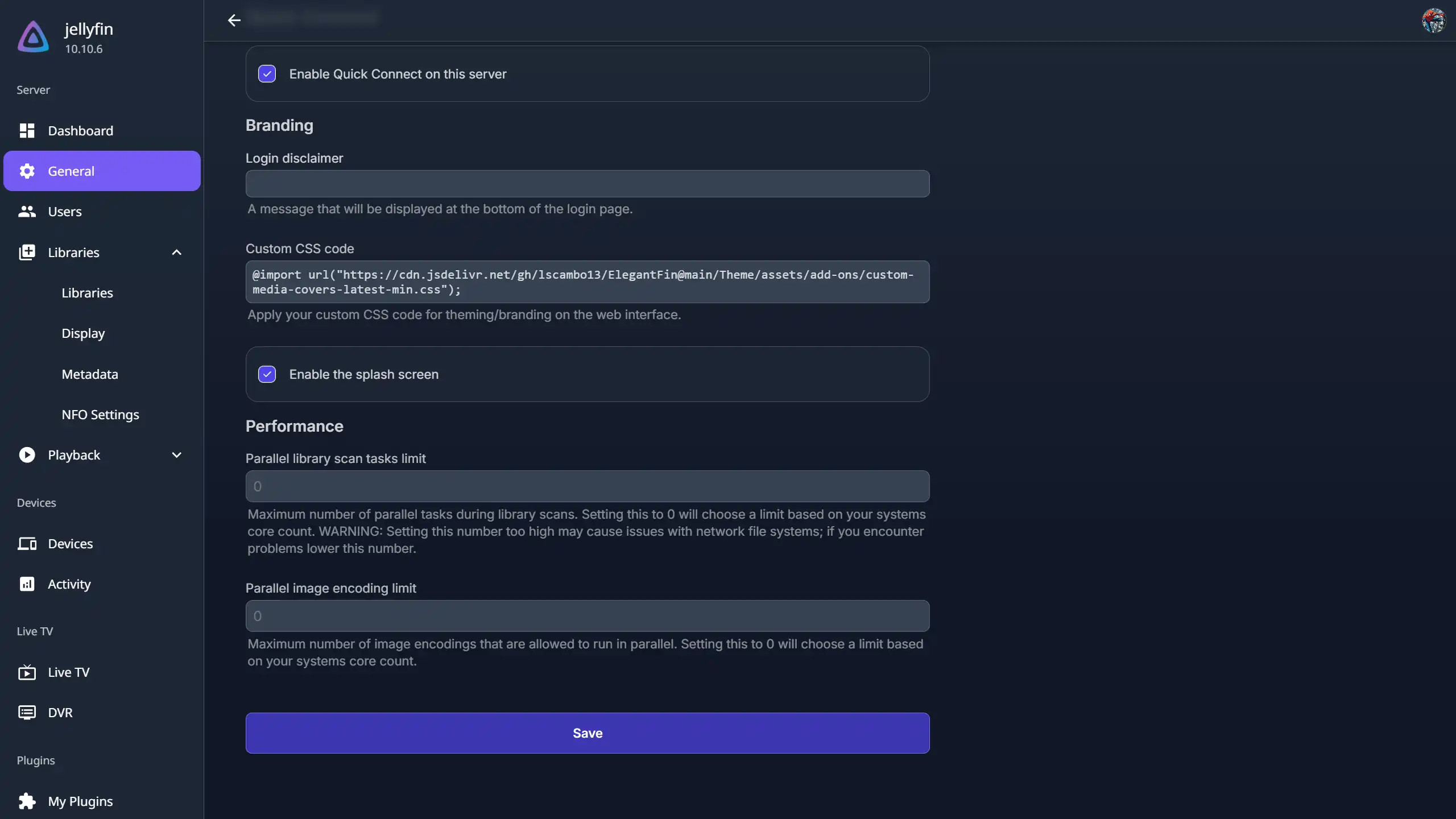
Open Dashboard from Administration tab in Settings.
From the side bar, select the Branding tab if you are on Jellyfin 10.11 or above.
Scroll down to find Custom CSS code box.
Paste the custom css in Custom CSS code box.
Click save
Detailed steps for client-side implementation
Open Display tab in Settings.
Scroll down to find Custom CSS code box.
Paste the custom css in Custom CSS code box.
Click save.
Note: On Jellyfin v12, you will need to set User Settings > Display > Display Mode to "Desktop (Legacy)" on desktop, or "Mobile (Legacy)" on mobile. The new (non-legacy) UI is not yet fully supported.
Note: this customisation is not needed on Jellyfin 10.11.X anymore
On older Jellyfin versions, to enable the background wallpaper on the login screen, first tick the 'Enable the splash screen' option in your Jellyfin Dashboard below the Custom CSS Box.
Second, copy and paste the following code at the end in Custom CSS box but don't save yet.
Third, replace <YOUR-JELLYFIN-SERVER-ADDRESS> with your Jellyfin server address, for example, http://192.168.0.1:8096.
Don't forget the correct http or https in your domain.
You can also modify the parameters, for example blur size or the resolution, according to your liking.
You can also change the text shown on the login button by adding --loginPageText: "placeholder"; line to the same :root block.
Replace "placeholder" with the text of your choice.
Once done, save and refresh your apps and webpages.
3. Enable or disable extra overlay buttons on cards on desktop
To enable 'Mark Played' and 'Add to Favorites' buttons that show up at the bottom right corner of cards while hovering, copy and paste the following code at the end in Custom CSS box, click save and finally refresh your app/webpage.
:root {
    --extraCardButtonsVisibility: block;
}
To hide the three-dot button that shows up next to these buttons, also include --menuButtonVisibility: none; in :root{}
To undo these changes, simply remove the code block or switch between block and none.
4. Place the overlay play button at the center of cards on desktop
To bring the mini play button to the center of cards, copy and paste the following code at the end in Custom CSS box, click save and finally refresh your app/webpage.
:root{
  --overlayPlayButtonPosition: 50%;
}
To undo this change, simply remove this code block or replace 50% with 2.8em.
5. Disable the card shinning effect on hover on desktop
To disable the shine on cards that shows when hovering over them on desktop, copy and paste the following code at the end in Custom CSS box, click save and finally refresh your app/webpage.
:root{
  --cardHoverEffect: none;
}
To undo this change, simply remove this code block or replace none with "".
6. Enable labels below library cards
To enable text labels under the media library cards, copy and paste the following code at the end in Custom CSS box, click save and finally refresh your app/webpage.
:root{
--libraryLabelVisibility: block;
}
To undo this change, simply remove this code block or replace block with none.
7. Enable alternative style for the Media Bar plugin
ElegantFin does not support any plugins by default, so to to add external support for this plugin, copy and paste the following code right after the main import in Custom CSS box, click save and finally refresh your app/webpage.
There are three app bar styles to choose from: seamless (default), solid, and fully transparent.
No action is needed for the seamless style, it is the default and shows a frosted blur effect.
To enable the solid app bar style (cleaner with a visible border), copy and paste the following code at the end in Custom CSS box, click save and finally refresh your app/webpage.
To enable the fully transparent app bar style, copy and paste only the following code at the end in Custom CSS box, click save and finally refresh your app/webpage.
You can also experiment and share your own take there if you wish.
10. Increase the size of Continue Watching cards so that they stand out
You can adjust their scaling --resumeCardScale.
Use any values over 1.0 to make them bigger.
:root{
  --resumeCardScale: 1.25;
}
To undo this change, simply remove this code block or set the value back to 1.
11. Toggle the title and logo elements on media pages
Caution: These options control which elements appear on movie, TV show, and artist detail pages. They are meant for experienced users, so please do not randomly enable or disable them unless you know what you are doing.
These variables control the visibility of the original title, clear logo, and main title on movie/TV show and artist detail pages.
:root{
  /* Movie & TV Pages */
  --itemOriginalTitleVisibility: block; /* block: show the original title if available [default]; none: always hide it */
  --clearLogoVisibility: block; /* block: show the clear logo if available [default]; none: always hide it */
  --itemTitleVisibility: none; /* none: hide the main title if its logo is available [default]; block: always show it */

  /* Music Pages */
  --artistClearLogoVisibility: block; /* block: show the artist clear logo if available [default]; none: always hide it */
  --artistTitleVisibility: none; /* none: hide the artist title [default]; block: always show it */
  --artistPageBackground: unset; /* unset: dim the artist background for better clear logo visibility on desktops [default]; none: show it fully */
}
To undo these changes, simply remove the variables you added or set the values back to their defaults shown above.
12. Toggle the visibility of some UI elements on mobile
These variables control the visibility of small UI elements that show up on phones and small screens.
:root {
    --miniOverlayButtonVisibility: block; /* block: show the mini play or three-dot button on cards on mobile [default]; none: always hide them on mobile */
    --endsAtVisibility: block; /* block: show the 'Ends at...' time indicator on phones [default]; none: always hide it on phones */
    --criticsRatingVisibility: none; /* none: hide the critics tomato rating on phones [default]; block: show it on phones */
}
To undo these changes, simply remove the variables you added or set the values back to their defaults shown above.
13. Adjust component sizes (advanced)
Caution: Changing these values may break the layout on different screen sizes, so please only adjust them if you are comfortable with CSS.
These variables control the standard corner radius, border, and spacing values used throughout the theme.
To undo these changes, simply remove the variables you added or set the values back to their defaults shown above.
14. Switch between IMDb and TMDB star colors
Star rating icon in ElegantFin uses the TMDB colors by default, since that is where the rating is sourced from.
To switch them to the gold IMDb colors, copy and paste the following code at the end in Custom CSS box, click save and finally refresh your app/webpage.
.starIcon {
    --colors: var(--imdb);
}
To go back to the TMDB colors, replace var(--imdb) with var(--tmdb) or simply remove the code block.
15. Switch between Light and Dark modes
Desktop
Mobile
Dark
Light
ElegantFin now comes with a dark by default, but an alternative light mode is also available
To switch between these modes, go to User Settings > Display > Theme and select either Dark or Light.
The "Theme" setting above is not to be confused with the "Server Dashboard Theme" in the Dashboard, which is not supported.
Only the Light and Dark theme options are supported, and Jellyfin does not automatically switch between them, so you have to change it manually.
🆗 Tested on
Jellyfin Server v10.11.11
Microsoft Edge (Chromium)
Jellyfin Android App v2.6.3
🛠️ Troubleshooting
1️⃣ - How do I check which version of ElegantFin I am using?
Check the version number at the bottom in the Settings screen.
It should be something like ElegantFin v26.YY.ZZ.
2️⃣ - I see that a newer version is available, but I have not received it yet. Why?
If the Settings footer shows an old version, it means that you are still using an old cache.
Once that cache is updated, the new version will be loaded automatically.
There are multiple ways to clear the cache depending on your OS, smartphone or TV. Look online if you don't know.
On the web version, you can force a hard refresh of the page using CTRL + F5.
On apps, try signing out and back in again. OR in case of Jellyfin Media Player on windows, you might need to delete the cache folder.
3️⃣ - Why do I notice visual bugs and inconsistencies on Jellyfin Media Player?
JMP is based on Qt 5.x which uses a very outdated web engine. It does not support many new CSS features, so it is unsupported.
You might want to try Jellium Desktop which is an unofficial client, and it is still in testing right now.
4️⃣ - Does it work on the AndroidTV version of the Jellyfin app?
As of version 0.18.11, the official Jellyfin app on the AndroidTVs does not support css themes, but the Android mobile phone app supports them. The WebOS version of the app seems to be based on the mobile phone version, so it supports the theme just fine.
5️⃣ - All the icons on my LG TV seem to be broken. How to fix them?
This bug can be fixed by using the older icons, so I have implemented the following workaround to bring back older, supported icons.
Simply add the following code at the end in Custom CSS box and save, then refresh your apps and webpages:
:root{
  --iconPack: 'Material Icons';
}
6️⃣ - How do I report bugs/issues?
First check issues and discussions to see whether a similar issue has been reported already. If it exists, upvote and comment there to let me know.
Before reporting a bug, make sure the issue is not caused by a plugin. Temporarily disable your plugins, or remove any plugin add-on CSS, to see if the issue persists.