
core-termux
Turn Termux into a complete development workstation with AI coding agents, a modern code editor, databases, automation, and developer tools.
Automatically checked · GitHub checked 2026-11-16
Overview
Core-Termux — Modular Dev Environment

BUILD. CODE. AUTOMATE.






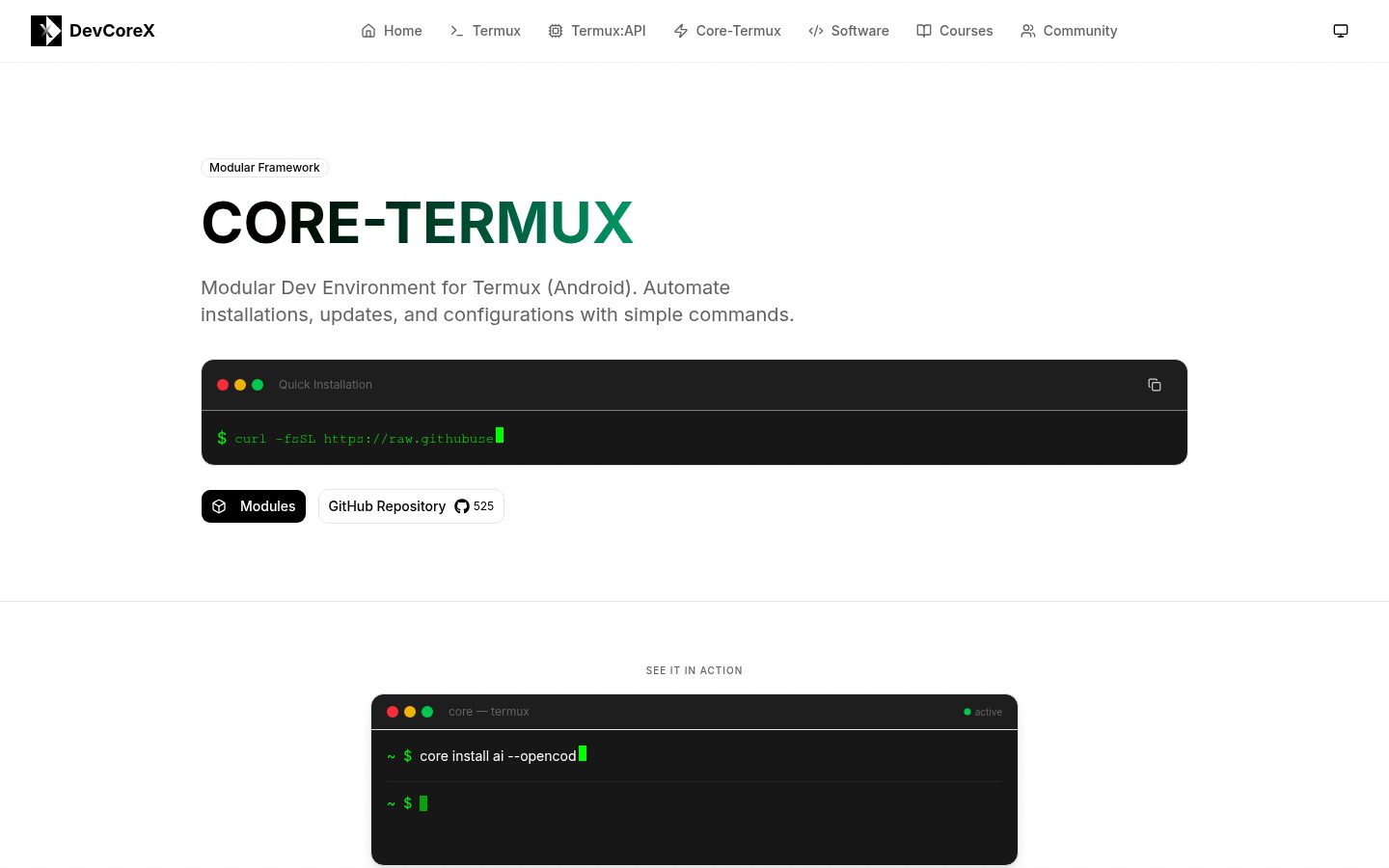
CORE-TERMUX is a modular dev environment that turns Termux into a complete development workstation. Through a single core CLI, it provides a modular system that covers the full developer stack: programming languages, databases, AI agents, code editors, shell configuration, and automation — all manageable with simple, consistent commands like core install, core update, and core uninstall.
[!IMPORTANT] This project is designed exclusively for Termux on Android and is not supported on other platforms.
Quick Installation
curl -fsSL https://raw.githubusercontent.com/DevCoreXOfficial/core-termux/main/install.sh | bash
Then run:
core
Main Commands
| Command | Description |
|---|---|
core --version | Show current version |
core agent | Local AI assistant & task agent |
core brain | Second brain — save and search memories |
core env | Manage environment variables |
core install | Install specific modules |
core show | Show tool documentation |
core update | Update modules or framework |
core uninstall | Remove installed modules |
core reinstall | Uninstall + reinstall modules |
core voice | Speech-to-agent via microphone |
core open | Open documentation in browser |
core list | List available tools in modules |
core pg | PostgreSQL database manager |
core init | Configure existing projects |
Common Modules
These modules are available across most commands (core list, core install, core update, core reinstall, core uninstall, core show, and core open):
| Module | Description |
|---|---|
lang | Language packages (Node.js, Python, Perl, PHP, Rust, C/C++, Go, Bun.js) |
db | Databases (PostgreSQL, MariaDB, SQLite, MongoDB, Redis) |
ai | AI agents and coding assistants — see AI Agents |
editor | Code editor components (Neovim, NvChad) |
dev | Development tools (gh, wget, curl, fzf, lsd, bat, etc.) |
npm | Node.js global npm packages |
shell | ZSH plugins |
ui | Termux UI components |
auto | Automation tools (n8n) |
AI Agents
The ai module installs AI-powered coding agents and assistants. Install all agents or pick specific ones with --flag:
core install ai                    # Install all agents
core install ai --opencode --ollama  # Install only OpenCode and Ollama
| Agent | Flag | Description |
|---|---|---|
| Qwen Code | --qwen-code | Alibaba's AI coding assistant |
| Gemini CLI | --gemini-cli | Google's AI assistant with Gemini |
| Claude Code | --claude-code | Anthropic's CLI tool with Claude AI |
| Mistral Vibe | --mistral-vibe | Command-line coding assistant powered by Mistral's models |
| OpenClaude | --openclaude | Open source Claude Code alternative |
| OpenClaw | --openclaw | Personal AI Assistant |
| Ollama | --ollama | Run open-source LLMs locally on Termux |
| Codex CLI | --codex | Coding agent from OpenAI that runs locally on your computer |
| OpenCode | --opencode | Open-source agent that helps you write code in your terminal |
| Qoder | --qoder | A terminal-native AI coding partner—and an agent engine you can build on |
| KiloCode CLI | --kilocode-cli | The open source coding agent for building with AI in VS Code, JetBrains, or the CLI |
| Cactus Needle | --cactus-needle | 26M function-call model for tool-call generation — inference and finetuning from the terminal |
| KeelCode | --keelcode | Hosted coding agent for your terminal — inspect a project, edit files, run commands, and verify its work |
| Kimchi | --kimchi | Terminal coding agent powered by Kimchi's multi-model orchestration |
| MiMoCode | --mimocode | Xiaomi's AI coding agent — fast, local, and open-source |
| Engram | --engram | Persistent memory system for coding agents |
| CodeGraph | --codegraph | Analyzes your codebase structure and dependencies |
| Pi Coding Agent | --pi | Minimal terminal coding harness — adapt Pi to your workflows |
| Antigravity CLI | --antigravity-cli | Lightweight, terminal-first surface for Antigravity agents |
| MiniMax CLI | --minimax-cli | Generate text, images, video, speech, and music from the terminal |
| Oh-My-Pi | --oh-my-pi | Autonomous coding agent that learns your codebase and writes production-ready code |
| Gentle AI | --gentle-ai | Ecosystem, Frameworks, Workflows for AI coding agents |
| Gentleman Guardian Angel | --gga | Provider-agnostic AI code review for every commit |
| Hermes Agent | --hermes-agent | The self-improving AI agent built by Nous Research |
| Kimi Code | --kimi-code | Kimi Code CLI — The Starting Point for Next-Gen Agents |
| Command Code | --command-code | The coding agent that learns your coding taste |
| Freebuff | --freebuff | A 100% free coding agent, right from your terminal |
| Context7 | --ctx7 | Live documentation provider for AI coding agents |
| OpenSpec | --openspec | Spec-Driven Development framework for AI coding agents |
| SuperCode CLI | --supercode | Open source SWE agent — free models included, or bring your own |
| Cline CLI | --cline | The open source coding agent in your IDE and terminal |
| AMP Code CLI | --ampcode | AMP — coding agent by Sourcegraph for the terminal |
| Cursor CLI | --cursor-cli | Deliver code with agents directly from your terminal |
| Droid Factory | --droid-factory | Factory's AI coding agent — droid CLI for the terminal |
| Hugging Face CLI | --hugging-face | Official Hugging Face Hub CLI — download, upload, and manage models, datasets, Spaces, buckets, and Jobs |
| Cactus Compute | --cactus | Cactus Engine CLI — hybrid edge-cloud AI inference engine for mobile, wearable, and edge devices (cactus-compute) |
| Walkie | --walkie | P2P communication CLI for AI agents — encrypted serverless mesh so agents and humans can chat |
Detailed Commands
core --version
Display the installed version of Core-Termux.
core --version
Output:
4.27.2
core agent
Local AI assistant and task agent backed by an OpenAI-compatible endpoint (default: gemma-4-e2b-it-cq4 served by Cactus Engine on http://127.0.0.1:8000/v1). ask answers questions with colored markdown; run is a full agent that writes files and runs commands on your machine. If the model server is down, the agent starts cactus in the background (logs → ~/.cache/core-termux/core-agent.log) and stops it when you leave the interactive shell.
core agent ask -p "Explain rsync"                     # One-shot question
core agent run -p "create a backup script"            # One-shot task (files + commands)
core agent ask                                        # Interactive chat shell
core agent run                                        # Interactive agent shell
core agent status                                     # Endpoint/model status
core agent config                                     # Show or edit saved settings
Options (ask & run):
| Option | Description |
|---|---|
-p, --prompt <text> | Task/question (omit for the interactive shell) |
-m, --model <name> | Model id (default: gemma-4-e2b-it-cq4) |
-u, --endpoint <url> | OpenAI-compatible endpoint (default: http://127.0.0.1:8000/v1) |
-t, --temperature <n> | Sampling temperature (default: 0.3) |
--max-tokens <n> | Max output tokens (default: 2048) |
-w, --workspace <dir> | Agent working dir (run mode, default: $PWD) |
-n, --max-iterations <n> | Agent loop limit (default: 12) |
-y, --yes | Auto-approve commands (skip y/N prompt) |
--plan | Plan mode (read-only): no file writes, write commands blocked |
--build | Build mode (default): files and commands applied |
Files & commands:
- Type
@namein a message to attach a file's contents (live fzf picker while typing) - Start a message with
!for shell mode (e.g.!git status) — the output is added to the agent's context - Commands from the model run only after your
y/Nconfirmation (-yauto-approves) - Press
ESC ESCat any prompt to cancel the agent - The interactive REPL remembers the conversation and shows
[context % · elapsed]after each answer/task - Dictate your prompt with
/voice(Termux:API)
Interactive slash commands: /help, /model <name>, /endpoint <url>, /temp <n>, /max <n>, /workspace <dir>, /plan, /build, /voice, /clear, /history, /status, /exit
Plan vs Build mode: in Plan mode (--plan or /plan) the agent is read-only — ## File: blocks are ignored, write commands (rm, mv, mkdir, redirections, git commit, package installs...) are blocked, and only read-only commands (ls, cat, sed -n, grep, git status...) run. Use it to explore and get a concrete plan before touching anything, then switch to Build mode (/build) to apply it.
Reading files: a file attached with @ is passed to the agent with its FULL content, so the agent already has it in context and doesn't need to re-read it. A ## File: heading never precedes a command: a command-in-File slip is reinterpreted as a command instead of overwriting your file.
Example session:
$ core agent ask

    you ▸ explain git rebase vs merge

    git rebase rewrites the history of your current branch...
Tip:
core agentalso runs as a walkie agent —walkie agent <channel> --cli core.
core env
Manage environment variables in your shell rc file (.zshrc or .bashrc). All operations are interactive.
core env                     # Show help
core env set                 # Add or update a variable (value is hidden while typing)
core env unset               # Remove a variable (shows list to choose from)
core env ls                  # List all user-defined variables
Features:
- Values are hidden with ● when typing (safe for API keys and tokens)
- Detects existing variables and warns before replacing
- Removes all definitions of the same variable name
- Writes to
.zshrcif it exists, otherwise.bashrc
Example session:
$ core env set

    ┌─────────────────────────────────────────┐
    │         Set Environment Variable        │
    └─────────────────────────────────────────┘

    ┌─ Variable name
    └─▶ OPENAI_API_KEY

    ┌─ Value for OPENAI_API_KEY
    │  (input will be hidden)
    └─▶ ●●●●●●●●●●●●●●

    ✔ Variable OPENAI_API_KEY set in .zshrc
    • Run: source .zshrc to apply

$ core env ls

    ─────── Environment Variables ───────

    File: .zshrc

    OPENAI_API_KEY              = sk-...
    DATABASE_URL                = postgresql://...

    ──────────────────────────────────────
    2 variable(s) in .zshrc
core brain
Save and search personal learnings and memories — your second brain in markdown files. All operations are local, synced optionally to a private GitHub repo.
core brain                    # Dashboard with stats
core brain init               # Initialize brain directory and GitHub repo
core brain save               # Interactive: save a new memory
core brain search <query>     # Search memories by keywords or tags
core brain ls [category]      # List memories by category
core brain edit               # Edit a memory in your $EDITOR
core brain edit <slug>        # Edit a memory by slug name
core brain delete             # Delete a memory permanently
core brain show <slug>        # View a memory with its relations
core brain reset              # Destroy the entire brain
core brain graph              # Visual map of all connections
core brain skill              # Create an AI skill from memories
core brain relate             # Link two memories interactively
core brain sync               # Push/pull to GitHub private repo
Memory format (AI-consumable markdown):
---
title: React Hook Form + Zod validation
tags: [react, forms, typescript, zod]
created: 2026-06-23
category: frontend
related: [nextjs-server-actions]
---

# React Hook Form + Zod validation

After hours of testing, the combination that worked...
Features:
- Categorized folders (
frontend/,devops/,linux/, etc.) with tags for cross-relations - Auto-suggests relations based on shared tags when saving
- Values hidden with ● when typing for API keys and tokens
- Syncs to a private GitHub repo via
ghfor backup across devices - Markdown frontmatter consumable by AI agents
Example session:
$ core brain save

    ┌─────────────────────────────────────────┐
    │            Save a New Memory            │
    └─────────────────────────────────────────┘

    ┌─ Title
    └─▶ React Hook Form + Zod patterns

    Existing categories:
    • frontend
    • devops

    ┌─ Category
    └─▶ frontend

    ┌─ Tags (comma separated)
    └─▶ react, forms, zod, typescript

    Write your content below (Ctrl+D to finish, Ctrl+C to cancel):

    After hours testing, the definitive combination...
    [Ctrl+D]

    ✔ Memory saved to frontend/2026-06-23_react-hook-form-zod-patterns.md
core voice
Capture voice from the microphone, review it in nvim, and launch an AI agent.
core voice                    # Show help
core voice <agent>            # Capture → nvim → launch agent
core voice text               # Capture → nvim → print to stdout
core voice !                  # Alias for 'text'
Requirements:
- Termux:API package:
pkg install termux-api - Neovim for editing:
core install editor - Termux:API app: https://devcorex-web.vercel.app/termux/api
Note:
core voiceautomatically runstermux-api-startbefore capturing audio to ensure the Termux:API service is running.
Supported agents:
| Agent | Command |
|---|---|
opencode | opencode run "prompt" |
qoder | qodercli -p "prompt" |
claude-code | claude -p "prompt" |
codex | codex "prompt" |
gemini-cli | gemini -p "prompt" |
hermes-agent | hermes chat -q "prompt" |
kilocode-cli | kilo run "prompt" |
kimi-code | kimi -p "prompt" |
mimocode | mimo run "prompt" |
mistral-vibe | vibe --prompt "prompt" |
openclaude | openclaude --bg "prompt" |
pi | pi -p "prompt" |
qwen-code | qwen -p "prompt" |
text | Print prompt to stdout |
Example session:
$ core voice opencode

    ➜ Listening through the microphone...
    ➜ Review the prompt in nvim, fix mistakes, then save and quit
    ➜ Launching opencode with prompt…

    # opencode opens with the voice-transcribed prompt
core show
Display help documentation for any installed tool. Documentation is loaded from the tool's README.md file in its module directory.
core show                    # Show help
core show <module>           # List all tools in a module
core show <module> --<tool>  # Show specific tool documentation
Examples:
core show ai --opencode      # Show OpenCode documentation
core show db --postgresql    # Show PostgreSQL documentation
core show npm --typescript   # Show TypeScript documentation
Colorized output: If bat is installed, documentation is displayed with syntax highlighting. Otherwise, plain text is shown.
core list
List available tools in a module and their installation status.
core list                     # Show help
core list <module>            # List tools in specific module
All modules from Common Modules are valid targets.
core install
Install individual modules or specific tools within modules.
core install                  # Show help
core install <module>         # Install entire module
core install <module> --tool1 --tool2  # Install specific tools
All modules from Common Modules are valid targets.
Install entire module:
core install ai               # Install all AI tools
core install db               # Install all databases
core install dev              # Install all development tools
Install specific tools:
core install ai --qwen-code --ollama          # Install only Qwen Code and Ollama
core install db --postgresql --sqlite         # Install only PostgreSQL and SQLite
core install dev --gh --fzf --jq              # Install only gh, fzf, and jq
core install npm --typescript --prettier      # Install only TypeScript and Prettier
Tip: Run
core list <module>to see all available tools and their flags.
core update
Update modules or the complete framework.
core update                   # Show help
core update <target>          # Update specific target
core update <target> --tool1 --tool2  # Update specific tools
core update core              # Update framework only
In addition to all Common Modules, core update also supports:
| Target | Description |
|---|---|
core | Core-Termux framework only |
Update entire module:
core update ai               # Update all AI tools
core update db               # Update all databases
Update specific tools:
core update ai --qwen-code --ollama          # Update only Qwen Code and Ollama
core update db --postgresql --sqlite         # Update only PostgreSQL and SQLite
core update dev --gh --fzf --jq             # Update only gh, fzf, and jq
core uninstall
Remove installed modules or specific tools.
core uninstall                # Show help
core uninstall <target>       # Uninstall specific target
core uninstall <target> --tool1 --tool2  # Uninstall specific tools
In addition to all Common Modules, core uninstall supports per-module and per-tool removal. No "uninstall all" — remove only what you need.
Uninstall specific tools:
core uninstall ai --qwen-code --ollama        # Uninstall only Qwen Code and Ollama
core uninstall db --postgresql --sqlite       # Uninstall only PostgreSQL and SQLite
core uninstall dev --gh --fzf                 # Uninstall only gh and fzf
core reinstall
Reinstall modules or specific tools — uninstalls then installs from scratch.
core reinstall                # Show help
core reinstall <target>       # Reinstall specific target
core reinstall <target> --tool1 --tool2  # Reinstall specific tools
In addition to all Common Modules, core reinstall supports per-module and per-tool reinstallation. No "reinstall all".
Reinstall specific tools:
core reinstall ai --opencode --ollama       # Reinstall only OpenCode and Ollama
core reinstall db --postgresql --sqlite     # Reinstall only PostgreSQL and SQLite
core reinstall dev --gh --fzf               # Reinstall only gh and fzf
core open
Open official documentation in browser
core open                     # Show help
core open <target>            # Open official documentation in browser
All Common Modules are valid targets, plus:
| Target | Description |
|---|---|
core | Core-Termux documentation |
devcorex | DevCoreX official website |
core pg
PostgreSQL database manager.
core pg                       # Show help
core pg start                 # Start server
core pg stop                  # Stop server
core pg restart               # Restart server
core pg status                # Check status
core pg init                  # Initialize database
core pg create <name>         # Create database
core pg drop <name>           # Drop database
core pg list                  # List databases
core pg shell                 # Open psql console
Features:
- Automatic data directory detection
- Support for existing installations
- Logs in
~/.cache/core-termux/postgresql.log
core init
Configure existing projects with predefined dependencies, folder structure, and tooling. Detects your package manager (npm, pnpm, yarn, or bun) and installs dependencies accordingly.
core init                     # Auto-detect project type and configure
core init <template>          # Configure with specific template
What it does:
- Detects package manager — Automatically identifies npm, pnpm, yarn, or bun from lock files or installed binaries
- Installs dependencies — Adds optional packages based on your selections (Zustand, React Query, Zod, etc.)
- Creates folder structure — Sets up a modular architecture with
src/components/,src/services/,src/hooks/, etc. - Generates config files — Creates
.prettierrc,.env.example,tsconfig.json, and other project-specific files - Preserves existing scripts — Does not modify
package.jsonscripts, so yourdev,build, andstartcommands stay as your template set them
Available templates:
| Template | Description |
|---|---|
next | Next.js with optional Turbopack, TypeScript, Tailwind CSS |
react | React + Vite with modern structure |
nest | NestJS with TypeORM and authentication |
express | Express API with TypeScript + TypeORM + migrations |
Usage:
cd my-next-app && core init next
cd my-react-app && core init react
cd api && core init express
cd backend && core init nest
Example:
$ cd my-next-app && core init next

──────────────────────────────────────────────────────────────
╭────────────────────────────────╮
│ Configuring Next.js Project    │
╰────────────────────────────────╯
──────────────────────────────────────────────────────────────

    ➜ Package manager detected: pnpm

    ┌─ Configure Turbopack (faster dev/build)? [Y/n]
    └─▶ y

    ┌─ Install Zustand (state management)? [Y/n]
    └─▶ y

    ┌─ Create modular folder structure? [Y/n]
    └─▶ y

─────────────────── Creating folder structure ────────────────
    ✔ Created src/components/ui
    ✔ Created src/components/layout
    ✔ Created src/services
    ✔ Created src/hooks
    ✔ Created src/store
    ✔ Created src/types
    ✔ Created src/config
    ✔ Created src/providers

──────────────────────────────────────────────────────────────
    ✔ Next.js configured!
──────────────────────────────────────────────────────────────
Template Details
Next.js (core init next)
Turbopack & LightningCSS Support:
When running in Termux, core init next offers optional Turbopack support (the native Rust-based bundler for Next.js). If the glibc toolchain is installed (core install npm --turbopack), you can enable Turbopack for faster dev/build times. The installer also adds platform-specific native bindings for LightningCSS and Tailwind CSS.
Installed dependencies:
{
  "dependencies": {
    "axios": "latest",
    "lucide-react": "latest",
    "framer-motion": "latest",
    "sonner": "latest",
    "zod": "latest",
    "react-hook-form": "latest",
    "@hookform/resolvers": "latest",
    "@tanstack/react-query": "latest",
    "zustand": "latest",
    "tailwindcss": "latest"
  },
  "devDependencies": {
    "prettier": "latest",
    "prettier-plugin-tailwindcss": "latest",
    "@next/swc-linux-arm64-gnu": "latest",
    "lightningcss-linux-arm64-gnu": "latest",
    "@tailwindcss/oxide-linux-arm64-gnu": "latest"
  }
}
Configuration:
.prettierrcwith Tailwind CSS plugin- Structure:
components/,lib/,hooks/,types/,config/,store/
React + Vite (core init react)
Same dependencies as Next.js (except Next.js-specific configs)
Configuration:
.prettierrcwith Tailwind CSS plugin- Structure:
components/,lib/,hooks/,types/,config/,store/,pages/
Express.js (core init express)
Dependencies:
express, pg, typeorm, reflect-metadata
jsonwebtoken, cookie-parser, morgan, cors
bcryptjs, helmet, cloudinary, multer
express-rate-limit, tsconfig-paths, zod
devDependencies:
typescript, ts-node-dev, tsconfig-paths, tsc-alias
@types/node, @types/multer, @types/morgan
@types/jsonwebtoken, @types/helmet
@types/express, @types/cors
@types/cookie-parser, @types/bcryptjs
Scripts added:
{
  "dev": "ts-node-dev --require tsconfig-paths/register --env-file=.env --respawn src/index.ts",
  "build": "tsc && tsc-alias -p tsconfig.json",
  "start": "node dist/index.js",
  "typeorm": "ts-node-dev --require tsconfig-paths/register --env-file=.env ./node_modules/typeorm/cli.js",
  "mg:gen": "npm run typeorm -- migration:generate -d src/database/data-source.ts",
  "mg:create": "npm run typeorm -- migration:create",
  "mg:run": "npm run typeorm -- migration:run -d src/database/data-source.ts",
  "mg:revert": "npm run typeorm -- migration:revert -d src/database/data-source.ts",
  "mg:show": "npm run typeorm -- migration:show -d src/database/data-source.ts"
}
Structure created:
src/
├── app.ts                 # Express configuration
├── index.ts               # Entry point
├── config/
│   └── env.ts            # Environment variables
├── database/
│   ├── data-source.ts    # TypeORM DataSource
│   ├── migrations/
│   └── seeds/
├── entities/
├── controllers/
├── repositories/
├── services/
├── routes/
├── schemas/              # Zod schemas
├── middlewares/
├── types/
└── utils/
Configured files:
tsconfig.jsonwith paths (@/*).env.examplesrc/config/env.tssrc/database/data-source.ts(TypeORM)src/app.ts(Express with CORS, helmet, rate-limit)src/index.ts
NestJS (core init nest)
Dependencies:
@nestjs/typeorm, typeorm, pg
@nestjs/jwt, @nestjs/passport
class-validator, class-transformer
bcryptjs, helmet, cloudinary
Language Packages
The lang module installs the following programming languages and runtimes via pkg:
core install lang
| Language/Runtime | Package | Description |
|---|---|---|
| Node.js LTS | nodejs-lts | Long-term support release of Node.js |
| Python | python | Python 3 interpreter |
| Perl | perl | Perl scripting language |
| PHP | php | PHP interpreter |
| Rust | rust | Rust compiler and Cargo |
| C/C++ | clang | LLVM C/C++ compiler |
| Go | golang | Go programming language |
| Bun | bun | Bun JavaScript runtime |
Development Tools
The dev module installs the following development utilities via pkg (or compiled from source where noted):
core install dev
| Tool | Package | Description |
|---|---|---|
| GitHub CLI | gh | Official GitHub command-line tool |
| Wget | wget | File downloader |
| Curl | curl | HTTP client and transfer tool |
| LSD | lsd | Modern ls replacement with icons and colors |
| Bat | bat | Modern cat replacement with syntax highlighting |
| Proot | proot | Chroot alternative for user-space |
| Ncurses Utils | ncurses-utils | Terminal UI manipulation tools |
| Tmate | tmate | Instant terminal sharing |
| Tmux | tmux | Terminal multiplexer |
| OpenSSH | openssh | SSH server and client |
| Cloudflared | cloudflared | Cloudflare Tunnel client |
| Translate Shell | translate-shell | Command-line translator |
| html2text | html2text | HTML to plain text converter |
| jq | jq | Lightweight JSON processor |
| bc | bc | Arbitrary precision calculator |
| Tree | tree | Recursive directory listing |
| Fzf | fzf | Command-line fuzzy finder |
| ImageMagick | imagemagick | Image manipulation suite |
| Shfmt | shfmt | Shell script formatter |
| Make | make | Build automation tool |
| Udocker | udocker | Run Docker containers without root |
| SuperFile | spf | Terminal file manager with TUI, themes, and hotkeys |
Node.js Global Modules
The npm module installs the following global npm packages:
core install npm
| Package | Command | Description |
|---|---|---|
| TypeScript | tsc | TypeScript compiler |
| NestJS CLI | nest | NestJS framework CLI |
| Prettier | prettier | Code formatter |
| Live Server | live-server | Development server with live reload |
| Localtunnel | lt | Expose localhost to the internet |
| Vercel CLI | vercel | Vercel deployment CLI |
| Markserv | markserv | Markdown live-preview server |
| PSQL Format | psqlformat | PostgreSQL query formatter |
| NPM Check Updates | ncu | Find outdated dependencies |
| Ngrok | ngrok | Secure tunnel to localhost |
| Turbopack | next-turbopack | Next.js native bundler (requires glibc toolchain) |
Turbopack Installation:
core install npm --turbopack
Note: Turbopack requires the glibc toolchain to run on Termux. When enabled,
core init nextwill configure your project with Turbopack for faster development and build times.
Code Editor
The editor module installs Neovim with a custom configuration based on NvChad.
Installation:
core install editor
Features:
- Neovim - Fast, extensible code editor
- NvChad - Modern Neovim configuration
- GitHub Copilot - AI-powered code completion
- CodeCompanion - AI chat assistant for code
- Preconfigured plugins - LSP, autocomplete, syntax highlighting, file explorer, etc.
Included languages:
- TypeScript/JavaScript
- Python
- PHP
- Perl
- Rust
- Lua
- And more...
For detailed information about the editor configuration, plugins, and usage: → Visit: https://github.com/DevCoreXOfficial/nvchad-termux
UI and Logs
The framework includes a professional logging system with colors, icons, and animations, plus a startup banner with random tips.
Log Functions
log_info "Info message"
log_success "Success message"
log_warn "Warning message"
log_error "Error message"
log_debug "Debug message (requires CORE_DEBUG=1)"
Loading Spinner
Hides shell output while running commands:
LOG_FILE="$CORE_CACHE/install.log"

loading "Installing packages" _install_function

_install_function() {
    pkg install packages -y &>"$LOG_FILE"
}
Separators
separator              # Single line
separator_double       # Double line
separator_section "Title"  # Centered title with line
Boxes
box "Title"
box_large "Large title"
box_with_subtitle "Title" "Subtitle"
Interactive Inputs
# Text input
read_input "Name" VAR_NAME

# Confirmation (y/n)
read_confirm "Continue?" VAR_NAME

# Selection with arrow keys ↑↓
read_select "Environment" VAR_NAME "Dev" "Staging" "Production"

# Hidden input (API keys, tokens, passwords) ●●●
read_secret "Value" VAR_NAME

# Multi-line input (no editor needed)
file=$(read_multiline "# Title")
content=$(cat "$file")
rm -f "$file"
Tables
table_start "Col1" "Col2" "Col3"
table_row "value1" "value2" "value3"
table_end
Banner Tips
Every time you open a new Termux session (or run the banner), Core-Termux shows a random tip to help you discover features you might not know about. Tips cover all modules: installing tools, using core brain, managing databases, voice commands, project initialization, and more.
The tip system:
- Picks a random tip from a pool of 65+ tips on each session
- Never shows the same tip twice in a row
- Covers every module and command in the framework
To refresh the tips pool or customize them, edit core/utils/banner.sh.
Project Structure
core-termux/
├── LICENSE
├── README.md
├── assets
│   ├── fonts
│   │   └── font.ttf
│   └── images
│       └── logo.svg
├── core
│   ├── bin
│   │   └── core
│   ├── cli
│   │   ├── commands
│   │   │   ├── --version.sh
│   │   │   ├── brain.sh
│   │   │   ├── env.sh
│   │   │   ├── init.sh
│   │   │   ├── install.sh
│   │   │   ├── list.sh
│   │   │   ├── pg.sh
│   │   │   ├── reinstall.sh
│   │   │   ├── show.sh
│   │   │   ├── uninstall.sh
│   │   │   ├── update.sh
│   │   │   └── voice.sh
│   │   └── core.sh
│   ├── modules
│   │   ├── ai.sh
│   │   ├── auto.sh
│   │   ├── db.sh
│   │   ├── dev.sh
│   │   ├── editor.sh
│   │   ├── lang.sh
│   │   ├── npm.sh
│   │   ├── shell.sh
│   │   └── ui.sh
│   ├── tools
│   │   ├── ai/
│   │   │   ├── all.sh
│   │   │   ├── qwen-code/
│   │   │   │   ├── install.sh
│   │   │   │   └── README.md
│   │   │   ├── claude-code/
│   │   │   │   ├── install.sh
│   │   │   │   ├── bin/claude
│   │   │   │   └── README.md
│   │   │   ├── opencode/
│   │   │   │   ├── install.sh
│   │   │   │   ├── bin/opencode
│   │   │   │   └── README.md
│   │   │   ├── qoder/
│   │   │   │   ├── install.sh
│   │   │   │   ├── bin/qoder
│   │   │   │   ├── helper/qoder_helper.c
│   │   │   │   └── README.md
│   │   │   ├── freebuff/
│   │   │   │   ├── install.sh
│   │   │   │   ├── bin/freebuff
│   │   │   │   ├── helper/freebuff_helper.c
│   │   │   │   └── README.md
│   │   │   ├── keelcode/
│   │   │   │   ├── install.sh
│   │   │   │   ├── bin/keelcode
│   │   │   │   ├── helper/keelcode_helper.c
│   │   │   │   └── README.md
│   │   │   └── ... (13 tools, each with own directory)
│   │   ├── npm/
│   │   ├── lang/
│   │   ├── db/
│   │   │   ├── all.sh
│   │   │   ├── postgresql/
│   │   │   ├── mariadb/
│   │   │   ├── sqlite/
│   │   │   ├── mongodb/
│   │   │   └── redis/
│   │   ├── editor/
│   │   ├── dev/
│   │   ├── shell/
│   │   ├── ui/
│   │   └── auto/
│   └── utils
│       ├── bootstrap.sh
│       ├── banner.sh
│       ├── colors.sh
│       ├── env.sh
│       ├── log.sh
│       └── version.sh
└── install.sh
Configuration
Environment Variables
export CORE_DEBUG=1 # Enable debug logs
Directories
| Directory | Description |
|---|---|
~/.local/share/core-termux-data | Persistent tool data (codegraph, engram, nvchad) |
~/.cache/core-termux | Logs and cache |
~/.config/core-termux | User configuration |
Log Files
All processes save logs to:
~/.cache/core-termux/
├── install_lang.log
├── install_db.log
├── install_ai.log
├── install_editor.log
├── install_dev.log
├── install_npm.log
├── install_shell.log
├── install_ui.log
├── install_auto.log
├── postgresql.log
├── last_version_check      # Last update check timestamp
└── new_version             # New version available (if exists)
Automatic Updates
The framework checks for updates automatically:
- Frequency: Once every 24 hours
- Impact: None (runs in background)
- Notification: Shown when running
coreif new version exists
$ core

── Update Available ─────────────────────────────────

⚠ New version available: 4.27.1 (current: 4.27.0)

➜ Run: core update core to update
To update:
core update core
ZSH Shell
When installing the shell module:
Installed Plugins
| Plugin | Description |
|---|---|
| powerlevel10k | Modern and fast theme |
| zsh-defer | Deferred plugin loading |
| zsh-autosuggestions | Smart autocompletion |
| zsh-syntax-highlighting | Syntax highlighting |
| zsh-history-substring-search | History search |
| zsh-completions | Additional completions |
| fzf-tab | Fuzzy navigation in completions |
| zsh-you-should-use | Command suggestions |
| zsh-autopair | Auto-close parentheses |
| zsh-better-npm-completion | Better npm completion |
Persistent Session
The shell saves the current directory and restores it when opening a new session:
# Session 1
$ cd projects/my-app
$ exit

# Session 2
$ pwd
/data/data/com.termux/files/home/projects/my-app  ← Same directory
Configuration:
- Saves path to
~/.cache/core-termux/last_dir - Automatically restored on startup
- Falls back to
$HOMEif directory doesn't exist
Usage Examples
Install specific modules
core install db
core install shell
core install npm
Install specific tools within a module
core list ai                                    # See available AI tools
core install ai --qwen-code --ollama            # Install only Qwen Code and Ollama
core install dev --gh --fzf --jq                # Install only gh, fzf, and jq
core install npm --typescript --prettier        # Install only TypeScript and Prettier
Reinstall
core reinstall ai             # Reinstall all AI agents
core reinstall shell          # Reinstall ZSH + plugins
core reinstall ai --opencode --ollama  # Reinstall specific tools
Configure Next.js project
npx create-next-app@latest my-app
cd my-app
core init next
Manage PostgreSQL
core pg init              # First time
core pg start             # Start
core pg create mydb       # Create database
core pg shell             # Open psql
core pg stop              # Stop
Update
core update core          # Framework only
core update shell         # ZSH plugins only
core update ai --qwen     # Specific AI tool only
Uninstall
core uninstall npm        # Remove Node.js modules
core uninstall ai --ollama   # Remove only Ollama
List available tools
core list ai              # List all AI tools and their status
core list dev             # List all development tools
core list db              # List all databases
Important Notes
- Restart Termux: After installing
shellorui, restart Termux to apply changes - Permissions: Ensure you have write permissions in the installation directory
- Connection: Some installations require internet connection
- Logs: Check
~/.cache/core-termux/if something fails
License
MIT License