
atomcode
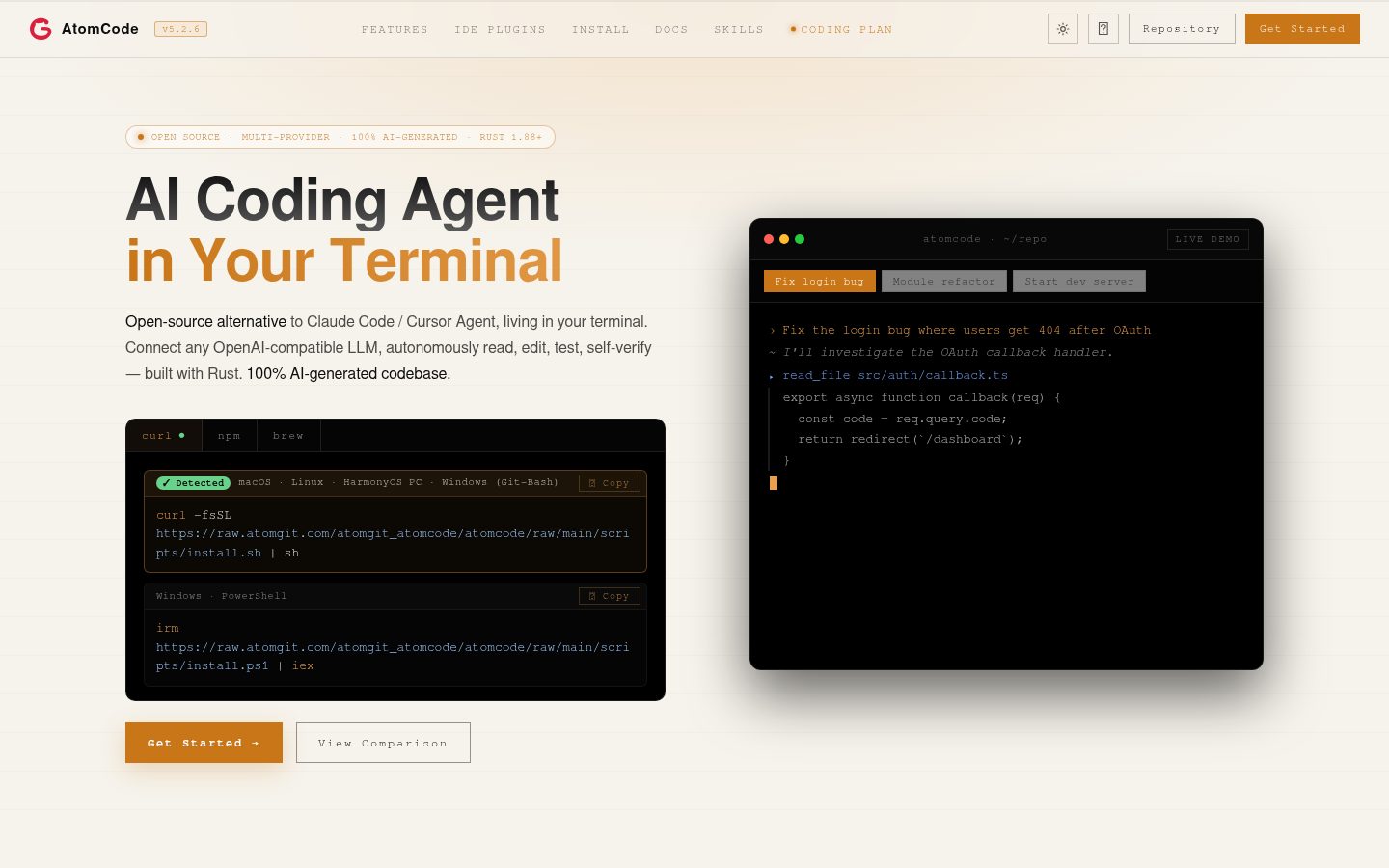
An open-source alternative to Claude Code. Connect any LLM, edit code, run commands, and verify changes — autonomously. Built in Rust for speed. Get Started
Automatically checked · GitHub checked 2026-11-13
Overview
      _   _                  ____          _
     / \ | |_ ___  _ __ ___ / ___|___   __| | ___
    / _ \| __/ _ \| '_ ` _ \ |   / _ \ / _` |/ _ \
   / ___ \ || (_) | | | | | | |__| (_) | (_| |  __/
  /_/   \_\__\___/|_| |_| |_|\____\___/ \__,_|\___|
Open-source terminal AI coding agent written in Rust
English · 简体中文
Install · Quick Start · Features · Architecture · Development · Contributing · Community


This project is 100% AI-generated. Every line of code, every architectural decision's implementation, and every commit was written by AI. The human developer serves solely as the decision-maker and product manager — defining what to build, not how to build it.
AtomCode is an AI coding agent that lives in your terminal. Give it a task in natural language, and it will read your codebase, edit files, run commands, and verify its work — autonomously.
Think of it as an open-source alternative to Claude Code / Cursor Agent, but running entirely in your terminal and connecting to any OpenAI-compatible API.
Features
Agent Loop
- Autonomous multi-step execution — reads files, edits code, runs tests, fixes errors, all in a loop
- Verification guidance — reminds the agent to check unverified code edits; opt-in quality gates provide configured command checks
- Dynamic step budget — scales with the number of edited files, capped per turn to bound cost
- Loop detection — detects and breaks out of repetitive tool-call patterns
- 3-layer JSON repair — recovers malformed tool-call arguments
- Turn-level datalog — structured per-turn logs for replay, debugging, and eval harnesses
Modes & Autonomy
- Plan / Build modes —
/planswitches to read-only exploration (the agent investigates without touching files);/buildswitches back to full execution - Quality policy —
/quality onruns explicitly configured checks before ordinary changed-task handoff, retaining logs and file fingerprints. Independent of approvals; failures preserve files. See configuration and limits. - Goal mode —
/goal <text>sets a completion condition and the agent loops autonomously, turn after turn, until the goal is met - Recurring work —
/loop 5m <task>repeats work at the chosen interval;/loop stopends the loop. - Subagents and teams — drivers with subagents enabled support delegating work through
task/team. - Code review —
/reviewreviews your current changes,/review stagedthe staged diff, and/review <base>against a base ref - Background sessions —
/bgruns work in detached slots so you can keep using the TUI while a long task progresses
Built-in Tools
File & shell:
read_file,write_file,edit_file,search_replacebash,grep,glob,list_directory,change_dirweb_search,web_fetch
Code graph (language-aware code intelligence):
list_symbols,read_symbol,find_referencestrace_callers,trace_callees,trace_chainfile_deps,blast_radius
Automation:
auto_fix— automatic lint/typecheck fix loopuse_skill— invoke a user-defined skill
Grape Remote Workflows
The TUI /grape entry is temporarily disabled pending cloud authorization deployment. For services that already support authorization, connect with atomcode grape connect --server <https-url>, then use native Grape tools to query projects, retrieve repository knowledge, hand off existing Issues and inspect remote results. No copied API key or separate MCP server is required. Grape service-side support must be deployed first. See authorization and usage.
Multi-Provider Support
Connect to any LLM that supports OpenAI's function-calling API:
| Provider | Function Calling | Tested Models |
|---|---|---|
| Claude (Anthropic) | Yes | Claude Sonnet 4.5/4.6, Opus 4.6 |
| OpenAI | Yes | GPT-4o, GPT-4.1 |
| DeepSeek | Yes | DeepSeek V3, DeepSeek R1, DeepSeek V4 |
| Zhipu (GLM) | Yes | GLM-4, GLM-5, GLM-5.2 |
| Qwen (Alibaba) | Yes | Qwen-Plus, Qwen-Max |
| SiliconFlow | Yes | Various open models |
| Ollama (local) | Partial | Llama 3, Qwen2, etc. |
| Any OpenAI-compatible API | Yes | — |
Sessions & Login
- Persistent sessions — every conversation is saved; continue the last session with
atomcode --continue/-c, or resume/switch inside the TUI with/resume - AtomGit OAuth login —
/login(oratomcode login) pairs your CLI with your AtomGit account - SSO login —
/login-with-ssofor GitCode internal users - Headless mode —
atomcode -p "..."runs a single prompt non-interactively and streams the reply on stdout (Claude Code-pstyle); approval-requiredbashcalls are auto-approved, while other approval-required tools are denied - Daemon mode —
atomcode-daemonexposes an HTTP API for session history and SSE streaming chat
Terminal UI
- Real-time streaming with markdown rendering and syntax highlighting
- Code blocks with language labels, line numbers, and
base16-ocean.darktheme - Multi-line input with Shift+Enter (or
\+ Enter), auto-growing height, input history - Task completion notifications — long-running tasks trigger terminal-native notifications first (kitty / WezTerm / iTerm2), falling back to OS-native alerts
- Text selection with mouse drag, auto-scroll, and clipboard copy
- Slash commands —
/model,/provider,/resume,/bg,/diff,/undo,/cost,/clear,/compact, etc. (see table below) - File attachment — paste file paths to attach content as context
- Bracketed paste — long paste content collapsed to a compact indicator
- Skills — user-defined commands loaded from your skill directory, invoked like any slash command
The conversation scrollbar is hidden by default; mouse-wheel and keyboard scrolling remain available. Set ui.scrollbar in /config to hidden (default), auto, or always.
Web UI
/webui(in the TUI) oratomcode webui(CLI) launches a local browser UI as an alternative to the terminal interface — same agent, same sessions, rendered in your browser- Local access by default — the server binds to
127.0.0.1. Explicitly use/webui lan(binds to0.0.0.0) or--host <addr>to allow access from other devices. Use the authenticated URL printed at launch. /webui stopstops the in-process server (a later/webuirestarts it)/webui --port 20001chooses a starting port;--host <addr>and--no-openare also supported. Occupied ports and Windows reserved ports (error 10013) are skipped, up to 100 attempts. Use the printed URL; to change an already running server's port, stop it first.
IDE Extensions
Use AtomCode in your editor: see the VS Code extension and JetBrains extension for setup and development details.
App Remote Access
/app(in the TUI) enables mobile remote access — prints a QR code; scan it with the GitCode mobile app from any network to connect to your current session- Any-network reachable — your PC connects to a public relay via a reverse WSS tunnel; the phone reaches your PC through the relay. No public IP, DDNS, or port forwarding required
- Bidirectional real-time sync — messages from either end appear on the other in real time (streaming replies, tool call cards, token usage)
- Remote commands — the phone can run
/status,/cost,/diff,/whoamietc., which execute on the desktop and echo results back - Switch projects / sessions — switch projects or open a history session on the phone, and the desktop follows immediately
- Model sync — switching models on either end keeps the other in sync
/app stopdisconnects remote access
Safety
- Destructive command detection —
rm -rf,git push --force,DROP TABLE, etc. require explicit approval - Path-aware confirmations — external reads, sensitive paths, and all writes outside the workspace can require confirmation depending on risk level
- Sensitive file protection — protected system paths, credential directories, shell configs,
.envfiles, and key/cert files receive stronger confirmation rules - Shell bypass protection — common shell file commands like
cat,head,ls,cp,mv, andteeinherit the same path approval model as file tools - Per-session permission grants — approve once per tool pattern, or always-allow
- Source file deletion requires approval —
rmon code files is never auto-approved - Undo —
/undorolls back the last turn's file edits via file-history snapshots
See Permission Model for the full design and current boundaries.
Privacy
- 📊 Anonymous telemetry (on by default, opt-out available) — see docs/telemetry.md
Installation
Official Installation Script (recommended)
For Windows PowerShell users:
irm https://raw.atomgit.com/atomgit_atomcode/atomcode/raw/main/scripts/install.ps1 | iex
For Linux / macOS / WSL / MSYS / Git-Bash / HarmonyOS PC users:
curl -fsSL https://raw.atomgit.com/atomgit_atomcode/atomcode/raw/main/scripts/install.sh | sh
Both scripts download the official prebuilt binary for the latest release
(auto-detected from the AtomGit API), install it, and add it to your PATH.
As official builds they include the request signer, so /login can claim the
free CodingPlan models (see "About the official CodingPlan" below).
Environment variable overrides: ATOMCODE_VERSION pins a release tag,
ATOMCODE_PREFIX picks the install directory (see the script headers for
details).
From Source
git clone https://atomgit.com/atomgit_atomcode/atomcode.git
cd atomcode
WebUI build (required for the webui feature — runs before the Rust build)
The atomcode webui browser UI is embedded into the binary from webui/dist/,
which is gitignored (not committed). The Rust build needs no Node.js toolchain
and succeeds without it, but a binary built without webui/dist/ serves
webui not built for every webui page. To get a working webui, build the
frontend before the Rust build:
cd webui
npm ci
# for Windows MSYS / Git Bash users, run
# `PATH="/c/Program Files/nodejs:$PATH" npm run build`
# to use the system-installed Node.js.
npm run build    # outputs webui/dist/, embedded by the next Rust build
cd ..
Skip this step if you don't use the webui. The release scripts build the
frontend automatically before cargo build. After rebuilding the frontend,
force a daemon recompile so the new bundle is re-embedded (cargo clean -p atomcode-daemon) — cargo does not track changes under webui/dist/. Then
build and install:
cargo install --path crates/atomcode-cli --locked
The binary will be generated at target/release/atomcode and installed to
~/.cargo/bin/atomcode for macOS / Linux / HarmonyOS PC and $env:USERPROFILE/.cargo/bin/atomcode.exe
for Windows. Make sure that ~/.cargo/bin (or %USERPROFILE%\.cargo\bin on Windows) is
in your PATH.
To compile without installing, run:
# Builds only the CLI package (`atomcode`) — skips the standalone
# `atomcode-daemon` binary and other workspace members
cargo build --release -p atomcode
and the binary will be generated at target/release/atomcode.
About the official CodingPlan (closed-source signer)
crates/atomcode-codingplan-crypto/ in this repository is an open-source
placeholder. The real request-signing implementation is closed-source and is
only overlaid by the official release pipeline, so a self-built binary cannot
sign requests to AtomCode's official service. Binaries installed via the
official installer above (or the package managers below) are official builds
and include the signer. In practice this means:
/logincannot claim the official free CodingPlan models in self-built binaries. Signing is kept closed-source to prevent the free plan from being abused outside official builds.- Connecting your own API providers is unaffected: any provider configured
under
providers.*in~/.atomcode/config.toml(DeepSeek, OpenAI, or any OpenAI-compatible endpoint) works without the signer.
Package Managers
AtomCode CLI can also be installed via the following package managers:
# Install using npm
npm install -g @atomgit.com/atomcode

# Install using Homebrew
brew install --cask atomcode
Shell Completion
AtomCode can generate completion scripts for Bash, Zsh, Fish, PowerShell, and Elvish. For example:
# Bash (current session)
source <(atomcode completion bash)

# Zsh (persistent)
mkdir -p ~/.zfunc
atomcode completion zsh > ~/.zfunc/_atomcode
# Also add `fpath=(~/.zfunc $fpath)` before `compinit` in ~/.zshrc.

# Fish (persistent)
mkdir -p ~/.config/fish/completions
atomcode completion fish > ~/.config/fish/completions/atomcode.fish
For PowerShell, run atomcode completion powershell | Out-String | Invoke-Expression. Run atomcode completion --help for the complete shell
list. This affects command-line completion only; inside the TUI, Tab completes
input and Shift+Tab cycles execution mode.
Requirements
- Rust 1.88+ (for building; older Cargo versions cannot parse the current lockfile)
- An API key from any supported provider (or an AtomGit account for
/login; the free CodingPlan models require an official build — see "About the official CodingPlan" above)
Permissions — don't run with sudo
Run AtomCode as your normal user, never with sudo. AtomCode keeps its
config, sessions, and logs under ~/.atomcode; running once as root leaves
root-owned files there, so every later non-root start fails at runtime init with:
coding runtime assemble failed: Permission denied (os error 13)
(the message may say prepare instead of assemble — same cause.) If you hit
this, reclaim ownership and stop using sudo:
sudo chown -R "$(id -un):$(id -gn)" ~/.atomcode
atomcode        # start WITHOUT sudo
On a Linux guest, a working directory on a VirtualBox shared folder
(/media/sf_*, owned by root:vboxsf) can also trigger permission errors — add
yourself to the group with sudo usermod -aG vboxsf "$USER" and re-login, rather
than using sudo.
Uninstall
Remove AtomCode and (optionally) its data:
atomcode uninstall                # interactive: per-group prompts
atomcode uninstall --keep-data    # only remove binary + PATH edit
atomcode uninstall --purge        # remove everything, including ~/.atomcode
atomcode uninstall --dry-run      # show plan, change nothing
If the binary is already broken or missing:
curl -fsSL https://raw.atomgit.com/atomgit_atomcode/atomcode/raw/main/scripts/uninstall.sh | sh
# Windows:
irm https://raw.atomgit.com/atomgit_atomcode/atomcode/raw/main/scripts/uninstall.ps1 | iex
By default credentials (auth.toml, mcp.json, config.toml, ATOMCODE.md) are kept; pass --purge to remove them too.
Quick Start
1. First Run
atomcode
On first run, a setup wizard will guide you through configuring your LLM provider:
Welcome to AtomCode! Let's set up your first provider.

Select provider:
  [1] Claude (Anthropic)
  [2] OpenAI
  [3] OpenAI Compatible (DeepSeek, Qwen, Zhipu, Moonshot...)
  [4] Ollama (local)
2. Configuration
Provider presets are ordered by priority and show their API host; you can also search by host. In the TUI, open /provider, search for a vendor such as DeepSeek, and paste your API key. AtomCode fetches the models automatically; pick one and confirm connect and use. Vision, reasoning levels, context size and output limits are filled from the endpoint's metadata. Use Ctrl+O for advanced settings or Ctrl+S to save the model without switching. If discovery fails, retry with Ctrl+F or enter a model ID manually. Undeclared capabilities remain unknown.
Config is stored at ~/.atomcode/config.toml. A minimal single-provider
setup looks like this:
default_provider = "deepseek"

[providers.deepseek]
type           = "openai"
api_key        = "sk-..."
model          = "deepseek-chat"
base_url       = "https://api.deepseek.com/v1"
context_window = 64000
You can declare multiple providers and switch between them with /model
or /provider. A complete reference covering Claude / OpenAI /
OpenAI-compatible endpoints (DeepSeek, GLM, SiliconFlow, OpenRouter...) /
Ollama, plus the [datalog] section, lives at
docs/config.example.toml — copy and edit the
bits you need.
After editing config.toml by hand, run /reload inside atomcode to pick
up the changes without restarting.
3. Start Coding
# Open in your project directory
cd your-project
atomcode

# Or specify directory
atomcode -C /path/to/project

# Or specify model
atomcode --model gpt-4o

# Headless (single prompt, reply on stdout)
atomcode -p "Explain the agent loop in this repo"

# Read prompt from file
atomcode --prompt-file task.md
Run one preset after a task normally finishes with
atomcode -p "Implement the fix" --follow-up "Review the changes and run relevant tests".
TUI/WebUI expose /followup set/show/clear; see one-shot follow-ups.
Customize the coding persona with --system-prompt-file persona.md and optional
--append-system-prompt-file constraints.md. Tool and project instructions remain
included. See custom system prompts for configuration
and lifecycle behavior.
In headless mode, approval-required bash calls are auto-approved and logged to stderr; other approval-required tools are denied.
Then just type what you want:
> Fix the login bug where users get redirected to 404 after OAuth callback

> Add a dark mode toggle to the settings page

> Refactor the database module to use connection pooling

> Write tests for the payment processing module
Keybindings
Input
| Key | Action |
|---|---|
Enter | Send message |
Shift+Enter | New line (requires Kitty keyboard protocol) |
Ctrl+Enter | New line (requires Kitty keyboard protocol) |
Ctrl+J | New line (when the terminal distinguishes the chord) |
Alt+Enter | New line (most terminals; see compatibility note below) |
\ + Enter | New line (works on all terminals — type a \ and press Enter; the \ is consumed) |
Esc | Clear input / Stop streaming while preserving the Todo List |
Esc ×2 | Undo the previous turn |
Up/Down | Browse input history |
Tab | Accept slash-command, skill, or file completion |
Shift+Tab | Cycle to the next execution mode when no completion menu is open |
F2 / Shift+F2 | Switch to next / previous model (usually Fn+F2 / Fn+Shift+F2 on Mac) |
Ctrl+R | Reverse-search input history |
Ctrl+T | Cycle reasoning_effort |
Ctrl+O | Show / hide tool output and reasoning (verbose mode) |
Ctrl+U | Clear line |
Ctrl+W | Delete word |
Ctrl+K | Delete to end of line |
Ctrl+V / Ctrl+Alt+V | Attach the image on the clipboard as [Image #N] (text goes through your terminal's own paste). On Windows Terminal use Ctrl+Alt+V or /paste |
Terminal compatibility for newline chords:
Shift+EnterandCtrl+Enterneed a terminal that speaks the Kitty keyboard protocol — kitty, WezTerm, Alacritty, iTerm2 ≥3.5, Windows Terminal ≥1.21. Older terminals (and Windows, where atomcode doesn't enable the protocol) collapse them to plainEnter(which sends the message) — use\+Enter, which works everywhere.- AtomCode enables the Kitty keyboard protocol only for known-compatible terminals. Generic web terminals such as JumpServer use legacy key reporting by default. Set
ATOMCODE_KITTY=1to force it on orATOMCODE_KITTY=0to force it off.Alt+Enterworks at the byte level on most terminals, but Windows Terminal binds it to "toggle full screen" by default — remove that binding under Settings → Actions to free it up.- Xshell does not support the Kitty protocol; in its keymap settings, map a free chord to send
ESC, Enter(\x1b\r) to get the same effect, or paste multi-line text via the clipboard (bracketed paste is enabled).
Pasting images on Windows: Windows Terminal and conhost bind
Ctrl+Vto their ownpasteaction, which only forwardsCF_UNICODETEXTfrom the clipboard — an image-only clipboard sends nothing, so the in-appCtrl+Vhandler never fires. Three ways out:
- Press
Ctrl+Alt+V— Windows Terminal lets it through, and it attaches the clipboard image as[Image #N].- Use
/paste— the slash command pulls the clipboard image and attaches it the same way. Works in every terminal, including Windows Terminal, PowerShell 7, conhost, and git bash.- If you want
Ctrl+Vmuscle memory: open Windows Terminalsettings.json(Ctrl+,→ "Open JSON file") and either delete the{ "command": "paste", "keys": "ctrl+v" }entry under"actions", or rebind it toctrl+shift+v. After a restart,Ctrl+Vpasses through to atomcode.When a new picture lands on the clipboard — a
Win+Shift+Sscreenshot, say — the top-right of the input box saysImage in clipboard · ctrl+alt+v or /pastefor a few seconds (· ctrl+v to pasteon macOS and Linux). Screenshots from the Snipping Tool and Qt-based tools (PixPin, Snipaste) are read too, including theCF_DIBV5format they use.Git Bash (MinTTY) doesn't intercept
Ctrl+V, so it works there out of the box.
Navigation
| Key | Action |
|---|---|
Shift+Up/Down | Scroll chat one line |
PageUp/PageDown | Scroll chat 10 lines |
Alt+Up/Down | Jump to previous / next message |
Ctrl+Up/Down | Jump to previous / next user message |
Empty input + Home/End | Jump to top / bottom of conversation |
Ctrl+Shift+C | Copy selection |
Ctrl+C | Stop execution; keep the Todo List (double-tap to exit) |
New screen (atomcode --tui)
Most keys are the same as above; these differ. Type /keys in a session for the full list:
| Key | Action |
|---|---|
Ctrl+O | Reasoning: one line / in full / folded, cycles (also /reasoning; Alt+R works too when the terminal sends Option as Meta) |
Ctrl+T | Tool output: all / one summary each / summarised in groups, cycles |
Ctrl+G | Hand the mouse to the terminal (use its own selection), again to take it back (also /mouse) |
Ctrl+Z | Suspend to the shell (over ssh too); fg brings it back. Not on Windows |
With the mouse handed back, the terminal can only select what is on one screen (a full-screen UI has no scrollback). To select across screens, type /raw: the whole conversation is printed into the terminal for its own selection, scrolling and search, and any key comes back. With the mouse kept, dragging to the edge scrolls and selects across screens.
Slash Commands
Type / in the TUI to browse the full list with live completion; /help shows commands and shortcuts.
Sessions & workspace
| Command | Action |
|---|---|
/fork | Copy the current conversation and switch to it; use /compact in the copy or /resume <original-id> to return (working files remain shared) |
/resume | Resume or switch session |
/session | Start a new session |
/rename <name> | Rename the current session |
/clear | Start a new conversation (clears context + screen) |
/bg | Background current session; subcommands: /bg list, /bg <N>, /bg drop <N>, /bg help |
/background <task> | Compatibility alias: start a one-shot task in a /bg slot |
/cd | Change working directory and start a new session |
/worktree | Git worktree isolation (create / list / done / cleanup) |
/webui | Launch the browser webui (stop, lan, --host <addr>, --port <port>, --no-open) |
/sync | Attach to the live webui session (/sync off to detach) |
Modes, autonomy & review
| Command | Action |
|---|---|
/plan | Switch to Plan mode (read-only exploration) |
/build | Switch to Build mode (full execution) |
/quality | Enable/disable configured checks, inspect status/evidence, or record a human waiver |
/goal <text> | Set a completion goal — the agent loops autonomously until it's met |
/review | Code review the current changes (/review · /review staged · /review <base>) |
/think | Control extended thinking (on / off / budget N) |
/effort | DeepSeek reasoning effort control (high / max / off) |
Providers & account
| Command | Action |
|---|---|
/model | Switch model / provider |
/provider | Manage providers (add / edit / delete) |
/proxy | Switch outbound proxy mode |
/login | Sign in with AtomGit OAuth and claim CodingPlan free models |
/logout | Sign out of AtomGit |
/whoami | Show the current logged-in user |
/status | Show login status and model info |
Files, edits & context
| Command | Action |
|---|---|
/diff | Show git diff of current changes |
/undo | Undo a turn's file edits (/undo or /undo N) |
/view <filepath> | View file content in an overlay modal |
/paste | Attach an image from the clipboard (Windows fallback for Ctrl+V) |
/copy | Copy the last reply; /copy code [N|all] copies a code block (in the classic screen /copy still copies a code block) |
/cost | Show token usage for this session |
/context | Show the context budget breakdown |
/compact | Compact conversation history |
Memory
| Command | Action |
|---|---|
/remember <fact> | Save a fact to memory (--global for all projects) |
/forget <query> | Remove matching memories |
/memory | Show all saved memories |
Extensions
| Command | Action |
|---|---|
/mcp | MCP server status (subcommands: reload, tools, login, logout) |
/browser | Configure an external browser once; ordinary webpage tasks automatically load browser guidance and use connected MCP tools under normal approvals |
/plugin | Plugin marketplace (marketplace / install / uninstall / trust / untrust / list) |
/skills | Browse loaded skills |
Project & system
| Command | Action |
|---|---|
/init | Create or improve the active project instruction file, following the current language and optional custom prompt |
/config | Show config path |
/reload | Reload ~/.atomcode/config.toml from disk |
/upgrade | Upgrade atomcode to latest (subcommand: rollback) |
/setup | First run: install the recommended skill and run it |
/welcome | Re-run the onboarding wizard |
/language | Switch display and default Git commit-message language |
/guide <question> | Ask atomcode-guide how to use AtomCode |
/keys | Show keyboard shortcuts |
/help | Show commands & shortcuts |
/todo clear | Explicitly clear the Todo List; interruption preserves its recorded progress. Send a follow-up instruction to continue or redirect work. |
/quit, /exit | Exit AtomCode (or Ctrl+C ×2) |
With the default keep_interrupted_context = true, interruption keeps recorded task progress. Setting it to false still undoes the interrupted turn, including that turn's Todo changes.
WebUI shows progress during execution, then collapses completed process details while keeping the final answer visible. Click “Process” to expand them. Search reveals the process; interrupted or failed turns stay expanded. Folding does not delete history or change Todo state.
WebUI automatically pages history near the top or bottom and stops at the history boundary, without paging buttons. Completed history keeps each user prompt, collapsed process and final answer together; expanded long processes remain paged internally. Click an image thumbnail to enlarge it; Escape, the backdrop or the close button dismisses the preview. Redundant trailing image markers are hidden when thumbnails are available; missing-image markers remain visible.
AtomGit Issues.
/issuehas been removed. After/login, ask in natural language—for example, “Create an AtomGit issue for this bug”—and AtomCode uses its built-inatomgit_issuetool. Reading issues is automatic; creating an issue or adding, editing, or deleting comments still requires approval.Plugin commands. Beyond the built-ins above, plugins can register their own slash commands. For example, install the official channel plugin to get
/plugin marketplace add https://atomgit.com/atomgit_atomcode/AtomCode-Channel
/plugin install weixin@atomcode-channel
Custom Commands
Beyond built-ins and plugin commands, you can define your own slash commands as Markdown template files — perfect for prompt patterns you use frequently.
Locations (lowest to highest priority):
| Location | Scope |
|---|---|
$ATOMCODE_HOME/commands/ (default ~/.atomcode/commands/) | Global — applies to every project |
<project>/.atomcode/commands/ | Project-level — overrides same-named global commands |
plugins/<name>/commands/ | Plugin-contributed — installed via /plugin install |
File format:
---
name: explain
description: Explain how a specific function or module works
args: required
---

Explain the following code in detail:

$ARGUMENTS

Cover: function signature & parameters, core business logic, data flow & side effects.
-
name— Required. The command name;/explaintriggers it. -
description— Optional. Shown in Tab completion. -
args— Optional. Controls argument expectation and UX:Value Menu Enter Empty-arg submit none(default)Execute immediately Accepted (substitutes "")optionalComplete to /name, wait for inputAccepted requiredComplete to /name, wait for inputRejected with error message The template variable
$ARGUMENTS/${ARGUMENTS}is always replaced with whatever the user types after the command name (empty string if nothing is typed). -
Template body — The prompt sent to the AI when the command is invoked.
$ARGUMENTSor${ARGUMENTS}is replaced with whatever the user types after the command name.
Example: create a code-review command
mkdir -p .atomcode/commands

cat > .atomcode/commands/codereview.md << 'EOF'
---
name: codereview
description: Review the current git diff
args: optional
---

Review all changes in the current git diff.
If specific files are given, review only: $ARGUMENTS
EOF
Run /help commands to list all loaded custom commands.
Priority rule. A custom command cannot shadow a built-in command with the same name. If a built-in
/reviewalready exists, a project-levelreview.mdwon't appear in completion or dispatch.
Architecture
AtomCode is a layered Rust workspace:
atomcode/
  crates/
    atomcode-kernel/        # Neutral agent loop and runtime traits
    atomcode-capabilities/  # Providers, tools, MCP, skills, sessions, memory
    atomcode-harness/       # Composable capability rows and mounting
    atomcode-coding/        # Coding specialization and CodingRuntime lifecycle
    atomcode-review/        # Review specialization
    atomcode-tui/           # Terminal UI
    atomcode-cli/           # TUI and headless entry point
    atomcode-daemon/        # HTTP/SSE/WebSocket transport + legacy session importer
The coding path is CLI/TUI/daemon → CodingRuntime → kernel. The retired core
agent protocol and atomcode-bridge are no longer part of the runtime path.
Capabilities are prepared by parts::prepare and mounted into the harness by runtime::mount. The session event log is authoritative and is replayed on resume; snapshots are projections. Historical snapshots are converted on opening. See ADR 0024.
Design Principles
-
Tech-stack agnostic — never hardcodes language-specific logic. Detects project type dynamically from descriptor files (
package.json,Cargo.toml,pyproject.toml,pom.xml, etc.). -
Single runtime owner —
CodingRuntimeowns the live coding agent, provider/session lifecycle, pending requests, snapshots, and controllers. Drivers handle input, presentation, and transport without rebuilding a second agent runtime. -
Tool safety — all destructive operations require explicit user approval. Tool failures become LLM observations, never panics.
-
Context-aware — token-budget-aware conversation windowing, project file-tree injection, and per-turn system reminders keep the model focused without exceeding context limits.
-
Directed dependencies — kernel stays neutral; capabilities and coding stay free of
atomcode-core; legacy session data is handled at an explicit compatibility boundary rather than as a runtime fallback.
Project Instruction File
Create a .atomcode.md file in your project root to give AtomCode persistent context:
# Project Instructions

This is a Vue 3 + TypeScript project using Pinia for state management.

- Always use Composition API with `<script setup>`
- Use TailwindCSS for styling, no inline styles
- Run `npm run lint` after editing .vue/.ts files
AtomCode reads this file automatically and includes it in the system prompt. AtomCode also supports AGENTS.md (the open standard for AI coding agents) as an alternative — if both files exist, .atomcode.md takes priority.
Run /init to analyze the repository and create or improve the active instruction file. Its output follows the current /language. To append organization-specific requirements, set Custom /init prompt file in /config, or add init_prompt_file = "prompts/init.md" to $ATOMCODE_HOME/config.toml; relative paths resolve from $ATOMCODE_HOME.
Development
Prerequisites
- Rust 1.88+ — install via rustup
- Git
- A supported LLM provider API key (for runtime testing)
Build from Source
git clone https://atomgit.com/atomgit_atomcode/atomcode.git
cd atomcode

# Debug build (fast compilation, slower runtime)
cargo build

# Release build (slower compilation, optimized binary)
cargo build --release
Run in Development
# Run the TUI directly (debug mode)
cargo run -p atomcode-cli

# With arguments
cargo run -p atomcode-cli -- -C /path/to/project
cargo run -p atomcode-cli -- --model gpt-4o

# Headless mode
cargo run -p atomcode-cli -- -p "summarize this repo"

# Daemon (HTTP API)
cargo run -p atomcode-daemon
Testing
# Test affected crates (requires cargo-nextest)
# Run tests for a specific crate
cargo nextest run -p atomcode-capabilities
cargo nextest run -p atomcode-tui

# Run a specific test
cargo nextest run -p atomcode-capabilities test_name
Before merging, run bash gates/compile.sh to compile all workspace targets and feature-gated tests. Avoid running tests across the entire workspace by default. Nextest does not run doctests; use cargo test --doc -p <crate> when needed. Documentation-only changes may skip compilation and tests, but should check diffs and links. See verification notes.
Useful Commands
# Check compilation without building
cargo check

# Format code
cargo fmt --all
cargo fmt --all -- --check

# Run linter
cargo clippy

# Build and install to ~/.cargo/bin
cargo install --path crates/atomcode-cli
Contributing
Contributions are welcome! AtomCode is in active development.
How to Contribute
- Fork the repository on AtomGit
- Clone your fork locally:
git clone https://atomgit.com/<your-username>/atomcode.git cd atomcode - Create a branch for your change:
git checkout -b feat/your-feature # or git checkout -b fix/your-bugfix - Make your changes, ensure the project builds and tests pass:
cargo fmt --all -- --check bash gates/compile.sh cargo nextest run -p atomcode-capabilities # replace with the affected crate cargo clippy - Commit with a clear message:
git commit -m "feat: add xxx support" - Push and open a Pull Request against
main
Branch Naming
| Prefix | Purpose |
|---|---|
feat/ | New feature |
fix/ | Bug fix |
refactor/ | Code refactoring (no behavior change) |
docs/ | Documentation only |
chore/ | Build, CI, tooling changes |
Guidelines
- Follow the project's core principles — especially tech-stack neutrality
(no language/framework-specific logic in the core engine; detect via probes
like
package.json/Cargo.toml/pom.xmland route through adapters) - All tool failures must be graceful — return the error as an observation to the LLM, never panic
- Destructive operations must require user approval
- Keep the system prompt compact (~1.5K tokens)
- Run
cargo fmtandcargo clippybefore submitting
Where to Start
- Add a new tool — implement the
Tooltrait incrates/atomcode-capabilities/src/tools/ - Add a new provider — implement
LlmProviderincrates/atomcode-capabilities/src/provider/ - Improve the UI — rendering lives in
crates/atomcode-tui/src/ - Fix bugs — check Issues for open bugs
Non-Rust Contributions
Don't know Rust? No problem! There are many ways to contribute without writing Rust code:
- 📝 Documentation — Improve the README, fix typos, enhance the official docs site, or add examples. Docs live in the root
docs/directory,site/docs/, and the main README files. - 🌐 Localization & Translation — Help translate the docs site, README, or UI strings into more languages. Check
site/docs/for existing translations. - 🧩 Skills & Plugins — Create new skills (Markdown + JSON, no Rust needed) that extend AtomCode's capabilities. Skills are loaded from
~/.atomcode/skills/. - 🐛 Bug Reports — Found a bug? Open an Issue with clear reproduction steps, screenshots, and environment info. High-quality bug reports are invaluable.
- 🧪 Test Cases & Examples — Add test scenarios, example projects, or usage demos that help validate features and onboard new users.
- 💬 Community Support — Help answer questions in the community group, write tutorials, or create video guides.
Every contribution, code or not, makes AtomCode better for everyone. When in doubt, open an Issue or start a Discussion!
Community
Scan the QR code below with WeChat to join the AtomCode community group — share feedback, report issues, and talk to other users and maintainers:

Donate
☕ AtomCode is free, and the Coding Plan is free too. If it's saved you a bit of time, consider buying the author a coffee — it keeps us motivated to keep making it better.


License
MIT License. See LICENSE for details.
Built with Rust, ratatui, and a lot of late nights.